
Your iPhone is showing SOS or No Service where the bars used to be, and it happened right after the update. I know how that looks, and it is not what most people think.
Stuck in SOS mode, or dropping into SOS and back? Start with what most pages get wrong: SOS is not a fault in the iPhone.
It means the phone cannot reach your carrier, though it can still dial emergency services on any network in range.
Let me work down them with you, easiest first, and I will tell you when it stops being your phone.
If it started with iOS 27 or a new iPhone 18
iOS 27 brought its own round of this. Some new iPhone 18 Pro phones also have a calling fault of their own. See which one sounds like yours before you work down the list.
If you use two lines, the common iOS 27 report is both failing together. A thread opened three days after release has 158 people saying the same, and it starts: "does anyone going through dual sim network issues after iOS 27 update".
Owners report two things that got them going again. One moved the line off 5G, the same move as the LTE step further down, and it worked for them. Another wrote: "Delete your VPN app and reinstall it again. This fix worked for me."
On the iPhone 18 Pro Max, a separate thread has 383 people reporting the same thing: "New iPhone can't make or receive phone calls or FaceTimes."
Then the phone "randomly drops service and goes into SOS". The person who started it is on AT&T.
Owners there say an eSIM reprovision, a network reset and switching to LTE did not help.
Wi-Fi Calling got calls through for two of them. One wrote: "Turn on wifi calling. Seemed to make the network turn back on for me". Another found voice worked only with it on, so treat it as a stopgap while you sort out the phone.
One got a replacement instead. In their words: "I took my phone to the Apple Store and they ran some test and it failed the system network test so they replaced my phone! The issue is resolved".
So if your iPhone 18 Pro is still inside its return window and calls keep failing, get that store test done before the window closes. That advice is ours, and a replacement is the only outcome anyone has reported working so far.
First, check which iOS 26 version you are on
This matters because the bug, and the fix, moved around from one release to the next.
Apple confirmed the original problem in its iOS 26.0.1 notes: "A small number of iPhone users may be unable to connect to a cellular network after updating to iOS 26."
Owners and the press pieced together a rough picture. Treat it as context, not gospel, since several of these overlap.
- iOS 26.0 (Sept 2025): launched with cellular and Wi-Fi bugs. The new iPhone 17, 17 Pro and iPhone Air were hit hardest, plus a wider "cannot connect at all" eSIM failure on older models.
- iOS 26.0.1: Apple's first fix. It cured the "can't connect at all" eSIM failure for many people, who got signal back after installing it and restarting.
- iOS 26.1 and 26.2: fresh waves of dropped signal and vanishing 5G data, including a stubborn iPhone 17 bug where the modem would not recover after losing signal in a basement or car park.
- iOS 26.3: the first build to meaningfully improve that iPhone 17 modem bug, though not completely.
- iOS 26.5: affected iPhone 17 owners reported the modem bug finally fixed.
Worth knowing: newer is not automatically better here.
iOS 26.4.1 brought a separate regression where some phones stopped reconnecting on their own after losing signal, and a few owners on 26.5 saw weak spots drop to SOS on older iPhones.
If a build is working for you, there is no harm staying on it. And if you are on 26.5 already, the iOS 26.5 problems roundup covers what else that build can break.
Pro tip: For most people, going to Settings > General > Software Update and installing the newest iOS 26 build is still the single highest-yield move, since the worst bugs were patched in point releases.
Toggle Airplane Mode to force a fresh connection
This is the fastest fix and it works surprisingly often. Turning the radios off and on makes your iPhone drop its stale connection and re-register with the network from scratch.
Apple's own wording on this is specific.
- Open Settings > Airplane Mode and turn it on.
- Wait at least 15 seconds (owners report 15 to 30 seconds works best).
- Turn it off again and watch for the bars to return.
You can do the same from Control Center by tapping the airplane icon. One owner whose phone number had vanished found it reappeared right after this trick.
Heads up: for the "full bars but no data" case, Airplane Mode is usually a temporary patch. It gets you online now, but expect to do a more lasting fix below.
Restart the iPhone properly
A plain restart clears the temporary state the modem got stuck in during the update. Apple lists this as a core step for No Service.
- Normal restart: hold the side button and either volume button until the power-off slider appears. Drag it, wait about 30 seconds, then power back on.
- Force restart (frozen screen): press and quickly release Volume Up, then Volume Down, then hold the side button until the Apple logo appears.
After installing iOS 26.0.1, that combination of update plus restart is exactly what brought signal back for a large group of owners.
Install the Carrier Settings update
Carrier settings are tiny files that tell your iPhone how to talk to your network. A big iOS release often needs a fresh one, and until it installs your service can stay broken.
There is no "check now" button. You trigger it by opening the right screen and waiting.
You need a working Wi-Fi connection for this, so if Wi-Fi also broke after iOS 26, fix that first.
- Connect to Wi-Fi first.
- Go to Settings > General > About and stay on the screen for 10 to 15 seconds.
- If a Carrier Settings Update prompt appears, tap Update, then restart.
You can confirm your version on that same About screen, on the Carrier (or "Network Provider") row, for example "AT&T 60.0" as an illustration. If no prompt appears, you are already current.
Turn your cellular line off and back on
If your number vanished or the line reads "No Service" after the update, this re-requests your network credentials without deleting anything.
For eSIM owners especially, do this before you even think about deleting the eSIM.
- Go to Settings > Cellular and tap the affected line under Cellular Plans or SIMs.
- At the top, toggle Turn Off This Line.
- Wait about 10 seconds, then toggle Turn On This Line back on.
Calls and texts that arrived while the line was off get delivered once it comes back.
One caveat: on a dual-SIM iPhone, the other line showing "No Service" during a call is normal, not a bug. An iPhone uses one cellular network at a time, so the second line goes quiet until the call ends.
Try forcing LTE instead of 5G
If you have full bars but the 5G icon and your internet keep disappearing, the problem may be 5G-specific in your area. Switching to LTE tells you whether 5G is the culprit and gets you working data in the meantime.
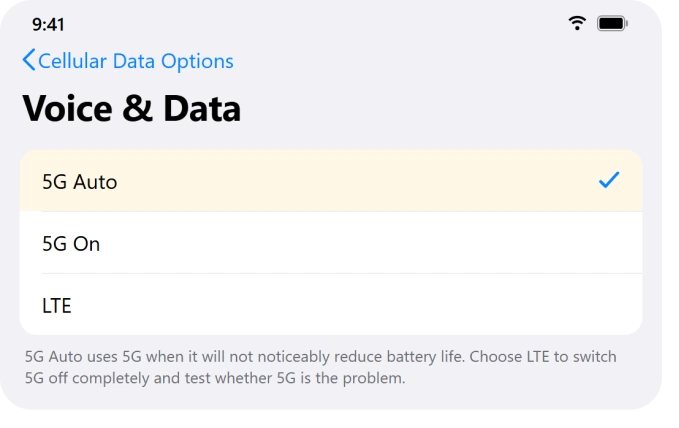
- Go to Settings > Cellular, tap your line, then Cellular Data Options > Voice & Data.
- Choose LTE to switch off 5G entirely.
In Apple's own words, the three options do this:
- 5G Auto is the default. It uses Smart Data mode and drops to LTE when 5G "isn't noticeably better," to save battery.
- 5G On always uses 5G when available, which "might reduce battery life."
- LTE uses only LTE, "even when 5G is available."
Note: this Voice & Data screen only appears on 5G-capable iPhones (iPhone 12 and later) with a 5G plan. On an older phone you will see LTE and VoLTE options here instead.
While you are in there, check that Low Data Mode is off under Data Mode, since it can throttle background connections.
Reset Network Settings
This is one of the most reliable on-device fixes across the iOS 26 releases. It wipes the network state your iPhone may have corrupted during the update and forces a clean re-register with the carrier.
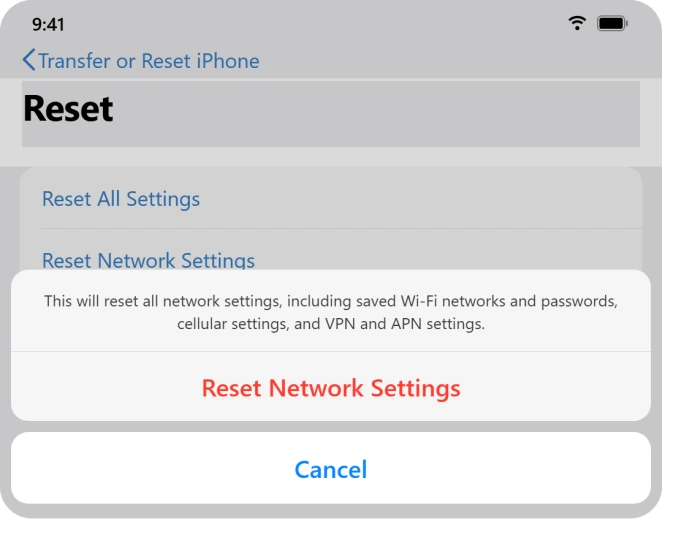
- Go to Settings > General > Transfer or Reset iPhone > Reset > Reset Network Settings.
- Enter your passcode and confirm.
Be clear about the trade-off. In Apple's words, this "removes all network settings (Wi-Fi networks and passwords, cellular settings, VPN and APN settings)." Your photos, messages, apps and contacts are untouched.
Important: you will need to rejoin Wi-Fi and re-pair Bluetooth afterward, so have your Wi-Fi password handy. After the reset, give the modem a little time, up to around half an hour, to fully re-register.
Check for an iCloud Private Relay conflict
A narrow but real case: some owners had working calls and texts but no web pages or apps over cellular, only over Wi-Fi. The cause traced to iCloud Private Relay clashing with the carrier, reported on O2 in the UK.
- Turn it off at Settings > [Apple Account] > iCloud > Private Relay.
- Or per line at Settings > Cellular > [your line] > Limit IP Address Tracking (off).
One owner summed it up: with Private Relay off, "pages load as expected and apps connect without difficulty" in the same spot with the same signal. If your calls work but data does not, this is worth a quick test.
Delete and re-add the eSIM, but only with your carrier ready
For eSIM-only owners whose line stays dead after everything above, the durable fix is often re-provisioning the eSIM with the carrier. This one carries real risk, so read the warning first.
Important: an eSIM is a provisioned profile, not a reusable file. Most carrier and travel QR codes are single-use, so once you delete it the old code usually will not work again.
Do not delete your eSIM unless your carrier has confirmed they can reissue it, or you can be left with no working line at all.
When the carrier is ready:
- Single plan: go to Settings > Cellular and tap Delete eSIM.
- Multiple plans: tap the plan, then tap Delete Plan.
- Re-add via Settings > Cellular > Add eSIM, then scan the new QR code, or choose Enter Details Manually and type the SM-DP+ Address and Activation Code your carrier gives you.
Only the carrier can regenerate that activation, not Apple.
Reseat the physical SIM
If your iPhone still uses a removable SIM, reseating it makes the phone re-read the card and re-authenticate. This does not apply to eSIM-only models like the US iPhone 14 and later, or the iPhone 17 line.
- Power off, eject the SIM tray, and check the gold contacts and tray for dust or damage.
- Wipe gently with a soft dry cloth, reseat the SIM firmly, and reboot.
One owner reported plain success after a tiny change: "I flipped the sim from the top to the bottom of the sim tray and it worked." If a known-good SIM from the same network also fails in your phone, your SIM is the problem and the carrier should replace it free.
Restore the iPhone as a last software resort
If service still will not come back and you suspect the update corrupted something deep, a restore reinstalls the firmware, including the modem firmware that drives cellular.
First, a quick diagnostic: check Settings > General > About > Modem Firmware.
- If it is blank, the baseband firmware is missing or corrupted, and a restore is the right fix.
- If it shows a value but you still have no service, that points more toward a hardware fault or a carrier issue, and a restore likely will not help.
The sequence, after backing up:
- Back up your iPhone first, since a restore wipes the device.
- Use Recovery Mode in Finder or iTunes and choose Restore, not Update. This handles most failed-update cases.
- A DFU restore is the deeper last resort, only if a Recovery-mode restore fails.
One owner who had exhausted everything finally got there through a full wipe at an authorised repair shop: "took a full backup of my phone, wiped it then reinstalled, put in the SIM card, full signal, even better than before."
When it is the carrier, not your iPhone
Now the uncomfortable truth. Plenty of "No Service" cases that survive every step above were never an iOS problem to begin with. Run these checks before you reset one more time.
- Outage test: on Wi-Fi, check your carrier's status page, or ask someone nearby on the same carrier. If they are down too, it is a tower or network outage. A nationwide Verizon outage in January 2026 put iPhones into "SOS" for exactly this reason.
- Account test: call your carrier and confirm the line is active, the bill is paid, and the IMEI is not blocked.
- SIM and device test: put your SIM in another phone, or a known-good SIM in yours, to tell whether the SIM or the phone is at fault.
Stop resetting once an outage, account, or SIM test points elsewhere.
The same SIM test settles it on Android. If the phone is a Pixel that lost signal after Android 17, Google lists the fix in its September 2026 update, and the Pixel No Service page has the steps.
A new iPhone 18 Pro Max that drops to SOS on AT&T may be a different problem. The iPhone 18 Pro Max SOS page covers the modem firmware check and what AT&T told owners.
Carriers like T-Mobile did acknowledge the iOS 26 wave and report it to Apple, but only the carrier can restore a line that is unprovisioned on their end.
Status: iOS 27.0, checked 24 September 2026. New since iOS 27: two-line failures right after the update, and a calling fault on some iPhone 18 Pro models that only a replacement has fixed so far. Apple has published nothing on either. The iOS 26 steps above still apply to a single line that dropped to SOS after an update.
The Short Version
Start small and cheap. Update to the latest iOS 26 build, toggle Airplane Mode for 15 seconds, restart, and let the Carrier Settings update install from Settings > General > About.
Those four fix the majority of post-update cases.
If signal still drops, toggle your line off and on, try LTE instead of 5G, then Reset Network Settings, the most reliable on-device fix. eSIM re-provisioning and a Recovery restore come next, and only with care.
If a nearby phone on your carrier is also down, or a known-good SIM fails in your phone, it is a carrier or hardware issue and no amount of resetting will fix it. Call the carrier at that point.
On iOS 27 with two lines, owners got going again by moving off 5G or reinstalling a VPN app. On an iPhone 18 Pro that cannot make calls, only a replacement has worked so far.
Where to Next
More Apple fixes: This guide is part of pcglance.
Wi-Fi Calling is the usual workaround for weak signal, so it is worth knowing why that switch is sometimes greyed out.
And if your phone reported an emergency you did not trigger, that notification has its own page.
See the full iOS 26 problems and fixes hub, or head to the pcglance homepage and pick your device.

Isaac Smith is the founder and editor of PC Glance, a website that covers computers, laptops, and technology. He is a tech enthusiast and a computer geek who loves to share his insights and help his readers make smart choices when buying tech gadgets or laptops. He is always curious and updated about the latest tech trends.