

You go to AirDrop a photo from your iPhone to your Mac and the Mac never shows up, or the transfer just sits on "Waiting" and fails.
The first move that saves you time is to split the problem in two. If the other device never appears, that is a discovery problem.
If it appears but the transfer stalls, that is a transfer problem. They have different fixes.
Let me take you through the conditions, because AirDrop has more of them than anybody expects.
Check the Basics on Both Devices
Most "it just won't show up" cases come down to one of these, and they take seconds.
- Turn on both Wi-Fi and Bluetooth on each device. They do not need to be on the same network, but both radios must be on. If the iPhone's Wi-Fi itself has been flaky since the update, fix Wi-Fi on iOS 26 first.
- Turn off Personal Hotspot on the iPhone (Settings, Personal Hotspot). A live hotspot blocks AirDrop completely.
- Move the two devices within about 30 feet, keep both awake, and turn off any Focus or Do Not Disturb on the receiver.
Pro tip: The Wi-Fi and Bluetooth buttons in Control Center only disconnect for the day, they do not fully turn the radios off. Use the toggles in the Settings app for a real off and on.
Set the Receiver to "Everyone for 10 Minutes"
This is the single highest-yield fix when a device simply does not appear. If it is set to Contacts Only or Receiving Off, it stays invisible with no error at all.
- On the device that will not show up, open Settings, General, AirDrop and choose Everyone for 10 Minutes.
- On a Mac, open Finder, click AirDrop in the sidebar, and set "Allow me to be discovered by" to Everyone. Apple's Mac AirDrop guide shows the same path.
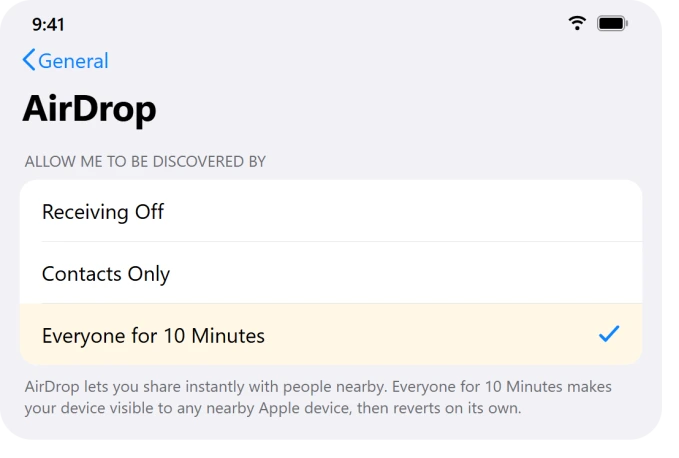
Important: "Everyone for 10 Minutes" turns itself back off after 10 minutes by design. If you set it, got distracted, and it stopped working, just select it again.
Make Contacts Only Actually Work
If you would rather keep it on Contacts Only, it has a strict requirement that fails silently when it is not met.
- Make sure both devices are signed into an Apple Account (Settings or System Settings, your name at the top).
- Save the other person in Contacts with the exact email or phone number tied to their Apple Account. A mismatch makes them invisible with no warning.
- If the Mac is still unreliable, sign out of the Apple Account, restart, and sign back in to refresh its AirDrop identity.
Know About the New AirDrop Code
On iOS 26.2 and macOS 26.2 and later, sending to someone who is not in your contacts now needs a one-time code. This is intentional, not a fault.
- If the receiver is not in your contacts, ask them to tap Get AirDrop Code and read it to you.
- Enter that code on your sending device and the transfer starts.
- To skip the code, add each other to Contacts with matching Apple Account details.
The code buys a window rather than a one-off pass.
Apple: "You can continue to share and receive items using AirDrop with that person for 30 days without needing to use another AirDrop code." To end it sooner, open Contacts, find them under Other Known, and choose Forget This Person.
One thing that is not a fault: holding two iPhones together brings up a contact card rather than a file transfer.
That is NameDrop, and our guide to what NameDrop sends and how to switch it off covers the switch that governs it.
Restore a Mac That the iPhone Cannot See
This is the fix for the Tahoe bug where the Mac sees the iPhone but the iPhone cannot see the Mac. The Mac has quietly stopped advertising itself.
- First toggle Bluetooth off and on on the Mac. If other Bluetooth gear is misbehaving on Tahoe too, the Tahoe Bluetooth fixes cover that side.
- If that fails, open Terminal and run sudo pkill bluetoothd (enter your admin password). macOS relaunches it and rebuilds its advertising.
- If the iPhone still cannot see it, restart the Mac into Recovery Mode and then boot back to macOS normally. Several people said this instantly restored visibility.
Important: Also remove any VPN or third-party firewall and antivirus on the Mac, since they block the direct connection AirDrop uses.
Turn Off the Mac Firewall's "Block All Incoming"
If your Mac appears but transfers fail, one firewall option may be the cause.
Apple's firewall guide confirms it blocks every sharing service, AirDrop included.
- Open System Settings, Network, Firewall, then Options. In Tahoe the firewall lives under Network.
- Turn off Block all incoming connections, turn on Automatically allow built-in software, and click OK.
Does one app ask for permission again every time you open it? That repeating firewall box usually comes from the app being listed twice in this same Options list.
Stuck on "Waiting" or "Failed"? Toggle, Restart, Update
When the device is visible but the transfer hangs, the session is stuck.
- Turn Wi-Fi and Bluetooth off for about 10 seconds on both devices, then back on, and try again.
- Restart both devices. If the AirDrop control on the iPhone is dimmed, turn AirDrop back on in Settings, Screen Time, Content & Privacy Restrictions, Allowed Apps.
- Update iOS. AirDrop broke for many on iOS 26.1 and was fixed in iOS 26.2, so make sure you are past that.
Copy and paste failing between the same iPhone and Mac is a related Handoff fault. Universal Clipboard has its own short checklist.
The Short Version
Decide which half you are dealing with first. If the device never appears, set the receiver to Everyone for 10 Minutes, confirm Wi-Fi and Bluetooth are on with Hotspot off, and fix the Mac firewall.
If your iPhone specifically cannot see your Mac after Tahoe, restart the Mac's Bluetooth service or reboot through Recovery Mode.
If the device shows but the transfer stalls, toggle the radios, restart both, and get on iOS 26.2 or later.
Where to Next
More Apple fixes: This guide is part of pcglance.
See the full iOS 26 problems and fixes hub, or head to the pcglance homepage and pick your device.
If AirDrop stopped after iOS 17 rather than a newer update, the iOS 17 AirDrop page covers that one.

Isaac Smith is the founder and editor of PC Glance, a website that covers computers, laptops, and technology. He is a tech enthusiast and a computer geek who loves to share his insights and help his readers make smart choices when buying tech gadgets or laptops. He is always curious and updated about the latest tech trends.