
You want iOS 26 to stop sliding and zooming at you, and wherever you ask, the answer comes back as one switch: Reduce Motion.
It does work, but it is a sledgehammer, and you may not want to lose everything it takes with it.
Let me show you the seven controls sitting behind it, so you can turn off only the part that is bothering you.
Apple documents each one, but Apple never puts them together on a single page, and ours is the order that makes sense to work through.
Seven controls on one screen, and one of them is not a switch
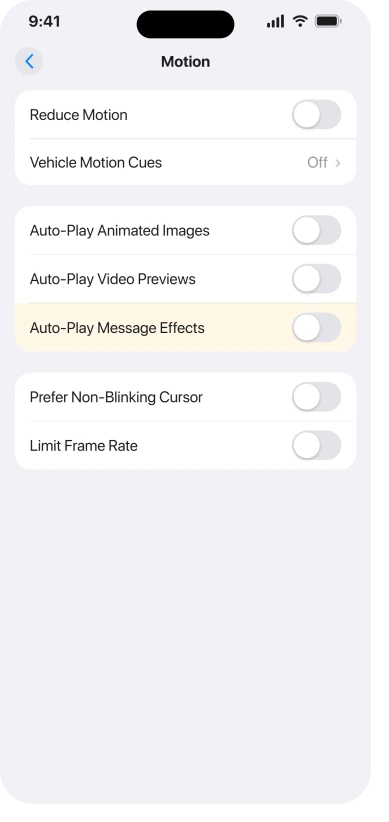
Open Settings, tap Accessibility, then tap Motion.
Apple's list of what these controls cover, in its onscreen motion guide, runs to wallpaper and alert effects, screen transitions, Siri animations, typing autocompletion, "animated full-screen and bubble effects in the Messages app", and animated images on the web and in apps.
Seven controls sit on that screen. Six are simple on and off switches, and Vehicle Motion Cues opens a screen of its own.
Nearly every complaint about iOS 26 being too busy maps to one of these, though two of the ones people hunt hardest for are on a different Accessibility screen.
Match the annoyance to the switch
Before changing anything, name the thing that is actually bothering you. Each row points at a different control, and picking the right one saves you from a system-wide change you did not need.
- A text arrives and the whole screen erupts in balloons, confetti or lasers: Auto-Play Message Effects.
- A thread or a web page will not sit still, with GIFs looping constantly: Auto-Play Animated Images.
- The App Store starts playing trailers as you scroll: Auto-Play Video Previews.
- Video content flashes or strobes: Dim Flashing Lights, on a different screen.
- The keyboard and buttons flash as you tap them: Reduce Bright Effects, on that same different screen.
- The interface itself ripples, morphs and springs as you open apps and notifications land: Reduce Motion.
- Everything feels too fast and too smooth on a ProMotion model: Limit Frame Rate.
Stop message effects playing by themselves
This is the complaint that sends people looking, usually after a text arrives and the whole screen erupts.
Turn off Auto-Play Message Effects. Apple describes exactly what changes: "When on, the Messages app automatically plays full-screen effects. If you turn this setting off, you can still manually play effects by tapping Replay below the message bubble."
That last clause matters and almost no guide repeats it. You are not switching effects off, you are switching off the automatic playback.
Anything a friend sends still arrives with a Replay button under the bubble, so you choose when to watch it rather than having it fired at you.
Stop GIFs and video previews starting on their own
Two more toggles on the same screen, aimed at different offenders.
- Auto-Play Animated Images. Apple's description: "When on, rapid animated images and moving elements such as GIFs in Messages and Safari play automatically." Turning it off is the fix for a thread or a web page that will not sit still.
- Auto-Play Video Previews. Apple names the culprit directly, saying it "allows apps such as the App Store to automatically play video previews."
Neither of these touches the way iOS itself looks. They only stop content from starting without you.
For making the moving picture itself, assemble a GIF from chosen photos in Shortcuts; playback switches only affect viewing.
Two smaller controls sit on the same screen. Prefer Non-Blinking Cursor stops the typing cursor blinking, which Apple notes also steadies the cursor indicator on a connected braille display.
Vehicle Motion Cues is the odd one out, because it adds motion rather than removing it.
Apple's description is that "dots appear and move on the screen to reduce or stop onscreen motion".
Tap Vehicle Motion Cues on the Motion screen, rather than trying to flick it from the list, and choose Automatic so iPhone switches it on when it detects you are travelling.
If reading in a moving car is uncomfortable for you, that is the setting to turn on rather than off.
The flashing controls are on a different screen
This is the detail that trips up the instructions circulating for this, which send you to the Motion menu.
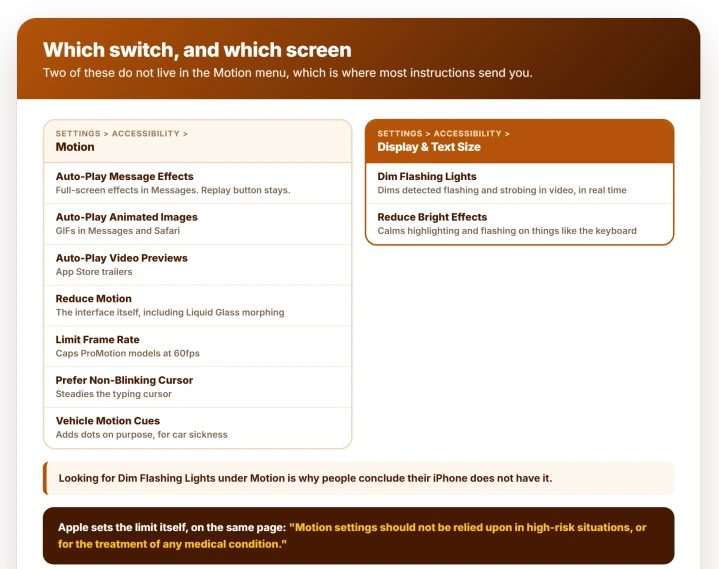
Dim Flashing Lights is not in the Motion menu.
Apple's same guide puts it in Settings > Accessibility > Display & Text Size, along with Reduce Bright Effects, which Apple describes as reducing "highlighting and flashing effects that may appear when interacting with certain onscreen elements, like the keyboard".
Apple explains the mechanism itself: "Your iPhone uses an on-device algorithm to detect flashing or strobing lights included in supported media and automatically dims them on your iPhone in real time."
Apple then adds a limit in the same breath, and it belongs here rather than at the end: "Motion settings should not be relied upon in high-risk situations, or for the treatment of any medical condition."
Read that as written. These settings reduce what reaches you, and Apple does not present them as protection.
If flashing video is a medical issue for you, treat them as a comfort feature and not a safeguard, and take the medical question to someone qualified to answer it.
When Reduce Motion is genuinely the right switch
Reduce Motion earns its place when the thing bothering you is the interface itself rather than content playing inside it.
Apple ties it directly to the iOS 26 look, noting that with Reduce Motion off "you'll see more motion, like the fluid morphing effects of Liquid Glass".
So the rippling, lensing animation as panels open and close, and the springy way notifications land, are its territory. None of the auto-play toggles touch those.
The cost is that it applies everywhere at once. Screen transitions flatten into cross-fades across the whole system, not only in the app that annoyed you.
If what actually bothers you is how the glass looks rather than how it moves, that is a different set of controls, and our guide to dialing Liquid Glass down covers the transparency and contrast side.
Limit Frame Rate, and what you give up
The last toggle on the Motion screen is the one to be most careful with.
Limit Frame Rate, in Apple's words, applies "on models with ProMotion display technology" and "limits the maximum frame rate of the display to 60 frames per second".
That halves the smoothness of everything on a ProMotion model, scrolling and games included, in exchange for calmer motion and less display work.
ProMotion is no longer Pro-only, so this applies more widely than it used to.
It is a real lever if the motion itself is what you cannot tolerate, and a poor trade if you were only irritated by one bouncing notification. Try the targeted toggles first.
Because it makes the display work less hard, it can also help a phone that runs warm, which is one item on the list in our iPhone overheating guide.
On iOS 27 the app switcher can also stutter with tinted or clear icons at 120 Hz, and the icon stutter page covers the switch owners made.
What does not help
- Reaching for Reduce Motion first. It is the most-repeated answer and the bluntest one. If a single thing is annoying you, a single toggle probably covers it.
- Hunting for a Messages setting inside Messages. Every control described on this page lives in Accessibility, not in the app doing the animating.
- Looking for Dim Flashing Lights under Motion. It sits under Display & Text Size, which is how a reader concludes their iPhone does not have the setting at all.
- Expecting these to stop effects entirely. Auto-Play Message Effects stops automatic playback and leaves a Replay button, by design.
Status: current for iOS 26.6. These controls are standard iOS features rather than a bug fix, so they are unlikely to move, though Apple has reorganized the Accessibility menus before.
Why do iOS 26 notifications bounce when they arrive?
That springy landing is part of the iOS 26 interface rather than anything a single app is doing, so none of the auto-play toggles affect it. Reduce Motion is the control that covers it, and it is one of the few complaints where the system-wide switch really is the only answer. Owners have asked about this one directly on Apple's own forum.
Does turning these off change how my iPhone looks?
Only Reduce Motion does. The auto-play toggles stop content starting by itself and leave the interface exactly as it was, which is why they are the ones to try before the blunt switch. Reduce Motion flattens screen transitions everywhere and calms the Liquid Glass morphing along with them.
How do I stop full-screen effects in Messages on iOS 26?
Open Settings, tap Accessibility, tap Motion, and turn off Auto-Play Message Effects. Effects then stop playing the moment a text lands, and a Replay button appears under the message bubble instead, so nothing is lost and you choose when to watch one. It is a separate switch from Reduce Motion, which changes the whole interface.
Does Reduce Motion turn off message effects?
Not specifically. Reduce Motion targets the interface itself, including the Liquid Glass morphing, the springy way notifications land, and screen transitions across the whole system. Auto-playing message effects have their own separate toggle on the same screen, which is why the targeted switch is the better first move and costs you nothing else.
Where is Dim Flashing Lights on iPhone?
Settings, then Accessibility, then Display & Text Size. It is not in the Motion menu, which is where most instructions send people, and looking there and finding nothing is how readers conclude their iPhone does not have the setting. Reduce Bright Effects, which calms flashing on things like the keyboard, is on that same screen.
Will turning off animations save battery?
Limit Frame Rate is the only one of these that meaningfully reduces display work, and it applies to ProMotion models, which are no longer Pro-only. The auto-play toggles stop content from starting on its own rather than changing how hard the screen works, so do not expect them to show up in your battery figures.
The Short Version
- Everything is in Settings > Accessibility > Motion, and there are seven controls.
- Auto-Play Message Effects off stops full-screen effects on arrival. A Replay button stays under the bubble.
- Auto-Play Animated Images covers GIFs in Messages and Safari. Auto-Play Video Previews covers the App Store.
- Dim Flashing Lights and Reduce Bright Effects are on a different screen: Accessibility > Display & Text Size.
- Reduce Motion is for the interface itself, including the Liquid Glass morphing and the springy notifications. It changes the whole system.
- Limit Frame Rate caps ProMotion models at 60fps. Real relief, real cost, so try the targeted toggles first.
- Apple's own limit: these "should not be relied upon in high-risk situations, or for the treatment of any medical condition."
Where to Next
Everything lives in Settings, Accessibility, Motion, and I would go through them one at a time rather than reaching for Reduce Motion.
Turn off only what actually bothers you, then use the phone for a day before deciding.
If there is an animation still driving you mad that none of the seven touches, describe it to me in the comments, because there may be a setting somewhere else entirely.

Isaac Smith is the founder and editor of PC Glance, a website that covers computers, laptops, and technology. He is a tech enthusiast and a computer geek who loves to share his insights and help his readers make smart choices when buying tech gadgets or laptops. He is always curious and updated about the latest tech trends.