Find My or icloud.com/find can show where your missing iPad is. Choose your iPad and play a sound if it's nearby. If you can't get it back right away, turn on Lost Mode to lock it and display your contact message.
An iPad marked Offline needs different steps from one that isn't listed at all. Offline means a fresh location isn't available; a missing entry can mean you're using the wrong Apple Account or Find My wasn't on before the iPad disappeared.
In this guide
1. Open Find My using the iPad's Apple Account
On another iPhone or iPad signed in to that same Apple Account, open Find My > Devices and select the missing iPad. On a Mac, open Find My, select Devices, then choose it from the list.
If the app was deleted from your spare iPhone, restore the Find My app before checking its Devices tab. Installing it on that phone doesn't change the missing iPad's settings.
Without another Apple device, visit icloud.com/find from the browser. Use the missing tablet's account details to sign in. A Windows laptop or an Android phone can use this route too.
Apple's lost-device instructions explain that this Find Devices sign-in doesn't need a verification code. If the normal iCloud sign-in asks for one, select Find Devices instead.
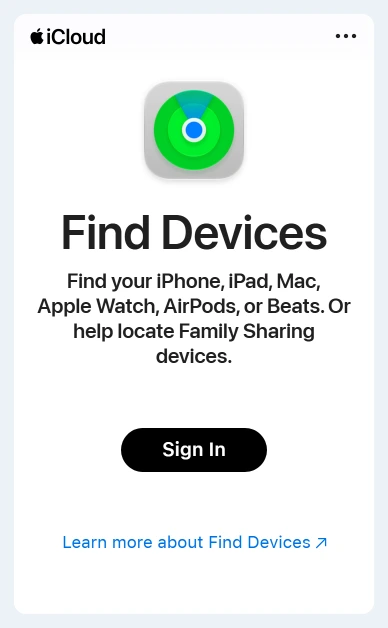
Choose the iPad from the device list, using All Devices to return to that list when needed. Check the device name carefully when several iPads belong to the account. A map pin for an old tablet won't help locate the one you've lost.
If you use Family Sharing, your iPad can also appear underneath a family member's devices in their Find My app. Use that existing family connection rather than signing your account into their phone's main Settings app.
2. Use the map and sound for a nearby iPad
When a location appears, check its time as well as its position. A location from earlier in the day tells you where the iPad was then, rather than confirming it's still there. Think through where you went after that time.
Select Play Sound when the map points to somewhere you can safely search, such as home or the office. Follow the sound through rooms, bags and furniture. This is more useful indoors than treating a map pin as an exact spot.
I'd try the sound before retracing a whole journey when the location is familiar. It gives you something to follow, and it can reveal an iPad tucked into a bag you already checked by sight.
If the sound can't play, read the device's connection status before retrying. Continue with section 3 to check what location information may still be available while it's offline.
3. Handle Offline and an old location differently
On iCloud.com, a device that can't be reached can show Offline, with its last location available for up to a day (24 hours). Select Notify me when found for an email notification after its next connection.
The Find My app can also use Find My network if it was turned on before your iPad went missing. Nearby participating Apple devices can help report its location even when the iPad itself is offline.
Try the app on a spare device with your account if the website isn't giving you a useful position. The iCloud location guide distinguishes the website's last location from Find My network information.
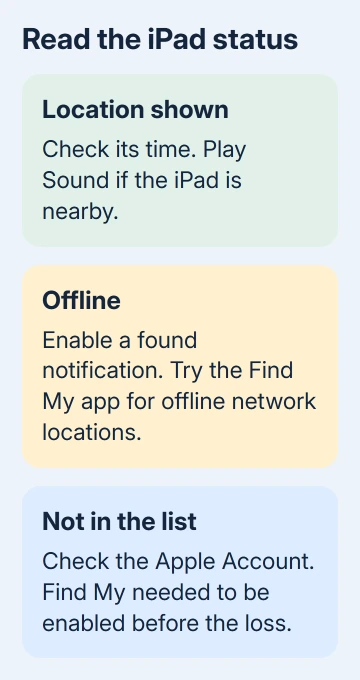
The map can keep showing an older location while it waits for an update. Give a venue's lost-property desk the location and its time. Describe the iPad's case and identifying marks, and explain when it was last seen there.
If a pin points to an unfamiliar property and theft is possible, give the information to local law enforcement. Don't confront someone based on an approximate map position.
4. Turn on Lost Mode while you keep looking
On icloud.com/find, select the iPad and choose Mark As Lost. Follow the passcode prompts and add contact details with a brief lock-screen message. Use a number you can answer while the iPad is missing.
In the current Find My app on iPhone or iPad, open Devices, select the iPad and tap More. Scroll to Lost [Device], turn on Lost Mode, follow the contact-message prompts and tap Activate.
Lost Mode locks the iPad with its passcode and suspends payment cards and passes that support this protection. If it had no passcode, you'll be asked to set a passcode. Keep that code somewhere you can retrieve it.
An offline device can't receive the command immediately. The lock takes effect when the iPad turns on and connects to Wi-Fi or cellular. Sending the request doesn't mean the lock is active yet.
Don't share your passcode, account password or verification codes with someone claiming they've found it. A contact message gives a finder a way to reach you without giving them access to your account.
5. Check the account when the iPad isn't listed
Check whether the missing iPad used a different Apple Account, including an older address. A device list belonging to your current phone's account won't necessarily include a tablet set up years earlier with another one.
If Find My wasn't turned on before the loss, it can't be enabled remotely now. The iPad won't appear in Find Devices, and Find My can't mark it as lost or erase it. Installing the app elsewhere can't add that missing setup.
For an iPad provided by a school or employer, contact the organization with its asset number or serial number. Ask whether they can use their device-management system to help recover it. Give them the last place and time you had it.
Protect the account if recovery doesn't happen
Report a suspected theft with the iPad's serial number, available from its packaging or purchase records. Review your Apple Account security details and change your password if you see changes you didn't make.
Consider erasing it remotely later if protecting its contents becomes more important than recovering it. Erasing can't be undone; an offline request waits until the iPad reconnects. Keep it in Find My afterward to retain Activation Lock.
For account-access trouble, start an Apple Support chat and ask for Apple Account sign-in help. Sign-in help can't give you a new map location without a report from the iPad or Find My network.
The Short Version
Open Find My or icloud.com/find with the iPad's account. Check the location time, play a sound nearby and enable Lost Mode if recovery isn't immediate. Use notifications for an offline device; check the account if it isn't listed.
Checked November 16, 2026.