
Find My iPhone is accessed through Apple's Find My app on current iPhones. To get it back when its icon is missing, search App Library first. If it was deleted, restore Find My from the App Store's Apple listing.
A missing icon and a missing device on the map need different checks. Restoring the app gives access to its interface; it cannot add tracking to a phone that disappeared before Find My was enabled.
Look for Find My in App Library first
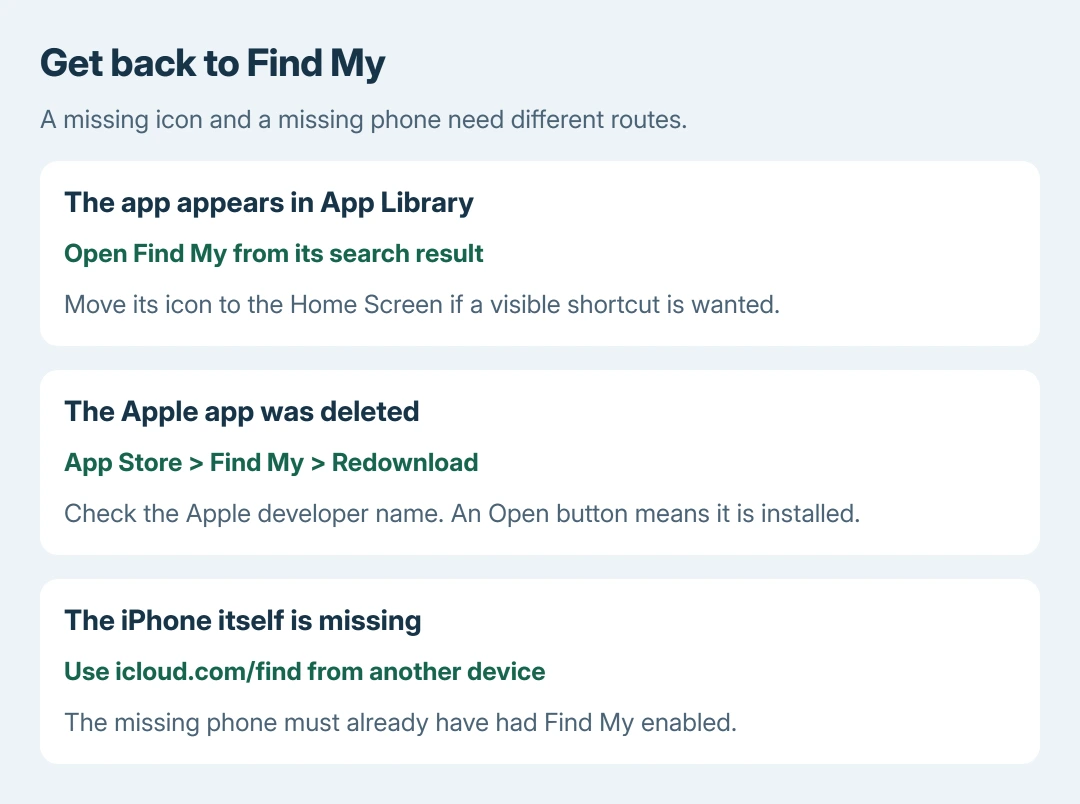
From the Home Screen, swipe left through the pages until App Library appears. Tap its search field and enter Find My. Tap the matching app to open it.
Apple documents searching and moving apps in its App Library instructions. Finding the app there means another download is unnecessary.
Status: Find My app restoration, App Library and Apple's deletion notes verified October 28, 2026. No app was downloaded and no device location was accessed.
To return the app to the Home Screen, touch and hold its App Library icon until the icons jiggle and it moves onto a Home Screen page. Release it in the intended position.
An iPhone with Face ID returns home with an upward swipe from the lower edge. Press Home instead if the iPhone has that button. The app remains searchable in App Library even when it has no Home Screen icon.
Restore the deleted Apple app
Open App Store, tap Search and enter the exact name Find My. Check that the developer is Apple before choosing the listing; another app with a similar tracking name is a different product.
Tap the Redownload button, shown as a cloud with a downward arrow. Once the installation completes, tap Open. Complete any authentication prompt the App Store presents.
Apple's built-in app restoration page supports this procedure. If the listing already says Open, try that button: the app is installed rather than awaiting restoration.
The developer check is ours. It keeps the task focused on Apple's built-in service instead of a similarly named subscription or third-party locator app.
Understand what deleting the icon did
Apple says deleting Find My does not break existing location-sharing relationships. Its current iPhone guide also says removing the app does not turn off Find My for the device or items.
Consequently, reinstalling the app is not the same operation as reenrolling the phone or switching location sharing on. An absent app icon cannot prove that the phone stopped being findable.
After it opens, use the appropriate Devices, People or Items tab. If a device appears but cannot supply a position, the Find My location-status checks explain that separate problem.
What if the iPhone itself is missing?
Use icloud.com/find from another device's browser. The Find Devices web procedure covers account sign-in, locating and protecting an already enrolled phone.
Downloading Find My onto a different phone cannot remotely enable it on the missing one. Sign in with the missing device's Apple Account; downloading an app does not establish ownership.
When the App Store cannot restore it
If App Store itself is absent, use the missing App Store checks. Installation restrictions or a managed phone need attention before another app can be restored.
For a failed Find My download, record the exact App Store message and contact Apple Support. On an employer's or school's iPhone, ask the administrator about permitted app installation.
Do not reset the iPhone merely to replace this one app. A failed download needs its error checked before a whole-device erase is considered.
The Short Version
Search for Find My in App Library, then restore Apple's app if it was deleted. Open an installed copy directly when the store offers Open. A missing phone needs Find Devices and existing enrollment, not a replacement app download.

Isaac Smith is the founder and editor of PC Glance, a website that covers computers, laptops, and technology. He is a tech enthusiast and a computer geek who loves to share his insights and help his readers make smart choices when buying tech gadgets or laptops. He is always curious and updated about the latest tech trends.