
iCloud Find works from a browser at icloud.com/find, including on a Windows laptop or Android phone. Use the missing device's Apple Account to sign in, then select it from the device list.
This Find Devices route does not require a verification code. At a code prompt, select Find Devices. The map and Play Sound help search; Mark As Lost protects an iPhone that is not recovered.
Sign in to Find Devices with the correct account
Type icloud.com/find into the browser yourself. Apple documents the code-free entry in its lost iPhone instructions. The Apple Account password is still required.
Open All Devices if necessary and select the missing iPhone. Confirm its name before sending a command. On a borrowed computer, sign out when finished and decline any offer to save the account password.
Status: Apple's Find Devices web instructions checked October 26, 2026. Web and app location-history limits differ. No device was located, locked or erased for this article.
Find My must have been enabled before the device disappeared. A device that was never enrolled cannot be added remotely now. If a Mac's switch never stayed on, the Find My Mac setup checks address that separate fault.
Read the location's age before following the map
Select the device and inspect its status. Apple says the browser retains its last reported position for 24 hours at most. Select Notify me when found to request an email when it comes online.
The pin is an approximate location. An old location is not confirmation that the phone remains there. Do not confront someone at an unfamiliar address based on a map pin; report a suspected theft to local law enforcement.
The app has a different limit. Apple's web location guide describes retaining Find My network reports for as long as seven days. Check the app on another Apple device using the same account.
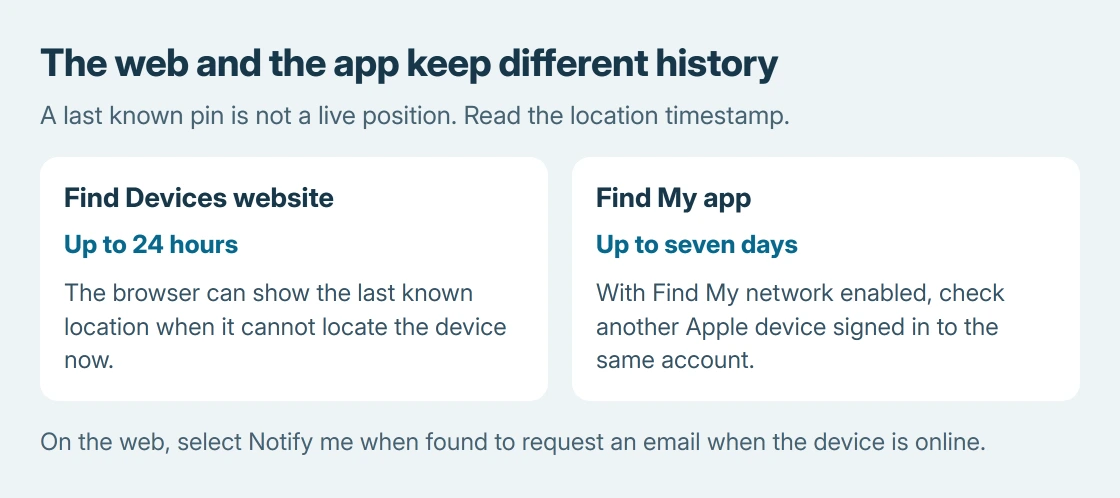
That difference matters when the browser no longer has a useful pin. Check the app if another signed-in Apple device is available. The Find My status explanation covers messages shown inside the app.
Use Play Sound when the phone could be nearby
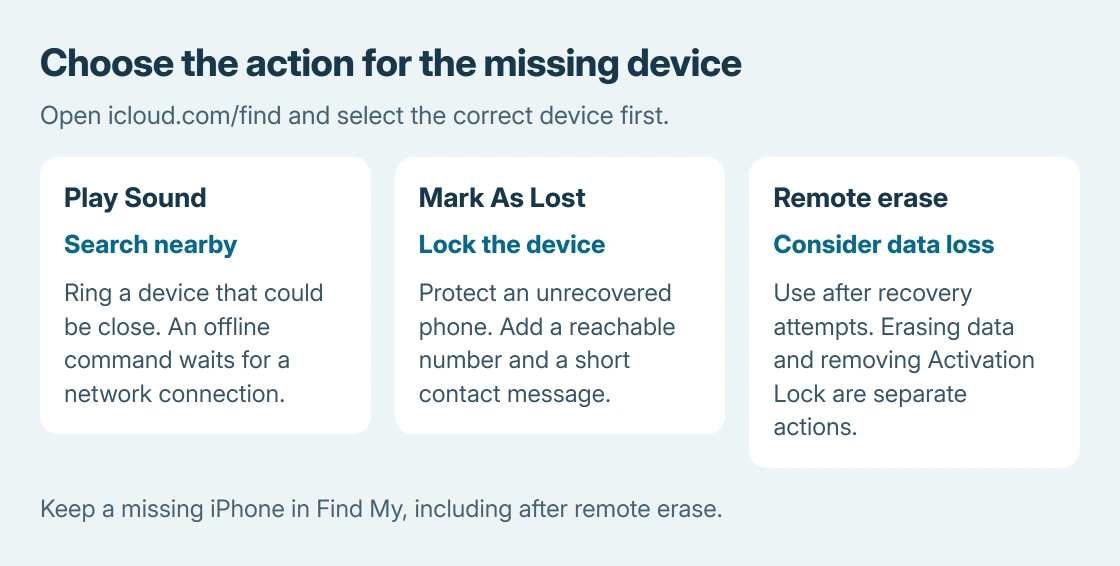
With the correct device selected, choose Play Sound. Apple states that its sound command works even with Silent mode or muted volume.
For an online device, the sound begins after a short delay and gets louder. For an offline device, the command waits until it connects to Wi-Fi or cellular. A silent response from an offline phone does not establish a broken speaker.
When the iPhone is found, a volume or power-button press can stop the sound. If it is not nearby or cannot be recovered promptly, continue with the locking command instead of relying on ringing alone.
Mark the missing iPhone as lost
Select Mark As Lost, then follow the prompts. Supply a phone number where someone can reach you and a short contact message. Use a different reachable number when the missing phone is your only handset.
Apple's Lost Mode guide explains that the device locks and applicable payment services are suspended. An existing iPhone passcode protects it; the setup prompts create one if required.
The phone needs an internet connection to receive the command and show the contact message. An offline selection is not confirmation that the lock has already reached it. Check the status again when the device reconnects.
Do not give a supposed finder the account password, device passcode or a verification code. Apple says it will not contact you to announce that the missing iPhone has been found.
Keep removal separate from remote erase
Remote erase is for a device that cannot be recovered after other attempts. It deletes device information and cannot be undone. Check the backup position before choosing it; an offline erase waits for the phone's next connection.
Removing the device from Find My is a separate action. It removes Activation Lock and makes a stolen phone easier to reuse. Leave the missing device associated with the account, including after a remote erase.
For AppleCare+ Theft and Loss, Apple also requires keeping the iPhone in Find My and the Apple Account until the claim is fully approved. Contact the carrier about the missing line and follow the insurer's claim instructions.
If sign-in itself fails, use Apple's account recovery support. If the device never had Find My enabled, focus on account security, the carrier and the theft report. Another browser cannot create the missing enrollment.
The Short Version
Open icloud.com/find, select the device and read the pin's age. Ring a nearby phone or mark an unrecovered one as lost. Use Find Devices at a code prompt. Erase and account removal have different consequences.

Isaac Smith is the founder and editor of PC Glance, a website that covers computers, laptops, and technology. He is a tech enthusiast and a computer geek who loves to share his insights and help his readers make smart choices when buying tech gadgets or laptops. He is always curious and updated about the latest tech trends.