An outdated OneDrive app caused a confirmed Shared tab crash while work files still opened online. Install the latest app update first. If OneDrive stays open but refuses one folder, have its owner review the invitation.
Repeated sign-in prompts can be part of the crash. In the original case, signing in again and reinstalling hadn't solved it; a later app version did.
In this guide
1. Install the OneDrive app update
Open the App Store, tap your account picture, and look for available updates. On interfaces that show App Updates, open that list. Choose Update beside Microsoft OneDrive, then launch the app after installation finishes.
If the app isn't listed, search the App Store for Microsoft OneDrive and open its product page. Open means that device isn't being offered an update through that account right now. Update starts the newer version's installation.
Apple explains the manual app update route. Your organization may manage iPad updates for you. Ask IT to deploy the update if the App Store controls aren't available.
Return to Shared and open one file you recognize. Success means Shared stays open and its file loads. Opening your own Files list won't tell you whether Shared works again.
The historical incident was resolved with OneDrive 9.3.10 on iPad after reports involving 9.3.3. Those are old version numbers, not downloads to seek today. Use the current compatible release offered for your device.
2. Close the app and restart the device
If Shared still closes OneDrive after updating, quit the app once. For iPhones without Home, start the swipe along the very bottom of the display. Swipe toward the center and pause. Find OneDrive, then flick its preview upward.
For Home button models of iPhone and iPad, double-click Home to display recent apps, then swipe OneDrive's preview upward. Other iPads use the upward swipe and pause gesture. Launch OneDrive again and check Shared.
If it still fails, restart normally. For iPhones without Home, hold Side and either Volume button simultaneously until the power-off slider shows. Home button iPhones need only their side button, or their top button on older models.
Use the slider, then allow 30 seconds for shutdown. Restart by holding the iPhone's side button; older models use their top button instead. Release the button at the Apple logo and let the phone finish starting.
For iPads without Home, hold Top along with either Volume button. With Home, hold only Top. Slide the power-off control; wait 30 seconds for the tablet to shut down. Hold Top again until the Apple logo shows.
This can clear a stuck session without removing your account setup. If Shared immediately crashes again, compare access instead of repeatedly rebooting. A persistent work-account failure needs a different check.
3. Separate a crash from a permission problem
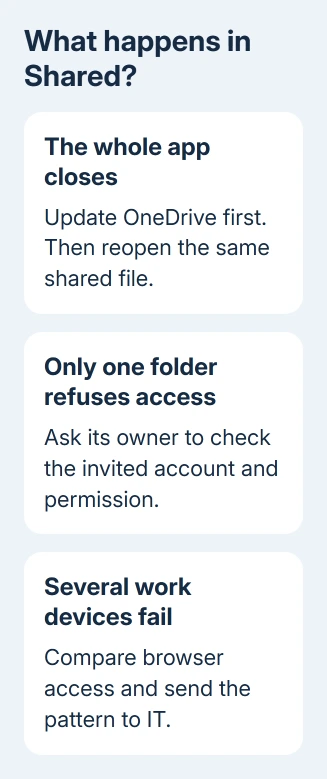
Check what happens when you tap Shared. Does the whole app close, does a sign-in message repeat, or does the list open normally until you select one folder? Record any message you can read before the app closes.
Open the same shared item through its original invitation in Safari. Sign in with the invited work or school account and check whether it opens there. If Safari opens the file, use that browser copy while repairing OneDrive.
If one folder refuses access in both places, ask its owner to review Manage access for the invited address. The OneDrive sharing permission guide covers the owner's view and edit choices.
Tell support if the web route works while the app closes. One owner reported that pattern on iPhone and iPad in the original case. It wasn't a reason to remove the group's file permissions.
A shared folder opening as a computer link, despite working online, has a separate OneDrive shortcut problem. Keep the iOS app crash separate from that desktop behavior when describing what failed.
4. Reset or reinstall only if the app still fails
If settings remain accessible, open Profile > Settings > Account. When several accounts are connected, choose the affected one, then select Reset. This resets that account in the mobile app.
Reopen the app and check Shared again. If you can't reach settings because the app closes, skip that control and try reinstalling. Before removing the app, preserve any edits or files held only there.
On current iOS or iPadOS, press and hold OneDrive's Home Screen icon, choose Remove App, then Delete App. Reinstall Microsoft OneDrive from the App Store and sign back into the intended account.
Some managed devices block removal or require a company app portal. Ask IT to reinstall the approved app there. Deleting only the Home Screen shortcut leaves the installed app in place.
The OneDrive iOS troubleshooting page includes reset and reinstall routes. In the saved Shared-tab case, cache resets and reinstalling had failed before the later update resolved it.
I'd stop repeating reinstalls after one clean attempt. If multiple updated devices fail for that account, ask IT to check what's affecting the organization before reinstalling on each iPad again.
When several work devices fail together
For a work account, ask a colleague whether Shared works on their updated device. Compare the app version and whether their files open in a browser. Use files each person already has permission to access.
If several users are affected at the same time, have IT open the admin center's Health > Service health page. If no incident matches, request support. Include affected app versions and the browser comparison.
If only your device fails, report its model, iOS or iPadOS version, OneDrive version and exact action that closes the app. Note whether Shared alone fails or the app also crashes in your own folders.
Include any repeated sign-in message, keeping the account address private. The original case mentioned sign-in information even though web access worked. That helps support tell the app problem apart from an expired invitation.
The Short Version
Update OneDrive first, then check Shared after closing the app and restarting the device. Compare the same file in Safari. Use reset or reinstall once if needed, and ask IT to check a crash affecting several work devices.
Checked November 17, 2026.