An Update Apple ID Settings alert means account sign-in or iCloud approval isn't finished. Tap Continue inside Settings, then answer the request shown: an account password, verification code, or device passcode.
If the spinner never moves, check the connection and restart the device. A request for an old iPhone's passcode is asking you to approve access to protected data instead. Repeating your account password won't answer that second request.
In this guide
1. Finish the alert inside Settings
Open Settings and tap Update Apple Account Settings near the top. Older software calls it Update Apple ID Settings. Both names refer to the account you're already using. That name change doesn't require a new account.
Tap Continue and read the next screen before typing. The account password signs into your account. The passcode is the code used to unlock the named iPhone or iPad. A six-digit verification code is a separate security check.
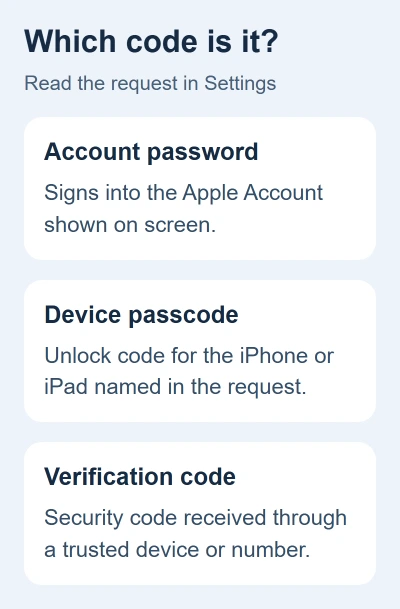
Enter your current password when requested, including one recently changed elsewhere. Read the displayed account address. If the alert names someone else's account, you'll need their help. Your password won't work for their account.
Apple's iCloud sign-in instructions explain that services may need updated sign-in details after a password change. Complete the request and return to the main Settings screen to see whether the alert has cleared.
If the alert returns without an error, note whether it appears while you're in Settings or when you open a different app. The repeated Apple Account sign-in guide covers purchase and app prompts beyond this Settings alert.
2. Treat a spinner differently from a rejected password
A spinner means the request hasn't finished. A password error means the sign-in details weren't accepted. Don't reset a working password to deal with a spinner. That would give every signed-in service another change to process.
Check that Safari can load pages. Switch from Wi-Fi to cellular data, or try another trusted Wi-Fi connection. On a Wi-Fi-only iPad, try another wireless network. Then reopen Settings and try the alert again.
For cellular access, open Settings > Cellular and enable data. The regional menu label can differ. If the alert clears on the second network, have the original connection checked.
If the account screen reports a service outage, retry after the listed incident has ended. The iCloud support page links to System Status. Repeated password changes won't repair an unavailable sign-in service.
I'd change the connection before signing out. It's a smaller step, and it leaves the phone's existing iCloud setup in place while you check whether it can reach the account service.
3. Restart Settings and the device without erasing it
Close Settings in the app switcher, reopen it, and retry once. For the app switcher on a Face ID iPhone, slide your finger from the lower edge toward the center, then pause. Double-press Home on an iPhone that has that button.
Swipe the Settings preview up to close it. If the phone still responds, try a normal restart next. Settings > General > Shut Down gives you the power-off slider without needing a model-specific button combination.
After the screen turns off, press and hold Side until the iPhone starts. An iPad uses its top button. Unlock it, reconnect to the internet, and return to the alert. A restart doesn't require erasing content or restoring a backup.
If Settings is stuck because the whole device has frozen, use the force-restart steps for your iPhone. Button sequences differ between generations; holding every button together isn't a reliable substitute.
4. Answer approval requests with the named device's code
A screen asking for another iPhone's passcode is checking access to protected iCloud information. Read the device name carefully. It can be asking for the unlock code used on an older device rather than your current phone's unlock code.
To approve iCloud Keychain, you may need a previous unlock code or confirmation on a trusted device after choosing Approve Later. The Keychain setup instructions describe that approval requirement.
If that device is no longer available, use the screen's other options rather than guessing codes. If offered an encrypted-data reset, read what it will delete before deciding. It's different from restarting Settings.
For a password-sync request, open Settings > your name > iCloud > Passwords > Sync this iPhone. The iCloud label on iOS 17 and earlier is Passwords and Keychain. Use this path if password syncing is what still needs approval.
On a Mac, open System Settings > your name > iCloud > Passwords. macOS Sonoma or earlier uses Passwords & Keychain. Approval can still be needed there; changing the device doesn't remove the security requirement.
5. Let a restore finish and install available updates
An unfinished iCloud restore can keep asking for account details. Give it reliable Wi-Fi and a power connection so it can finish. Check for ongoing restore activity before trying account setup again.
For available software updates, open Settings > General > Software Update on iPhone or iPad. On a Mac, use System Settings > General > Software Update. Create a fresh backup before changing system software.
Return to the account alert after the update and restart finish. If it now moves past Continue but stops at a verification request, follow that request. Reaching that screen can mean the connection problem is already solved.
Take the unfinished request to account support
If your password is rejected everywhere, start account recovery through the iCloud help page. If your password works elsewhere but Settings keeps looping, ask Apple Support about the unfinished Update Apple Account Settings request.
Tell support your model, software version, account address, and which request you can't finish. Mention a recent password change, restore, or request for a previous device's passcode. Keep your login password and sign-in codes to yourself.
The Short Version
Finish the specific request behind Continue. Change networks and restart for a spinner; use the named device's passcode for protected-data approval. Let restores finish, update the device, and take a persistent loop to account support.
Checked November 16, 2026.