
Quick Start is the easiest way to transfer everything from one iPad to another when you have both tablets. Turn on Bluetooth and connect the old iPad to Wi-Fi, then bring the new one close to begin its setup.
Choose a direct copy from the old tablet, or restore from iCloud if you prefer. Some content downloads after setup, and services can require another sign-in. Keep the old tablet until you've checked the apps and files you use every day.
In this guide
Prepare the old iPad and choose a transfer route
Before starting, check that you know your Apple Account password. Keep the old tablet's unlock passcode handy too.
Plug both iPads into their chargers and update their software when possible. Set aside a period when neither iPad is needed for other work.
Quick Start can begin from an iPad running iPadOS 13 or later. The old tablet needs Wi-Fi connected and Bluetooth switched on. Unlock it and leave it at the Home Screen before bringing the new tablet close.
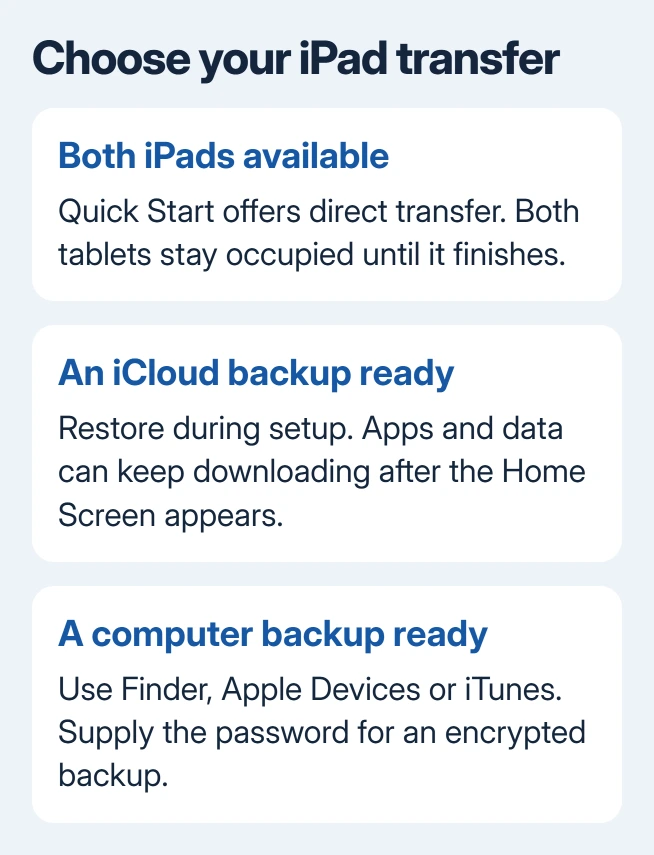
For two working tablets, I'd start with Quick Start. Without the original, you'll need a backup saved earlier, either on iCloud or a computer. A replacement can't remotely create a fresh backup of a missing tablet.
Neither tablet is free to use during a direct copy. With an iCloud restore, you can use the new iPad sooner while downloads continue. How long the transfer takes depends on your connection and how much data you're moving.
Enrollment through Apple Business blocks this Quick Start transfer. So does enrollment through Apple School Manager. Ask the device's administrator for the approved setup method.
Start Quick Start while the new iPad is at Hello
Turn on the new iPad beside your unlocked old one. Accept the setup invitation and check the account it offers. Apple explains the pairing in its Quick Start procedure.
- Follow the onscreen pairing prompts between the two iPads.
- Enter the requested passcode and connect the new iPad to its network.
- Set up the unlock method your model offers: Face ID on supported models, or Touch ID.
- Choose the direct device transfer when offered, rather than an iCloud download.
- Keep the tablets next to each other on their chargers. Wait for completion on each screen.
A Home button model uses Touch ID where supported; a model with Face ID offers face setup instead. Follow the new iPad's prompts rather than looking for the unlock control from your old model.
If the setup invitation vanishes, restart both tablets and try again. Repeated restarts of the transfer call for the iPad setup reconnection checks before you erase or reset anything else.
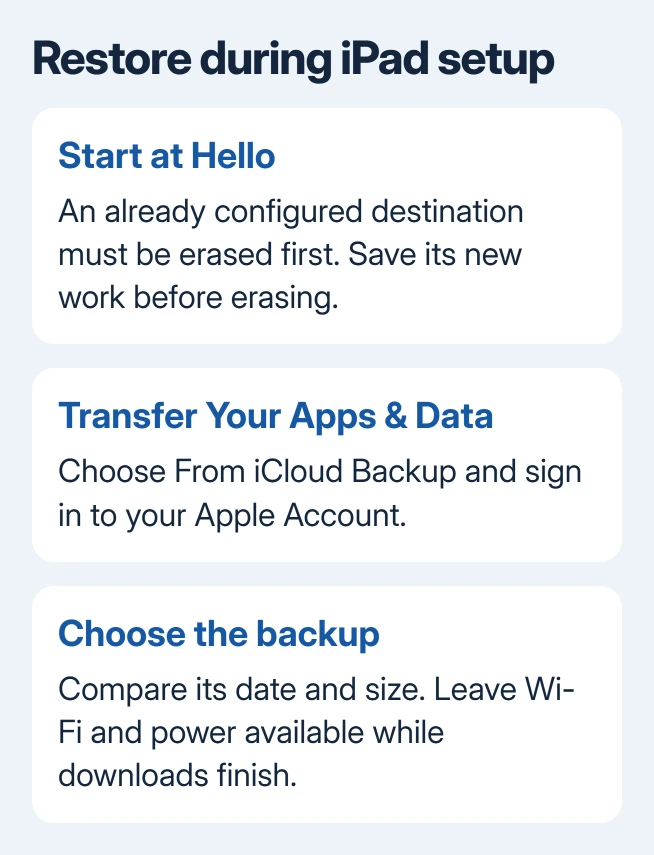
If the new iPad already shows its Home Screen, erase it to return to setup before restoring. Save any work created there first. Restoring during setup isn't a simple merge of two tablets you've been using independently.
Restore from iCloud when direct transfer isn't practical
On the old iPad, open Settings > your name > iCloud > iCloud Backup and make a current backup. Wait for it to finish, then check its successful backup time before switching to the new tablet.
If a new purchase qualifies for temporary storage, open Settings > General > Transfer or Reset iPad. Under Prepare for New iPad, tap Get Started and follow the backup prompts. Extra storage is offered when you're eligible and need it.
The temporary storage terms give you 21 days to restore that backup. Keep the original tablet intact until the restore succeeds. This offer isn't a permanent increase to your regular iCloud storage plan.
At Transfer Your Apps & Data, choose From iCloud Backup. Sign in to the backup's Apple Account and compare the available copies by size and date. Follow an update prompt if the backup needs newer iPadOS.
Stay connected to Wi-Fi while the restore progresses. Reaching the Home Screen doesn't mean every app and photo has downloaded. Leave the tablet connected and powered while background downloads continue.
A missing photo can belong to iCloud Photos rather than the backup itself. Check the account and photo-sync settings before repeating the whole restore. Content already syncing through iCloud returns through that service.
Use a computer backup as the alternative
On Catalina and later macOS releases, back up with Finder. For Windows, use Apple Devices; older setups rely on iTunes. Connect the old iPad to the computer with a cable, unlock it and approve the prompt to trust the computer.
Select the tablet in that app to back it up. Turn on backup encryption to include protected data such as Health information and saved passwords. Record the encryption password so it's available at restore time.
Connect the new iPad and select Restore Backup in Finder, Apple Devices or iTunes. Choose the correct backup, enter the password for that encrypted backup when prompted, and keep the cable attached through restart and syncing.
This restores a device backup. Copying a few files through the computer-to-iPad file transfer controls serves a different purpose and won't recreate all your apps and settings.
Check what returned before retiring the old tablet
Check Photos, Messages, Notes and Files on the replacement. Look for a recent item in each and try your essential apps. Compare a key document against the original; familiar app icons don't tell you whether all your data has arrived.
Expect some account sign-ins and app downloads. Backups don't contain every type of purchased or synced content. Computer backups also leave out media originally synced from a computer, so you may need to sync that material again.
Cellular service needs its own activation or transfer. If the new iPad needs a different SIM or the eSIM doesn't activate during setup, ask your carrier to move the iPad data plan to the replacement device.
If the selected backup won't restore, give Apple Support the backup date, restore method and exact error. Ask for help restoring that backup before erasing the old iPad, especially when it's the only remaining copy of your data.
The Short Version
Choose Quick Start when the two tablets are together, or recover a saved backup during setup. Check essential files after downloads finish, then retire the original. Copying documents from a PC only moves those files.
Checked November 16, 2026.






