No iPhone setting guarantees a new location share will start without notifying its recipient. Find My avoids putting a location message in the chat, but the person can still get a notification and see your position.
Stopping a share is different. The current instructions say the person won't get a notification; Apple's safety guidance warns that earlier systems may send a Messages notice. They can also notice that your position disappeared.
In this guide
Decide whether you're starting, stopping or pausing
Choose the change that fits your situation. Starting a share gives someone access to your position. Stopping removes their access. Turning off Share My Location for all recipients pauses updates for the existing recipients.
Those aren't three ways to perform the same hidden action. In particular, starting from Find My doesn't make a share invisible in Messages. The supported apps can show the same ongoing location.
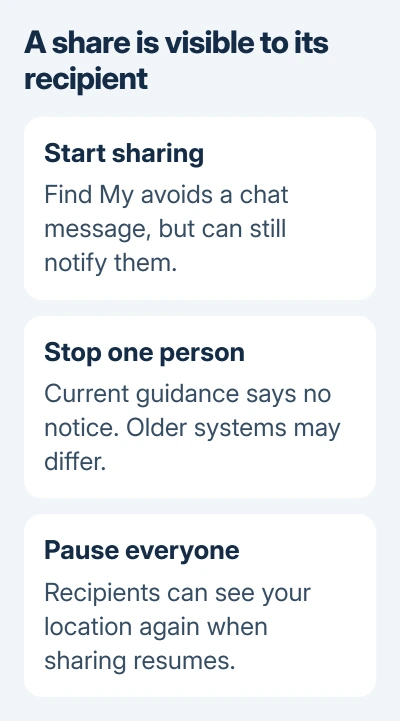
The location-sharing instructions explain that starting in Find My can notify the recipient. A one-time pin sent through Messages can notify them too, even though it doesn't follow your movements afterward.
I'd choose the amount of access first. For a meeting address, a fixed pin usually does the job; for someone following a journey, a timed live share makes the intended access clearer.
Choose Find My when you want to avoid a location bubble in the chat. Keeping the recipient unaware is a different goal, and Find My doesn't promise that.
Start in Find My when you don't want a chat message
Open Find My > Me and check Share My Location. Then open People, tap the add control, and choose Share My Location. Select the intended person and choose the sharing duration.
Choose an hour, the remainder of the day, or an indefinite share. Some versions also display a custom duration. Follow the choices on your screen; an older iPhone doesn't necessarily have the newest controls.
This skips the chat's send button. It doesn't stop the share appearing in Find My or the recipient's supported contact and Messages views. Starting in another app changes the setup, but the person still gets access to your location.
For Live Location, both people need iPhones running iOS 15 or later. Certain sharing buttons require at least iOS 17. These version differences explain missing buttons, but they don't provide a silent-sharing switch.
For ordinary conversation sharing, the Messages live-share and pin steps explain the two options. Neither should be presented as a method for secretly starting a new share.
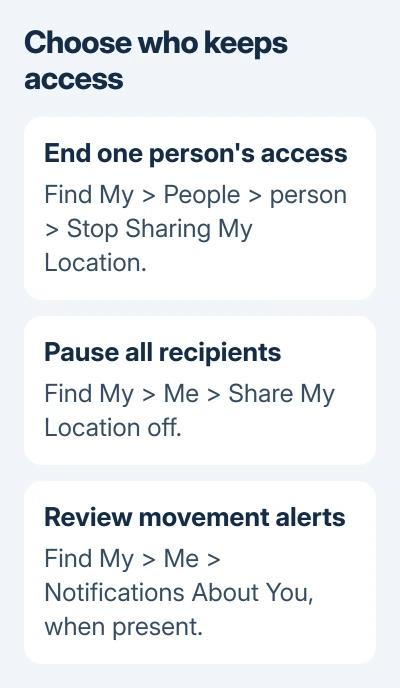
End one person's access through their Find My card
Open Find My > People and select the person. Choose Stop Sharing My Location and confirm if asked. On interfaces that place the action behind a More button, open that menu first and scroll to the stop command.
That person can no longer see your shared location in supported apps. You don't need to stop sharing in each conversation and repeat the change in Contacts.
Current sharing instructions say the person you stop sharing with won't be notified. However, the personal safety guidance retains the warning that earlier systems may send a Messages notification.
Keep that version difference in mind if a notification would matter. Your iOS version alone can't tell you what an older receiving device will display. A missing position can reveal the change even without an alert.
The Messages route uses the conversation header. Tap its name, then choose Stop Sharing My Location or the stop-sharing control shown there. That ends access; deleting a chat isn't required.
Pause existing shares for a temporary break
Open Find My > Me and turn off Share My Location. This is the temporary option for all current recipients. When you turn it on again, your existing recipients can see your location again.
Stop sharing with that person individually if you want to end their access. Pausing all shares won't do that if you plan to resume sharing with the others, because that person's access can return too.
Some newer versions offer Hide Location on a person's card. The current safety guidance describes that as a pause that automatically ends the next day. It isn't the same as permanently stopping that person's share.
Before choosing a temporary action, decide what should happen tomorrow. An option that resumes automatically is useful for a short pause, but it won't permanently stop someone from seeing your location.
Deleting the Find My app doesn't end location sharing. Use the sharing controls themselves. You need to change who the account shares with, even if you've removed the app or its icon.
Review arrival alerts separately from sharing access
A location-change alert tells someone when you arrive at or leave a place. That's separate from the notice that a new location share has started and separate from being able to open your position on a map.
In Find My > Me, look for Notifications About You. Open a name, review the alert and delete any notification you no longer want, confirming the deletion when asked.
If that section isn't present, Find My's guidance says your friends aren't being notified when your location changes. That doesn't mean an ongoing share is hidden or that its recipients can't open your current position.
Review the existing alerts if you're trying to stop an unexpected arrival or departure alert. Starting and stopping the entire location share isn't necessary just to identify which alert was configured.
Airplane mode, switching phones and blocking then unblocking a contact don't supply a supported guarantee of silent sharing. Use the sharing controls to choose who can see you, rather than relying on a temporary change to your connection.
Get help with a share that won't change
Ask Apple Support when the stop command is absent or your change keeps undoing itself. Include both software versions, what you tried and which app still shows your location. Request a check of that recipient's remaining access.
For a share that should work but shows an old position, use the location-sharing repair guide. A frozen position is a different problem from deliberately ending access or controlling notifications.
The Short Version
Find My avoids a chat message, but can't promise silent sharing. Stop a person's access or choose a temporary pause as intended. Check movement alerts separately; recipients can notice that a shared position disappeared.
Checked November 16, 2026.