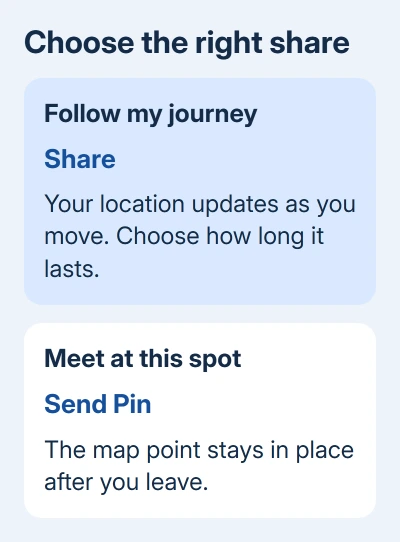
Messages can share a moving location or send a fixed map pin. For live sharing, open the conversation, tap + > Location > Share, choose how long it should last, then send it. For a meeting place that stays put, choose Send Pin instead.
The difference matters when you're traveling. A live share follows your iPhone; a pin keeps pointing to the spot you sent, even after you've left.
In this guide
Decide between a moving location and a meeting point
Use live sharing when someone needs to follow your journey or meet you as you move. Use a pin for a restaurant entrance, parking spot or another place they should travel to without following your phone.
Apple's location-sharing instructions say both people need an iPhone running iOS 15 or newer for Live Location. Some newer controls need iOS 17 or later, so an older phone can show a different menu.
In an SMS conversation, send a pin rather than an ongoing Messages location share. For someone using Android, a map pin is the straightforward choice. For ongoing sharing across platforms, use Google Maps location sharing.
Check the conversation's recipients before sending. In a group, location sharing reaches the people in that conversation. A private conversation with one person is a better fit when only that person needs your position.
I'd use a timed live share for a trip. They can follow your journey without keeping access to your location after the trip.
Send your live location in the conversation
- Open Messages and select the conversation with the person or group.
- Tap the + beside the message field. Scroll through the app list if Location isn't immediately visible.
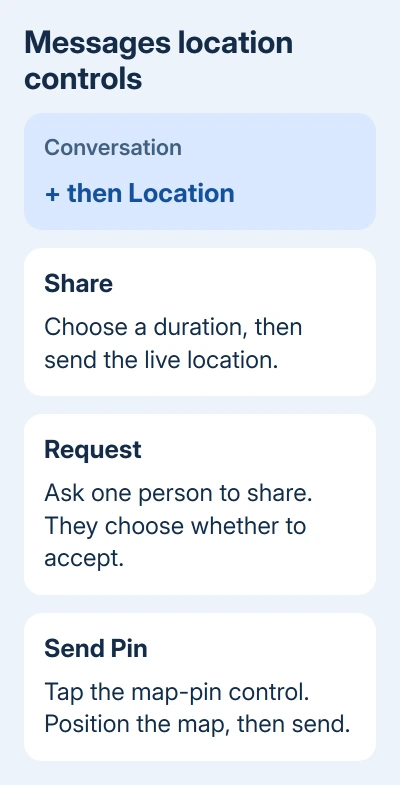
- Tap Location, then Share.
- Choose the sharing period. Options include an hour, until the end of the day or indefinitely; the current instructions also describe a custom period.
- Tap the send button to send the location message.
The other person can tap that message to see you on a map and get directions. Your general location can also appear under your name in the conversation, and tapping your name opens more location details.
Indefinitely keeps the share running until you stop it manually. It doesn't mean the phone can keep reporting without a connection or power. If updates stop, check the connection before sending another location message.
When someone new joins a group, reshare your location if the new member also needs access. Don't assume a share sent before they joined automatically includes them.
Messages uses Find My for live sharing. Sharing through Messages doesn't hide your location from Find My; the same share can also appear in the other supported apps.
Send a fixed pin instead
- Open the conversation and tap + > Location.
- Tap the map-pin control in the map's top-left corner.
- Drag the map until the pin marks the place you want to send.
- Tap Send Pin, then tap the send button.
Place the pin carefully, especially inside a large building or across a busy road from the entrance. Your current position might not be the best meeting point. Move the map to the entrance the recipient should use.
The other person gets a map location that doesn't move with you. Leaving the area won't move the pin, and sending a second pin doesn't turn the first one into a live share.
On iOS 16 or earlier, the older route for a one-time position is to tap their name in the conversation header, then Send My Current Location. Use that route when the newer plus-menu controls aren't present.
A typed street address is also useful when the recipient needs the exact destination. Include an entrance or floor in a normal message when a map point alone would leave them at the wrong door.
Request a location or arrange an arrival check
To ask one person for their location, open that one-to-one conversation and choose + > Location > Request, then send the request. They still decide whether to share. Sending a request doesn't give you access to their location.
After they share, open their contact details in the conversation header to see the map. Tap the map again to enlarge it if you need a clearer view before starting directions.
For an arrival notification, Check In is a different Messages feature. It can tell a trusted contact that you've arrived. It doesn't automatically expose your location throughout the journey in the same way as a live share.
Check In shares your location and the other details you've selected if an unexpected delay occurs and you don't respond. Use it when you want an arrival check rather than continuous tracking.
Stop access when the share has done its job
Open the conversation, open the contact icon in its header, then choose Stop Sharing My Location. The earlier location bubble stops displaying a map. Stopping the share in one supported app stops that person's access across the others too.
To pause updates for all current recipients, open Find My > Me and turn off Share My Location. Turning it back on restores access for the people you were sharing with, so use the individual stop command when access should end.
Deleting Find My isn't a way to cancel a share. Your account can keep sharing after you remove the app. Stop sharing through its controls before deleting it.
When the other person still can't see you
Check Settings > Privacy & Security > Location Services > Find My and allow the needed location access. Also open Find My > Me and check Share My Location before starting another share.
For a share that starts but freezes, follow the location-sharing repair checks. Those checks help when a share stops working after you've set it up.
Give Apple Support the details of the failed share. Include both iOS versions, the conversation type (iMessage or SMS) and whether Find My shows a position. This tells support which part of sharing has stopped working.
The Short Version
Choose Share for a moving location and Send Pin for a fixed spot. Send the location message, check who received it, and stop ongoing access when it's finished.
Checked November 11, 2026.