Green messages on an iPhone were sent as RCS, SMS or MMS instead of iMessage. That's normal when texting an Android phone. For a conversation with another iPhone, check Settings > Apps > Messages and turn on iMessage at both ends.
A connection problem or a number setting after changing phones can also turn a conversation green. The color tells you how the message was sent, but not why iMessage wasn't used. Start by checking whether one chat or every chat is affected.
In this guide
1. Check whether green is expected for this conversation
A blue bubble identifies an iMessage. Green covers three other message types: RCS, regular SMS texts and MMS picture or group messages. RCS is a newer carrier messaging service that can include typing indicators and read receipts.
An Android contact won't turn blue by changing a switch on your iPhone. Green can be the correct, working result. Read receipts or a typing indicator don't make a green conversation iMessage, because RCS can provide those features too.
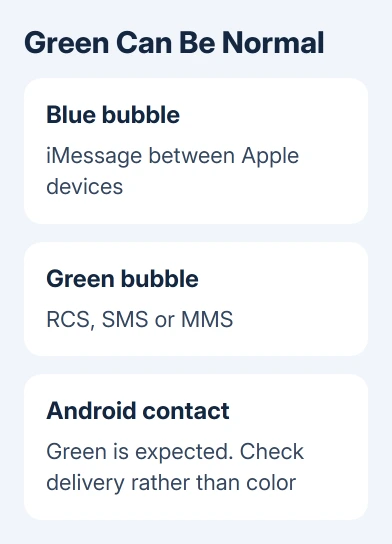
For a group chat, check who's in it. A conversation that includes people who aren't using iMessage can use a green-message service. Don't change every iPhone setting to try to turn a mixed-device group blue.
Color alone also doesn't tell you whether a conversation is encrypted. Supported RCS conversations can use encryption on newer iOS versions and supported carriers. The RCS encryption check explains the conversation indicator.
2. Turn iMessage on and check the selected address
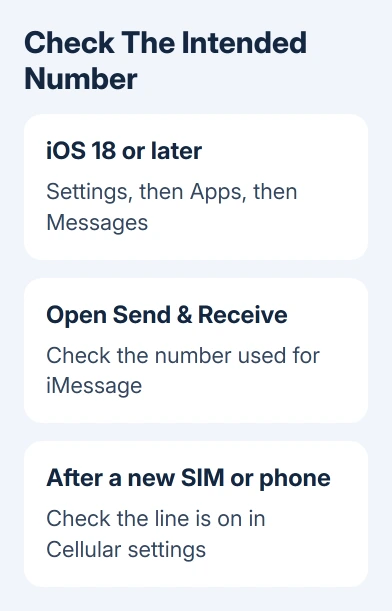
On iOS 18 and later, open Settings > Apps > Messages and turn on iMessage. On iOS 17 and earlier, open Settings > Messages directly. The extra Apps level belongs to newer versions of Settings.
Apple says in its green-message instructions that iMessage being off at either end can cause this. The recipient needs to check their setting too when only your conversation with them stays green.
Open Send & Receive in the same Messages settings. Review the numbers and email addresses listed for receiving iMessages, then check the address selected for new conversations. Choose your preferred number for new conversations.
A chat sent to someone's email address can work while one sent to their phone number doesn't. iMessage treats them as different destinations. A working email chat doesn't mean the person's mobile number has finished iMessage activation.
Try a new message addressed to the number you want to reach, without deleting the existing thread. Check the composer and send-button color before sending. A blue send button indicates that this message is set to use iMessage.
3. Restore internet access when blue suddenly turns green
iMessage needs Wi-Fi or cellular data. A phone can have enough mobile service for an SMS while its internet connection isn't working. Open a normal webpage on the affected iPhone to check whether data loads.
If the page doesn't load over Wi-Fi, try cellular data, or try a working Wi-Fi network when cellular data is unavailable. Then compose another message to an iPhone contact. The other person's iMessage connection needs to be working too.
Messages can fall back to SMS when iMessage isn't available and Send as Text Message is enabled in Messages settings. Older versions can call this Send as SMS. That explains a green message appearing in a conversation that was blue earlier.
Turning the fallback off doesn't repair iMessage. It can leave the message unsent when iMessage is unavailable. I'd keep delivery as the priority and fix the connection or number setting that caused the switch.
An iMessage outage can affect several conversations even when your internet connection works. If they all fail together, give support that detail before changing your account settings.
4. Recheck the phone line after a new iPhone or eSIM
After setting up a new device, open Settings > Cellular and make sure your phone line is on. With multiple SIMs, check that your preferred Messages number is selected and active, rather than an unused line.
Then open Settings > Apps > Messages, switch iMessage off and back on, and open Send & Receive. Select your intended phone number. On iOS 17 or earlier, reach Messages without the Apps level.
This is especially relevant when an eSIM was added after the initial setup on iOS 26. iMessage might not activate automatically for that later-added eSIM. The off-and-on step starts the activation attempt for that situation.
If the number shows a spinning activation indicator, give it time rather than repeatedly switching iMessage off. Verifying your number can take a full 24 hours, and your phone must be able to send an activation SMS for that number.
For stuck activation, have the carrier check that international SMS works both ways on your line. The iMessage activation fixes cover that problem separately, including a number that won't become selectable in Send & Receive.
5. Compare one green contact with another iPhone contact
Send a short new message to a different person who uses iMessage. If that conversation is blue, your phone can reach the service. Check the first person's number, current phone and iMessage setting before resetting your network.
Confirm the first person's current number through another channel. They may have changed phones, disabled iMessage or moved to Android. A contact card can also contain an old number alongside the current one.
A green bubble isn't a reliable blocked-contact test. The same color has ordinary causes such as an Android recipient, disabled iMessage or temporary unavailability. Don't decide someone blocked you from the color change alone.
Keep the existing conversation while checking a newly addressed message. Deleting your message history isn't a required step for changing the service used by the next message, and it removes context you may want to keep.
6. Get help for delivery failures that remain
When messages stay green but arrive correctly, there may be no fault to fix. For an Android contact, confirm RCS availability with the carrier if you need its extra features; it will still use green bubbles.
If a message won't send, write down the alert and whether it's iMessage, SMS, MMS or RCS. Take iMessage or activation failures to Apple Support. Ask your carrier about SMS, MMS or RCS delivery and whether your plan supports that type.
Include whether one contact or all contacts fail, whether internet access works, and whether it started after a SIM or phone change. Support gets a clearer picture of the delivery failure from those details than from the bubble color.
The Short Version
Green means RCS, SMS or MMS, and it's normal for Android contacts. For another iPhone, check iMessage, Send & Receive, internet access and the active phone line. A green bubble by itself doesn't mean that someone blocked you.
Checked November 10, 2026.