
You text your sister and the bubble turns green. You text your coworker, green again. Every message you send is going out as a plain SMS.
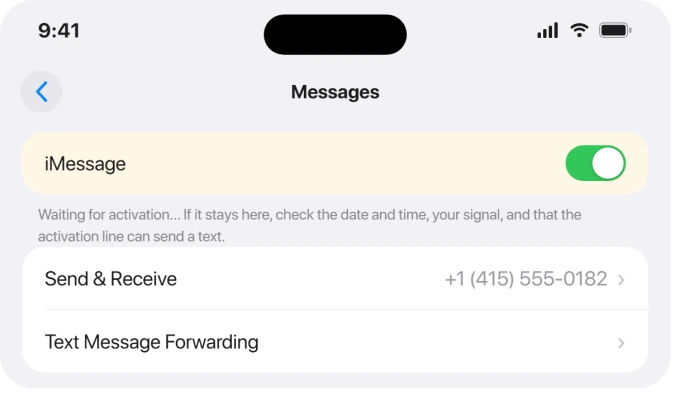
Up in Settings > Apps > Messages your iMessage toggle is stuck on "Waiting for activation" with a little spinning gear that never stops.
FaceTime usually rides along with it. Same Apple sign-in, same activation servers, so when one stalls the other tends to stall too. The good news is most of these fix in minutes once you know which lever to pull.
This walks through the quick stuff first, then the iOS 26 dual-SIM bug Apple actually documented, then the carrier and server cases where the only real fix is waiting or making a phone call.
First, know how activation actually works
When you flip iMessage or FaceTime on, your iPhone quietly sends a text message to Apple to confirm you own the number.
Apple says plainly: "you need SMS messaging to activate your phone number with iMessage and FaceTime. Depending on your carrier, you might be charged for this SMS."
That one detail explains most failures. If the line can't send a text right then, activation just sits there. So the line you're activating needs real signal and a working texting plan, not just Wi-Fi.
And it can be slow on purpose. Apple's own line: "It might take up to 24 hours for your carrier to verify your phone number with Apple." Most people finish in minutes, but the 24-hour window is real.
The thirty-second fixes to try first
Toggle it off and back on. Go to Settings > Apps > Messages and turn iMessage off. Then Settings > Apps > FaceTime and turn FaceTime off.
Restart the iPhone, then turn both back on. This forces a fresh activation request.
These toggles are no longer at the top of Settings; they live under the Apps section. That move happened in iOS 18, so if you came from iOS 17 you met it when you installed iOS 26.
A guide that still says "Settings > Messages" predates iOS 18. We cover the move and what else went with it.
Check your clock. A wrong time zone quietly breaks the secure handshake with Apple's servers. Open Settings > General > Date & Time and turn on Set Automatically.
Apple's iMessage troubleshooting page flags this directly: "Make sure that your time zone is set correctly."
Confirm signal and a texting plan. Send a normal SMS to a friend first. If that won't send, iMessage can't activate either. If a prompt warns about possible carrier SMS charges, tap Turn On to let it through.
Turn a VPN off while you activate, since it can block the activation traffic. Flipping Airplane Mode on for about 30 seconds then off also re-registers you on the network and clears a stuck attempt.
Then wait, and don't keep poking it
If the gear is spinning, leave it alone. Apple is explicit: "If iMessage is on and a spinning gear appears next to your phone number, your device automatically attempts to verify your phone number. There is no need to repeatedly turn iMessage off and on."
Constant toggling can actually slow verification down. Toggle once, confirm your signal, time zone, and VPN are sorted, then give it time.
One user on Apple's forums reported it simply came alive on its own: "34 hours after updating to iOS 26, I tried turning iMessage off/on again and it works now along with FaceTime!"
The dual-SIM number conflict (the real iOS 26 bug)
This is the one specific to iOS 26, and Apple wrote a whole support page about it.
Their words: "When you update to iOS 26, you might not be able to activate iMessage with your phone number if you have an inactive SIM with the same phone number as your active SIM."
In plain terms: you have two SIMs (maybe an old physical SIM plus an eSIM, or you switched plans) and both carry the same number.
One is dead, one is live, and iOS can't decide which line to register. So it gives up on the number.
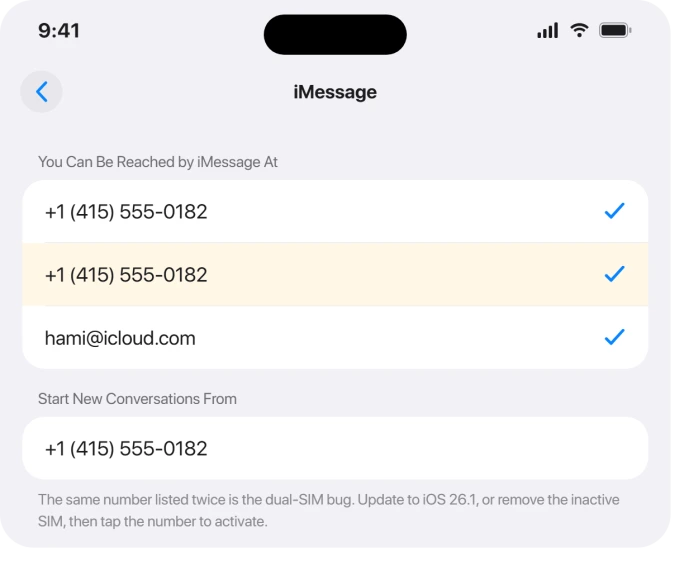
How to tell it's this bug and not a slow carrier: open Settings > Apps > Messages > Send & Receive and look for the same phone number listed twice.
You'll also see iMessages bounce with "Not Delivered," texts forced into green SMS bubbles, and messages going out from your email instead of your number.
How Apple says to fix it
The clean fix is to update: "To fix this issue, update to iOS 26.1 or later. Or, remove or delete your inactive SIM."
The bug was introduced in iOS 26.0, and iOS 26.1 patches it. (Note: iOS 26.0.1 did not fix this; it patched a separate cellular bug.)
If you're still on 26.0 and can't update yet, remove the dead SIM by hand.
Apple's exact steps: go to Settings > Cellular, and "if there are two SIMs displayed that have the same phone number, find the one that is no longer active."
If that inactive one is a physical SIM, pop the tray and take it out. If it's an eSIM, tap it and choose Delete eSIM.
Then go back to Settings > Apps > Messages > Send & Receive and tap the displayed phone number to activate iMessage.
One iPhone 13 mini owner summed up how stubborn it can be: "I had an unused old SIM card in my 13mini. Tried all of the above with no luck until I removed that card. Soon as I did that iMessage started working right away."
If you added an eSIM after setup
Slightly different glitch, same family. If you set up your iPhone, then added an eSIM later, iMessage may not switch itself on for that line.
Apple notes: "iMessage does not activate automatically after you set up an eSIM in Settings later."
The fix is just a manual nudge. Go to Settings > Apps > Messages and turn iMessage off and back on. That triggers the activation it skipped.
Picking the right line on a dual-SIM iPhone
If you carry two active numbers, the number iMessage activates on follows the line you've chosen for it.
Tap your line in Settings > Cellular and check iMessage & FaceTime Line to make sure it points at the number you actually want.
That line has to be able to text, though. As one esimcard guide puts it: "If you use eSIM for data but your primary number is selected for sending and receiving messages your iMessage will not work."
A data-only travel eSIM can't send the verification SMS, so activation hangs.
While you're in there, open Send & Receive and make sure your phone number (and your Apple Account email) are checked under "You can be reached by," with Start New Conversations From pointing at your number.
If you switched SIMs recently, untick any stale old number so it stops grabbing the activation.
Sign out of your Apple Account and back in
This is the most-reported working fix when the basics don't take. It clears a stale sign-in session that activation is choking on.
One user's relief was simple: "I finally buckled down and signed in and out of my Apple account and it worked!"
Go to Settings > [your name], scroll down and tap Sign Out. Enter your password to turn off Find My, choose Sign Out But Don't Erase so you keep your data, and confirm.
Restart, sign back in at the top of Settings, then re-enable iMessage.
If the phone then keeps asking you to sign in over and over, fix that loop before retrying activation.
While signed in elsewhere, it's worth a quick check that your Apple Account email is verified at appleid.apple.com. An unverified or wrong-format email blocks activation just as surely as a bad SIM.
Heavier resets when nothing sticks
Install a pending carrier update. Right after a big iOS jump, your carrier bundle can be out of date. Connect to Wi-Fi, open Settings > General > About, and wait 10 to 20 seconds.
If a Carrier Settings Update prompt appears, install it.
Reset Network Settings. This clears corrupt network state that can block the handshake. Go to Settings > General > Transfer or Reset iPhone > Reset > Reset Network Settings.
It wipes saved Wi-Fi passwords and VPN configs but not your photos or messages.
It's also the go-to reset when an iPhone shows No Service after iOS 26. Reconnect, then retry activation.
Activate through Apple online. You can repair it from a browser. Go to apple.co/IMFT-mac, tap Get Started under Enable Apple Account, sign in, and enter the phone number you use.
Apple emails you when the account is ready.
When it's the carrier or Apple's servers
Sometimes the phone isn't the problem. A common one: your carrier did an eSIM add instead of a true SIM-to-eSIM swap, leaving the line without SMS.
As one Apple Community reply put it: "iMessage needs sms functionality in order to activate, so if any option made for esim etc does not have the sms functionality active, iMessage will fail to activate."
That's carrier-side. Call them and ask for a proper SIM-to-eSIM swap with texting enabled, or a fresh eSIM profile.
The same goes if your line can send texts but never receives them: the silent verification SMS never arrives, and no setting on your phone will fix routing on their end.
A few more carrier checks: prepaid lines need credit so the activation text can send, and international SMS has to be enabled.
Apple says to "contact your carrier to make sure that you can send and receive international SMS messages."
For the server angle, glance at Apple's System Status page (apple.com/support/systemstatus). For the iOS 26 wave Apple never posted an outage; their only acknowledgment was the device-side bug page.
Still, a green dot next to iMessage and FaceTime rules out a transient hiccup.
If you've tried everything and a friend's Apple Account activates fine on your phone, the issue may be a server-side block on your account or number.
That's the point to call Apple Support and have them check, possibly escalating to remove a flag on the number.
The Short Version
- Activation sends a hidden SMS, so the line needs real signal and a texting plan, and it can take up to 24 hours.
- Quick wins: toggle iMessage and FaceTime off, restart, back on; set Date & Time to automatic; drop any VPN.
- Don't spam the toggle while the gear spins; that slows it down.
- The iOS 26 dual-SIM bug: same number on an inactive SIM blocks activation. Update to iOS 26.1+, or delete the dead SIM under Settings > Cellular, then re-tap the number in Send & Receive.
- Added an eSIM after setup? Toggle iMessage off and on once.
- Still stuck: sign out of your Apple Account and back in, install carrier updates, then Reset Network Settings.
- If the line can't send or receive SMS, it's the carrier. Ask for a real SIM-to-eSIM swap with texting on.
Check In that never sends: It is an iMessage feature, so it needs everything on this page working first, and our guide to Check In and what it shares covers the rest of its requirements.
Where to Next
- More iOS 26 fixes: iOS 26 problems and fixes
- Back to the start: pcglance home

Isaac Smith is the founder and editor of PC Glance, a website that covers computers, laptops, and technology. He is a tech enthusiast and a computer geek who loves to share his insights and help his readers make smart choices when buying tech gadgets or laptops. He is always curious and updated about the latest tech trends.