

You updated to iOS 26.5 and now your texts to Android contacts will not go through.
They stick near 95 percent, come back "Not Delivered," or only fail from your Mac, iPad, or Watch while the iPhone still sends fine.
The key thing up front: this is a real bug Apple introduced with the encrypted RCS rollout in 26.5, one of several iOS 26.5 problems, not something you broke.
And which devices fail tells you exactly which fix you need.
Let me show you what broke and what actually clears it, because retrying the message will not.
First, Find Out Which Devices Fail
This one check points you straight at the right fix instead of guessing.
- Only one conversation stuck at 95 percent or Not Delivered, while new texts to the same person send fine? That thread is corrupted. Jump to "Clear a single stuck conversation."
- Every Android text fails from your Mac, iPad, or Watch but sends fine from the iPhone? That is the relay bug. Use the Limit IP Address Tracking and forwarding fixes below.
- Even the iPhone itself cannot text Android? That is carrier or setup, so go to "If even your iPhone cannot send."
Pro tip: Only the iPhone talks to your carrier's RCS network directly. Your Mac, iPad, and Watch relay through the iPhone, which is why "works on iPhone, fails everywhere else" is so common.
On macOS 27 there is a twist: the Mac can say Not Delivered while the text actually arrives. The macOS 27 Not Delivered page covers that label and the Send & Receive fix an owner found.
Turn Off Limit IP Address Tracking
This is the most reported quick win when the iPhone sends fine but your other devices fail. A privacy setting is breaking the relay path.
- On the iPhone, open Settings, Cellular.
- On a two-line iPhone, tap the specific line first.
- Tap Cellular Data Options, then turn off Limit IP Address Tracking.
- Send a test text to your Android contact from the Mac, iPad, or Watch.
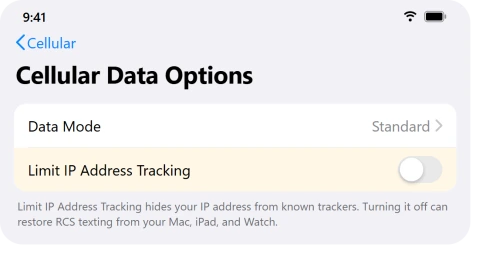
Important: This is a workaround, not a cure. It helps many people but can stop working after a day, and it lowers a privacy feature. Turn it back on once every device is on 26.6.
Clear a Single Stuck Conversation
If just one thread is jammed while everything else sends, that conversation's local copy is corrupted.
- In Messages, swipe left on the failing Android conversation and delete it.
- Tap Filters, open Recently Deleted, select that conversation, and tap Delete to remove it for good. This step matters, a thread left in Recently Deleted keeps the jam alive.
- Force-quit Messages, reopen it, and start a fresh message to that contact.
Send It as a Text for Now
This gets your message through immediately while you work on the real fix. It drops to plain SMS, so you lose RCS extras like high-res photos and read receipts.
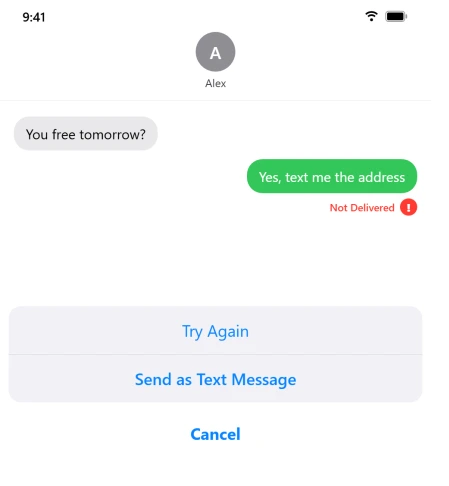
- Tap the red exclamation point next to the stuck message, then tap Try Again.
- If it still fails, tap the red exclamation point again and tap Send as Text Message.
- To make that automatic, turn on Send as Text Message in Settings, Apps, Messages.
Rebuild the iMessage and Forwarding Link
When all your companion devices fail, the relay that lets them send through the iPhone needs rebuilding.
- On the iPhone, open Settings, Apps, Messages, turn iMessage off, wait a few seconds, and turn it back on. If it hangs on activating instead of coming back, see iMessage won't activate on iOS 26.
- In the same screen, open RCS Messaging and toggle it off then on to re-register.
- Open Text Message Forwarding and switch your Mac, iPad, or Watch back on, the same screen Apple's text message forwarding guide covers. If a device is greyed out, toggle iMessage again, then sign out and back into Messages on that device.
Pro tip: In iOS 26 the Messages settings live under Settings, Apps, Messages, not the old top-level spot. A lot of older guides send you to the wrong place.
Rule Out Wi-Fi Calling and a VPN
Both change the network path your texts travel, and either can block the relay.
If your Wi-Fi itself has been shaky since the update, sort that out first, since Wi-Fi Calling depends on it.
- Open Settings, Apps, Phone, Wi-Fi Calling, turn it off, restart the iPhone, then turn it back on.
- If you run a VPN, disconnect it and test. If that helps, delete the VPN app, since disabling it is sometimes not enough.
If Even Your iPhone Cannot Send to Android
When the iPhone itself fails, it is usually setup or carrier, not the relay bug.
- Make sure you are on iOS 18 or later in Settings, General, Software Update.
- Confirm RCS Messaging is on in Settings, Apps, Messages, the same toggle in Apple's RCS setup steps. If the toggle is missing, your carrier or region does not offer it yet.
- Save the contact's number in full format, like +1 and the area code, and ask them to confirm RCS is on in Google Messages.
- Still failing? Try Settings, General, Transfer or Reset iPhone, Reset, Reset Network Settings, then contact your carrier, since RCS is carrier-controlled.
Update to 26.6, Which Owners Report Clears It
iOS 26.6 arrived on 27 July 2026.
Apple's release note covers bug fixes, security updates and Spotlight indexing, and says nothing about this failure, so what follows rests on owner reports rather than an acknowledgement.
One of those reports carries unusual weight.
That owner had the Limit IP Address Tracking workaround fail outright, still had the problem after moving to a different carrier, and got no relief from 26.5.2.
On release day he wrote that 26.6 fixed it. A second owner saw an iPad and a Mac start sending to the same Android contacts again.
Two accounts is a promising signal rather than a settled one. Update, then re-test before you assume it held.
- Update the iPhone first, since it is the relay, in Settings, General, Software Update.
- Update each other device to its matching 26.6 build (iPad, Mac, and Watch).
- Afterward, recheck that RCS Messaging is on and your devices are listed under Text Message Forwarding, then test.
The Short Version
Start by checking which devices fail. One stuck thread means delete that conversation and empty Recently Deleted.
Failing only from your Mac, iPad, or Watch means the relay bug, so turn off Limit IP Address Tracking and rebuild Text Message Forwarding. Failing from the iPhone too means a carrier or setup problem.
To get a text through right now, send it as a plain text message. Owners report that updating everything to 26.6 clears it, after which you can turn your privacy setting back on.
Where to Next
More iPhone fixes: This guide is part of pcglance.
See the full iOS 26 problems and fixes hub, or head to the pcglance homepage and pick your device.

Isaac Smith is the founder and editor of PC Glance, a website that covers computers, laptops, and technology. He is a tech enthusiast and a computer geek who loves to share his insights and help his readers make smart choices when buying tech gadgets or laptops. He is always curious and updated about the latest tech trends.