
Google Maps can let someone follow your Android phone's location for a time you choose. Open Location sharing from your profile picture, start a new share and select the person who needs to see it.
For a fixed meeting place, send a map pin instead. A live share gives access to your changing position, so check the recipient and duration before sending it. End the share after the journey or meeting.
Decide whether the person needs a pin or a live position
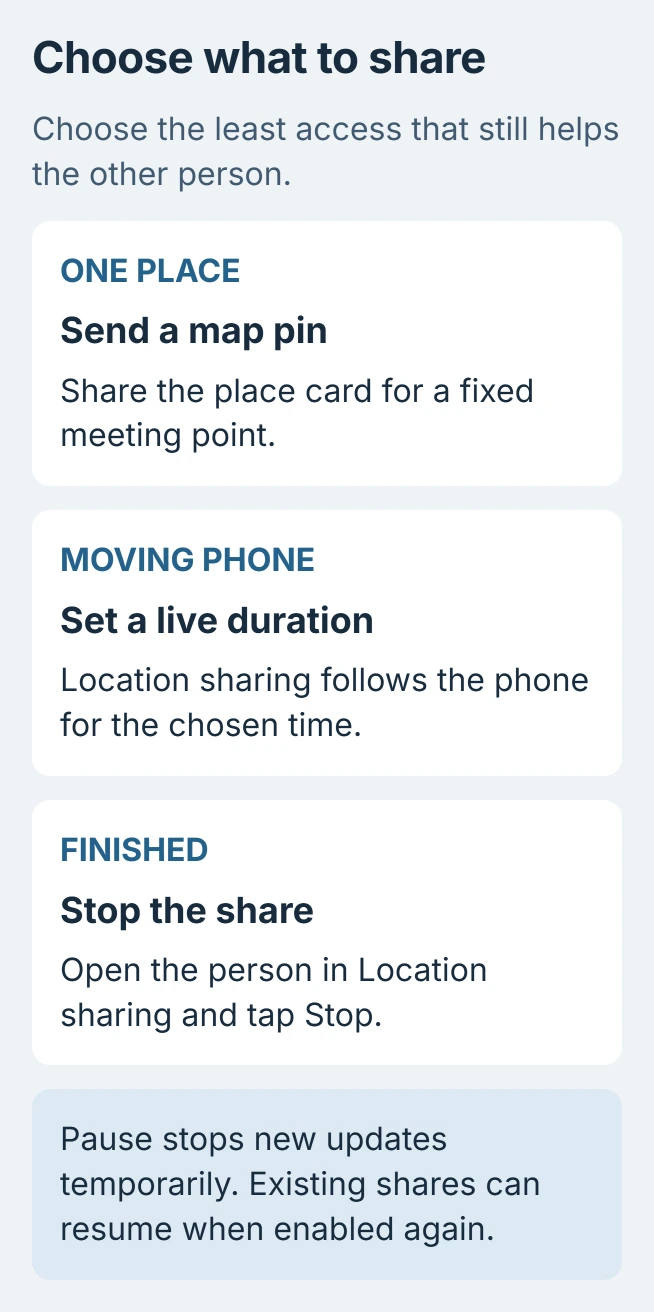
A restaurant address does not need access to your movements. For that, search for the place in Maps, or hold the map to drop a pin. Tap its name or address, choose Share, then select the messaging app.
Google's steps for sending a map location cover that fixed-place option. Use live sharing when the person needs to see your changing position instead.
Status: Google's Android Maps and Location Sharing instructions checked October 29, 2026. A place link, a live share and a paused update have different effects. No location was shared.
The person following a live share can see more than a map point. Google says the shared details include your name, profile picture and battery status. Review that audience as carefully as the duration.
Start a live share in Maps
Add the recipient's Gmail address to Google Contacts first. In Google Maps, tap the profile picture, then Location sharing > New share. Set the duration, select the person and tap Share. Allow contacts access if asked.
For someone without a Google Account, copy the location-sharing link and send it through your messaging app. Google states that this link provides live access for a maximum of 24 hours.
Treat the link as access to your position, rather than as an ordinary public map address. Our recommendation is to send it directly to the intended person and check that it opens before arranging the meeting around it.
Google's live-location guide documents the recipient and link routes. A share is useful only while the sending device can provide current updates.
End access instead of only pausing updates
To stop one person, return to Maps > profile picture > Location sharing, select their profile and tap Stop. Do this when the arrangement has ended, even if a previous share had no expiry.
Android also offers Settings > Location > Location services > Google Location Sharing > Use Location Sharing. Turning that switch off pauses this device's updates. It does not end the existing shares.
Google's Location Sharing settings explain that updates resume when the setting is enabled again. Choose Stop for a person whose access should end.
These settings apply to the particular account and device. A second Google Account or another signed-in phone can have separate sharing arrangements. Review those separately if more than one is used.
Check the connection when the location is stale
The sending phone needs internet access and its Use location setting enabled. Check those first if the recipient sees an old position. A stored map point does not prove that the phone is still there.
Finding a lost phone uses the Android device-finding controls. That is a separate task from inviting someone to see your live position, even though Find Hub now supports both kinds of use.
Navigation audio is separate too. If the map updates but spoken directions sound wrong, check Google Maps voice settings without removing the working location share.
For unavailable sharing, check warnings about age, region or a managed Google Workspace account. An administrator or family supervisor may control access. Send Google feedback if the requirements are met and sharing still fails.
The Short Version
Send a pin for one place, or start a timed Maps share for a moving location. Confirm the recipient and end unwanted access with Stop. Pausing Android's location-sharing updates leaves the underlying shares in place.

Isaac Smith is the founder and editor of PC Glance, a website that covers computers, laptops, and technology. He is a tech enthusiast and a computer geek who loves to share his insights and help his readers make smart choices when buying tech gadgets or laptops. He is always curious and updated about the latest tech trends.