
OneDrive's Android hotspot warning can appear on ordinary Wi-Fi because of a VPN. Disconnect the VPN briefly and retry; owners restored uploads that way. On a real hotspot, check camera upload's connection limits.
A Samsung network reset helped initially, but later replies said the problem returned. Start with the reversible VPN check before erasing saved network settings.
In this guide
1. Pause the VPN and retry the same upload
Keep the phone on its current Wi-Fi network. Open the VPN app you're using and disconnect it, then return to OneDrive and retry the upload that was blocked.
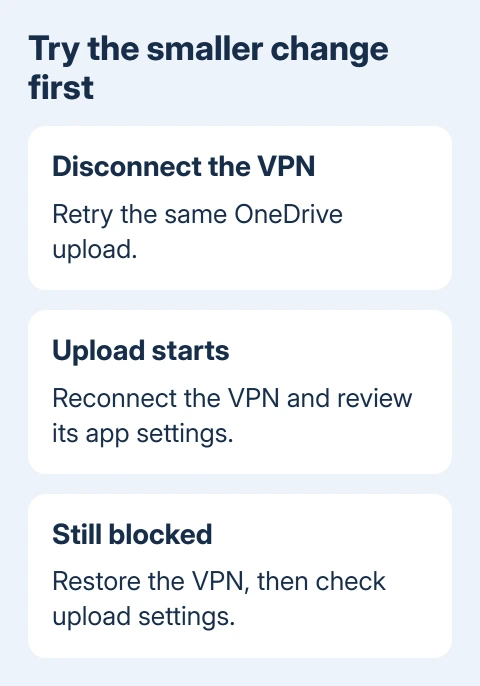
One owner said AVG VPN was being recognized as a mobile hotspot. Uploads started after they turned off AVG VPN and virus protection. A later owner confirmed that turning off the VPN alone solved their problem.
I'd start with testing with just the VPN turned off. It avoids disabling the rest of a security app when the VPN is the part already linked to a successful result.
Use a trusted connection for this comparison, and don't bypass a work-required VPN. On a managed phone, ask IT to test the connection policy or the VPN's approved app settings instead.
If uploading starts with the VPN disconnected, reconnect the VPN afterward. Check its updates then ask the VPN provider about handling OneDrive traffic or an approved exception. Record whether the warning returns when the VPN reconnects.
If nothing changes, restore the VPN and continue with the upload settings. A failed VPN check doesn't mean you should keep turning off unrelated security tools.
The OneDrive Android no-internet guide covers the separate sign-in failure where the app can't connect at all. This hotspot message is about an upload being paused because of the connection OneDrive thinks you're using.
2. Allow the connection type used for camera uploads
OneDrive can browse cloud files while automatic photo uploads remain restricted. Check the camera upload setting when the warning appears in the photo-backup area rather than assuming you can't access the account at all.
- Tap the picture or account icon within OneDrive to reach its account menu.
- Open Settings, then Camera upload or Camera backup, depending on the app version.
- Turn on camera uploads for the account that should receive your photos.
- Open Upload using and allow the mobile network if you want uploads away from regular Wi-Fi.
Older versions called this Sync using, with Over Mobile and Wi-Fi as the option. Current help uses Upload using and says to include mobile network. If the label differs, look for permission to upload over the mobile network.
Microsoft's Android OneDrive help also lists Upload only when charging. Clear it if you want photo uploads while the phone is unplugged.
Uploads through another phone's hotspot use that phone's data allowance. Check the plan before allowing a large photo or video queue, particularly when the warning appeared during travel.
Take one small new photo and look for that new photo in the selected account. An old image already present online won't tell you whether automatic backup has resumed.
If the network itself can't open ordinary sites, use the hotspot internet checks first. Changing OneDrive's upload permission won't fix a hotspot whose internet connection has failed.
3. Reset Samsung network settings only if needed
The original owner reported that Settings > General management > Reset > Reset network settings got OneDrive working again.
Later replies in June and July said the problem returned after the reset, sometimes within days. It may get uploads moving temporarily, but don't count on it to keep the problem away.
This changes more than the VPN check. Keep your Wi-Fi password handy; you'll need to reconnect to affected networks and pair Bluetooth devices again. Read the confirmation screen to see which connection settings your phone will remove.
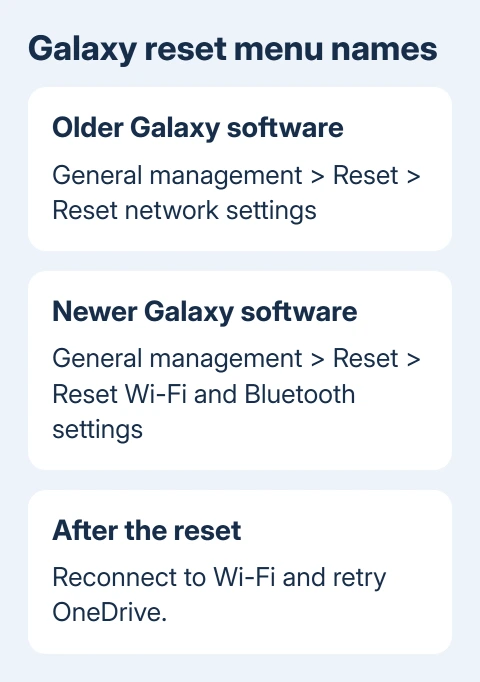
On older Galaxy software, open Settings > General management > Reset > Reset network settings. Confirm the reset, reconnect to your usual Wi-Fi and retry the same OneDrive transfer.
On newer Galaxy software, the menu separates Reset mobile network settings from Reset Wi-Fi and Bluetooth settings. For a Wi-Fi connection problem, use Reset Wi-Fi and Bluetooth settings and follow its confirmation prompts.
Don't choose Factory data reset. That resets much more of your phone and isn't the repair that worked for the owner.
Samsung's Wi-Fi troubleshooting steps show the newer Wi-Fi and Bluetooth reset. Menu names differ by software version, so the old combined label may not appear.
After reconnecting, open OneDrive and check whether the hotspot warning clears and a new photo uploads. If it doesn't, don't repeat the network reset; another contributor said the reset hadn't helped.
Other Android brands use different reset menus. The confirmed reset report was from a Samsung owner, so use your phone maker's instructions rather than assuming the Galaxy path exists on a Pixel or another model.
4. Repair the app if every connection still fails
Open OneDrive's listing in Google Play and install an available update. Close and reopen the app, then compare regular Wi-Fi with the connection that first showed the warning.
If the app remains stuck on both, follow the app reset and reinstall steps on the Android help page. Keep copies of local photos and any files that haven't uploaded before clearing the app's storage.
Open Android Settings > Apps > OneDrive. Choose Force stop, then open Storage or Storage & cache and use Clear data and Clear cache. Uninstall and reinstall OneDrive through Google Play when the phone allows it.
Reopen the app, sign in to the correct account and check camera upload settings again. Check the backup account and connection choice before leaving it to upload a large queue in the background.
Android OneDrive isn't the desktop folder-sync app. Camera backup, manual uploads and downloading a cloud file are separate actions. Judge the repair by the action that was failing, not just by seeing the file list load.
Send support the connection results
If the warning remains, open Contact Microsoft Support from the linked Android help page. Enter the hotspot warning and select Get Help.
For an organizational account, send IT the exact message and your VPN comparison before making more network changes.
Include your Galaxy or Android model, software version, OneDrive version and whether it's a real hotspot. Name the VPN and say whether the network reset helped. Support can then compare your problem with cases where a fix worked.
The Short Version
Try a VPN-only comparison first, then check camera upload's allowed connection types. A Samsung network reset helped the original owner, but failed for another. Use app recovery only after those narrower checks.
Checked November 17, 2026.





