
Office Lens, later named Microsoft Lens, can no longer create new scans. New scanning ended on March 9, 2026, so restarting or reinstalling the Android app won't restore that feature. Use the OneDrive app's scan control for new documents.
Keep Lens installed if it still holds scans you need. Existing scans remain accessible when the app is installed and you're signed into its last active account.
A missing old scan needs an account check, not another attempt to take a new one.
In this guide
1. Switch new scans to OneDrive
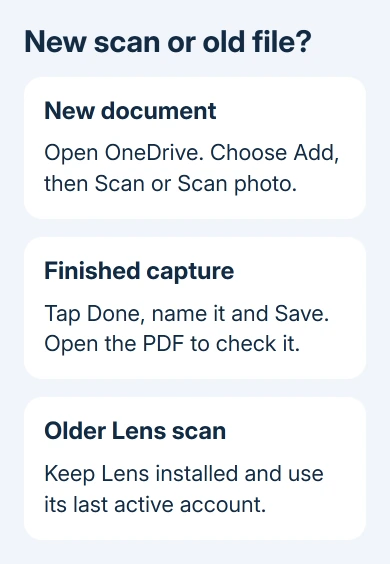
Open the OneDrive app on your Android phone and sign into the account where the document should be stored. Tap Add, usually shown as a plus button, then choose Scan or Scan photo. Some versions offer a direct Scan button.
Microsoft's Lens retirement notice recommends OneDrive as the replacement. It records support ending on February 9, 2026, followed by the end of new scans on March 9.
You'll use a different app for new scans. It doesn't mean an unsuccessful Lens capture was saved elsewhere automatically. Check for an actual saved file before disposing of the paper or deleting an existing copy.
If Android asks for camera access when opening the scan control, allow it so OneDrive can capture the document. That permission lets OneDrive use the camera; it doesn't turn scanning back on in Lens.
Before photographing a work document, check the Microsoft account you're about to save it to. Personal and work storage have separate file lists.
When the scanner opens and shows the page through the camera, continue with the capture steps. If the button fails or the camera remains unavailable, record that as a OneDrive scanning problem rather than a Lens retirement problem.
2. Capture and save a document you can find again
Choose Document for a paper page. Other capture modes include Whiteboard, Business Card and Photo. Position the page in the camera view and tap the white capture circle.
Review the captured image before saving. Adjust the crop to include every edge you need, rotate the page if necessary, or change the filter.
If the image isn't readable, discard that capture and retake it before putting the paper away.
For several pages, use Add in the scan editor to capture the next page. The documented multi-page maximum is 10 pages or images. Split a longer document into separate scans rather than waiting for an eleventh page to appear.
Tap Done, enter a recognizable filename, then tap Save. Scans are saved as PDFs. Check the destination offered for your account, so a receipt doesn't get buried among unrelated work documents.
The OneDrive Android scanning steps describe the capture modes, editing controls and PDF save sequence.
The retirement notice uses Scan photo for the entry command; the scanning guide uses Scan.
Open the destination folder in that same OneDrive account and open the saved PDF. Check page order and readability, including a page near the end. Seeing the captured page in the camera preview doesn't confirm a completed save.
If the file is present and readable, the replacement scan worked. If it isn't, keep the original and note whether the failure happened at capture, Done, Save or opening the finished file. That identifies the step support needs to check.
3. Keep access to older Lens scans
Open the installed Lens app and use the account that was active in Lens when you last used it. You'll need that account to access past scans now that new scanning has stopped.
Don't uninstall Lens just to clear an error when you're trying to recover something it still holds. It was removed from Google Play on February 9, 2026, so reinstalling isn't a dependable recovery plan.
Also check any destination where you previously saved the document, such as the intended OneDrive account or OneNote notebook. Use the file or notebook itself rather than assuming a Recent list contains every saved item.
The OneDrive account and file guide explains how to keep track of account locations. A document saved to your work account won't appear just because you open your personal OneDrive.
If an existing file opens, save a usable copy before changing the old app's account or data. If no saved file can be found, tell support which destination was selected and whether Lens ever showed a completed save.
For documents captured only as photos outside Lens, check the phone's photo storage too. Keep that original image while arranging a fresh scan; it may contain the information you need even if the old export never completed.
4. Recognize the old sign-in fix without relying on it now
The original Android save-failure thread described an app that returned to the photographed image without creating an item in the selected destination.
In March 2017, the adviser suggested signing out of OneDrive, OneNote, Word and PowerPoint, signing into Office Lens first, then signing back into the other apps. One owner, the original asker, later confirmed that it worked.
That result explains the historical account problem. It doesn't restore a feature retired in 2026. Don't sign out of several working Office apps expecting Lens to resume new captures today.
The earlier workaround of importing and cropping the photo wasn't satisfactory for the asker. The useful current route is the supported OneDrive scanner, while existing files are checked separately.
I'd preserve the old app and any readable files before changing account settings. It's easier to check a new scan in OneDrive than to repeat an old sign-in sequence for a feature that's no longer available.
Does cloud storage fit this document?
OneDrive scanning saves to OneDrive; the Lens retirement notice says it doesn't support saving scans locally on the device. Don't choose it if you need to save scans only on your phone, without sending them to the cloud.
If the document must stay local, choose a scanning app that clearly offers that save option and check your organization's document policy before capturing it.
For ordinary phone photos, the Android backup guide explains the separate backup settings.
If OneDrive scanning still won't save, use its support route for personal accounts or your organization's helpdesk for work accounts. Include the Android and OneDrive versions, account type, save destination and the exact step that failed.
Ask support to check why OneDrive won't scan or save your document. Include whether the camera opened and whether any PDF appeared. A request to repair the retired Lens scanner won't address a failure in its replacement.
The Short Version
Use OneDrive Scan for new Android captures, then open the saved PDF to verify it. Keep installed Lens and its last active account for older scans. The confirmed 2017 sign-in workaround can't reverse the 2026 retirement.
Checked November 16, 2026.






