Google Maps switched to a new navigation voice in 2026, part of Google's push to make directions sound more natural with its Gemini AI. No setting brings the old voice back, but Android has a workaround.
On Android, choosing English (US) in Voice selection restores the old voice, though it stops saying street names. On an iPhone, Maps follows the phone's language, so you can change much less.
In this guide
Why the voice changed
Google confirmed in October that the new voice began rolling out earlier in 2026. Its March announcement of a bigger navigation update promised voice guidance "more natural, like a friend navigating with you".
The complaints are mostly about tone, a raspy delivery some drivers call vocal fry. The question about it in Google's help forum asks for the old voice back, and replies were still coming in at the end of October.
As of November 8, Google hasn't added a choice for the old voice. A volunteer's answer early in the thread said Google replaced all its earlier voices with new ones, so every route here works around that.
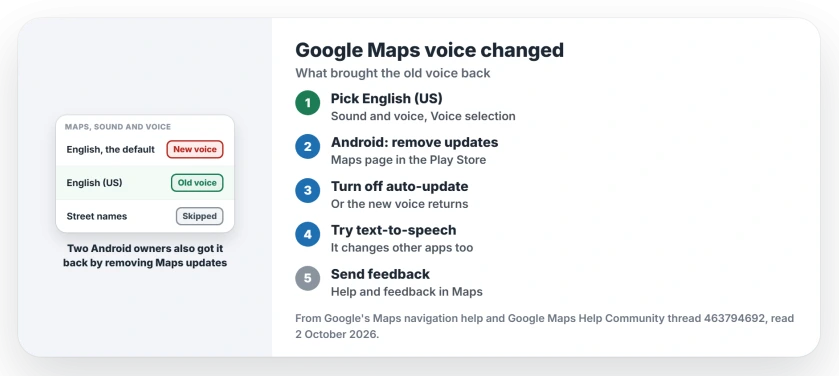
1. On Android, pick English (US) in Voice selection
Open Google Maps, tap your profile picture, then Settings > Navigation. Under Sound & voice, tap Voice selection and choose English (US) rather than the plain default English.
Google's navigation help shows the same menu. Two owners got the old voice back this way, one in late September and one in mid-October, though the first wasn't sure how long it would last.
Street names are the trade-off. English (US) gives turns without road names, so you'll glance at the screen more. One owner found the UK and Australian English voices skip street names too, and only the default English reads them out.
If a calmer voice matters more than the old one, try those others anyway. Another owner found the Australian voice much friendlier than the new default.
Voice settings don't touch location sharing, so for a meeting point or a live view of your journey, choose the appropriate Maps location share instead.
2. On Android, remove the Maps updates
This route kept street names for the owner who found it, and a second owner confirmed it. Open the Play Store, find Google Maps, and uninstall its updates.
Then tap the three-dot menu on the same Maps page and turn off Enable auto update. Skip that and Maps updates itself again, bringing the new voice with it. Afterward, choose Default (English), the voice marked as saying street names.
The cost is real. A volunteer in the thread pointed out that this rolls Maps back to the version your phone came with, so you lose the newer features and fixes until you update again.
If the older Maps keeps closing on you, the Android app crash page starts with its cache.
3. Try the phone's text-to-speech voice
Android has its own voice engine, and Maps can use it. Open your phone's Settings, tap Language and input, then Text-to-speech output, and pick another option under Preferred engine.
Menu names differ between Samsung, Pixel and other phones. The change also applies to your other apps. None of the owners in the thread said it brought the old Maps voice back, so think of it as an experiment you can undo.
4. On iPhone, the language is the only lever
Google's help for iPhone doesn't show a Voice selection menu inside Maps. The navigation voice follows the iPhone's own language, set under Settings > General > Language & Region.
Changing it switches the language of every menu and app on the phone, and you might lose street names. We used to point iPhone owners to English (US) inside Maps, but that menu is Android-only.
Incognito mode changed nothing for an iPhone 16 owner. A volunteer suggested changing Siri's voice or offloading the app, adding that if those fail, the change is on Google's side.
Beyond a language test, an iPhone leaves two choices: live with the new voice or switch apps. If you try Apple Maps, the Apple Maps directions page covers getting its voice working.
5. Tell Google from inside Maps
Feedback from inside the app is the route Google's own volunteers recommend. In Maps, tap your profile picture, then Help & feedback, then Send feedback, and say what you miss about the old voice.
Mention the street names too. One owner asked Google to let the English (UK) and Australian voices read street names, which would suit drivers who prefer those voices.
What hasn't worked
- Incognito mode on an iPhone 16.
- Deleting and reinstalling Maps, which a volunteer called needless.
Why did the Google Maps voice change?
It's part of Google's update to make voice guidance sound more natural, with help from its Gemini AI models. The new voice began rolling out earlier in 2026.
Can I get the old Google Maps voice back?
On Android, yes, in two ways: English (US) under Voice selection, or uninstalling the Maps updates with auto-update off. Neither is an official switch, and Google hasn't added one.
Does English (US) still say street names?
No. Two owners found English (US) gives turns without street names, and one found the UK and Australian voices skip them too. The Android rollback kept them, on the Default (English) voice.
Can I change the Google Maps voice on iPhone?
Only through the iPhone's language, under Settings > General > Language & Region, which changes the whole phone and may drop street names. No iPhone owner in the thread has reported getting the old voice back.
The Short Version
- Google switched to a new, Gemini-backed navigation voice in 2026, with no old-voice setting.
- On Android, choose English (US) in Voice selection for the old voice, without street names.
- Or uninstall the Maps updates and turn off auto-update to keep street names.
- On iPhone, Maps follows the phone's language, and nothing has brought the old voice back yet.
- Send feedback from Help & feedback in Maps.
Checked November 8, 2026.