
You click Turn On for Find My Mac, a box asks you to allow it, the switch says it is setting up, and then nothing happens. The switch slides back to off. Your iPhone cannot see the Mac either.
I would leave signing out of iCloud for last, because it forces a fresh sync of everything. It works. But two cheaper checks fixed it for other owners without any re-sync at all.
Asked on Ask Different in July 2022, the question has 46,260 views and eleven answers. The newest arrived in April 2026, so the switch still misbehaves on current Macs.
Why the switch slides back
The asker had a 14 inch MacBook Pro from 2021, running macOS Monterey 12.4 at the time. Location Services was already on for the whole Mac, and on for Find My as well.
The switch showed a setting up message for about a second, then quietly gave up.
A restart, a start in Safe Mode and deleting several preference files changed nothing for them. Their other devices could not see the Mac. In their words, "this is a real failure and not just a UI quirk".
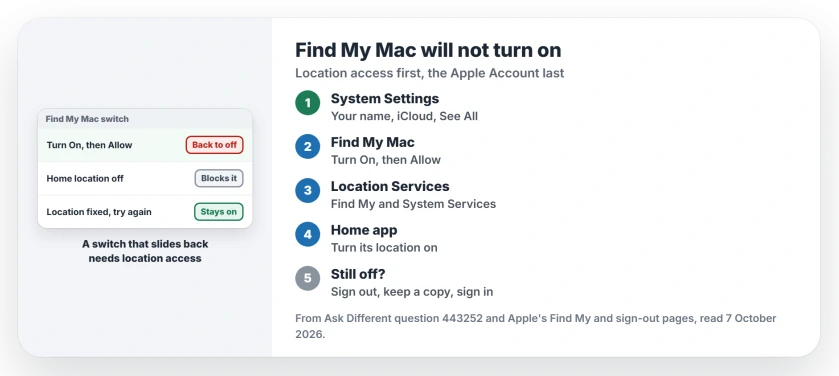
Status: checked 7 October 2026. Find My Mac can refuse to turn on when location access is missing. Owners fixed it in Location Services, in iCloud settings, or by signing in again.
Ours: a switch that slides back on its own points at a permission, not at your account. So your two location checks come first. The account comes last.
1. Take Apple's route, not the search box
Apple says on its Find My setup page to open System Settings, click your name, then "Click iCloud, click See All, then click Find My Mac". Click Turn On there.
Then click Allow when your Mac asks whether Find My Mac may use its location. That is the whole route.
One owner found the switch exactly there after the search box failed them. They wrote that "searching for it in the Settings search did NOT find it".
The route is buried several levels deep, so you should follow the clicks rather than search.
A reader in April 2026 used the same clicks and was glad to skip signing out. It saved them "having to re-sync gigabytes of photos with iCloud". Try it before anything heavier.
2. Give Find My its location access
Apple adds a second instruction further down that same page, for Macs where Find My is hiding.
If Find My is missing from your Location Services list, go to System Services, "click Details, then turn on Find My Mac". That switch is separate.
To check, open System Settings, then Privacy & Security, then Location Services on the right. Make sure Find My is switched on in your list of apps that use location. Then open Details next to System Services.
Look for Find My Mac in that list. One owner toggled the Find My entry there off and then on again, and left it on. Back in iCloud settings, "I could turn it on". It took them under a minute.
The Home app's entry in the same list fixed it for four owners on macOS Ventura and Sonoma. One of them described your exact fault: "Without HomeKit enabled, I could click enable on Find My Mac, but it would revert to off".
So turn on Home in Location Services. Then try the switch again. You can switch Home's location off later, once Find My Mac stays on.
3. Sign out and sign in again
This is the asker's own fix, posted about a week after the question, and the accepted answer. "That last one is what did the trick for me". Three more owners confirmed it later.
One of them had moved from an Intel Mac to an M3 Pro on macOS Sequoia 15.2. Another had copied their old Mac over with Time Machine a few days before. Ours: a Mac set up from a backup is where this step pays off most.
Apple's sign-out page warns that iCloud data leaves the Mac when you sign out, unless you ask to keep a copy. So tick every box you are offered and click Keep a Copy when your Mac asks.
Then sign in at the top of System Settings and wait a few minutes for things to settle. One reader was offered Find My right away: "It actually asked me if I wanted to set up Find My automatically and it worked from there".
It is not universal. One commenter under the accepted answer replied, "Done that, does not work for me". If that is you, two rarer fixes follow.
When none of the three worked
One owner created a new admin account on the Mac and signed it in with their usual Apple Account. They turned Find My Mac on from inside that second account, then logged out of it. Back in their normal account, the switch was on.
The Mac showed up on their phone too. It is a detour, but it leaves your main account and its synced data alone.
Another owner had a second Apple Account attached to the same Mac at the same time. Removing it and signing in again with their own account fixed the switch for them.
Does Find My Mac need Location Services?
For the map, yes. Apple says, "To locate your lost device on a map, make sure that you turned on Location Services for Find My". Without that access, your Mac can sit in the list but never on the map.
Once the Mac is added to Find My, Activation Lock turns on by itself, as Apple notes. So erasing or selling the Mac later asks for your Apple Account password first.
A used Mac can carry a second lock that no password opens: a Remote Management screen at setup means a company still has it registered.
When Find My Mac stays on and the Mac shows no location, that is a different fault. Our No Location Found page works through it. If iCloud Drive crawls after you sign in again, see our iCloud Drive syncing slow page.
For an enrolled device that has gone missing, open Find Devices in a browser to locate it or send a locking command.
The Short Version
- Turn it on through your name, iCloud, See All, then Find My Mac; the search box may miss it.
- In Location Services, check Find My, System Services and the Home app.
- Still sliding back? Sign out in System Settings, keep a copy, and sign in again.
- A spare admin account, or removing a second Apple Account, helped two more owners.
Where to Next
After the Location Services pass, go back to iCloud settings and try the switch once more. Give it a full minute. If it slides back to off again, skip the rest and go straight to the sign-out step.
Which step fixed yours, and on which macOS version? Tell me, so the order of the steps on this page keeps matching what works for owners.

Isaac Smith is the founder and editor of PC Glance, a website that covers computers, laptops, and technology. He is a tech enthusiast and a computer geek who loves to share his insights and help his readers make smart choices when buying tech gadgets or laptops. He is always curious and updated about the latest tech trends.