
Finder can show OneDrive error code -43 on a Mac when it opens a cloud file while the app isn't connected. Open OneDrive from Applications and finish signing in. When that doesn't help, owners also restored access by resetting the app.
Check whether just one cloud file fails or the whole OneDrive account has stopped responding. That decides whether to work on the app connection or the individual file.
In this guide
1. Open OneDrive and reconnect the affected account
Open Finder > Applications > OneDrive. Select OneDrive's icon along the Mac's top menu bar. Finish signing in to the affected Microsoft account, rather than opening the same document repeatedly.
A Mac can connect to personal OneDrive and a company account at the same time. Check which account appears in the cloud menu. Your work account can lose its connection while personal OneDrive keeps working.
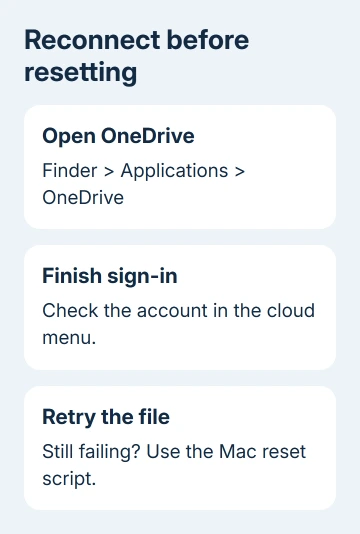
One owner fixed error -43 by opening OneDrive and connecting it after startup. Another restored access with the reset in section 3. Those fixes worked for this message; other Finder errors need their own checks.
Open the file once the account is connected. Watch the cloud menu for a transfer, sign-in warning or sync error. If the document downloads and opens now, reconnecting the app has restored access.
If the cloud menu stays missing, the application closes, or the same error returns even after you've signed in, move to the next check. Keep the exact wording of the message, since Finder can report file errors outside OneDrive too.
2. Check whether the cloud copy and other files open
Visit OneDrive online and sign in with that Microsoft account. Find the affected folder and open the document or photo there. For a company SharePoint library, use the organization's original library rather than your personal OneDrive.
Use the online copy to continue your work during the Mac app repair. Recent edits on this Mac might not have uploaded, though. Compare the file's content and modification date to check that it's your latest version.
Try another file in the synced folder, then one outside OneDrive. This helps you tell a cloud connection problem from a damaged document or a wider Finder copy problem. These comparisons leave your settings unchanged.
When ordinary local copies also fail, use the Mac Finder copy checks to distinguish that different error from this OneDrive problem. Give support the actual code you see rather than applying a remedy for a similar number.
If only one cloud item fails, inspect its sync error before resetting everything. The OneDrive filename and path checks explain restrictions that can stop a particular item. A reset can't make a prohibited filename valid.
3. Reset the installed Mac edition of OneDrive
Microsoft's Mac reset procedure rebuilds the app's sync settings without deleting your files. Before changing setup, save a copy of any unsynced edits outside the sync folder. That keeps a local copy you can compare with the cloud version.
Quit OneDrive from its menu-bar cloud menu. The wording varies by build; the documented route is Preferences > Pause > Quit OneDrive. If it isn't running, continue in Finder.
In Applications, Control-click OneDrive and choose Show Package Contents. Open Contents > Resources. Double-click ResetOneDriveApp.command, or ResetOneDriveAppStandalone.command for the standalone edition.
Choose the script for the edition you've installed. Intel and Apple-silicon models follow these same Finder steps; the processor isn't the reason to choose the standalone script.
A Terminal window opens to run the app's own reset command. Once it finishes, open OneDrive again and complete setup. Sign in to the affected account and use your existing OneDrive folder when setup offers that choice.
Let OneDrive finish checking folders and transferring pending files. Review any selective folder choices after syncing completes. Check those choices for each account you reset.
The owner said files opened after signing in and choosing the original folder. Another reply described deleting old folders during recovery, but that extra deletion isn't part of the supported reset procedure.
4. Deal with a missing reset script or an app that won't start
Some older OneDrive builds don't include the reset commands. If yours doesn't, follow the installation instructions to replace it with the current supported Mac edition. Then retry the reset if you still need it.
Keep one edition installed. Running both the Mac App Store and standalone sync apps side by side isn't supported. Check which app you're replacing before adding another download that leaves the original installation in place.
If downloads stay at 0 KB on an M1 Mac, note any network filtering software when reporting it. That stalled-download pattern differs from a disconnected account. Leave the cloud folder in place rather than deleting it to force a download.
After setup, test the original item and a second file. Both files should open and show the content you expect. A cloud icon returning to the menu bar alone isn't the final check.
If error -43 persists, use Contact Microsoft Support in the reset guide or ask your company administrator for help. Send your macOS version, OneDrive build and account type, and say whether the file opens online but fails in Finder.
Attach the error text and say whether reset finished or failed at a particular step. Support can then work from the step that failed, with your cloud and local copies still intact.
The Short Version
Open OneDrive and finish signing in before changing files. Check the same cloud copy, then use the Mac edition's reset script if the account remains stuck. Review folder selections after setup and test that the original file opens.
Checked November 16, 2026.





