
OneDrive downloads on an M1 Mac can stall when a background app filters network traffic. Pause AdGuard if installed, then retry one file. An owner whose downloads stuck at 0 KB confirmed AdGuard was the cause after safe mode worked.
These steps address downloads that stall after sign-in. If OneDrive won't open, check startup; if it rejects sign-in, check the account. Without AdGuard, compare safe mode with normal startup to check for another background conflict.
In this guide
1. Pause AdGuard and retry one stalled download
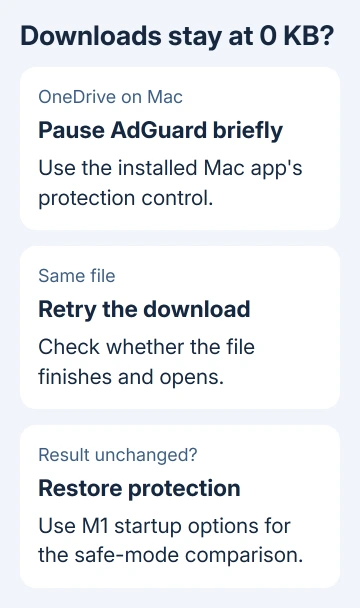
Check whether AdGuard for Mac is installed and running. The full Mac app can filter other apps' traffic; a browser ad-blocking extension is a different product. Use AdGuard's own protection control to pause it temporarily.
Return to Finder, open your OneDrive folder and retry the same small file. Check whether it downloads and opens in its app. Filenames appearing in Finder don't mean their contents are already stored locally.
In the original Microsoft forum thread, the MacBook Air owner could sign in and see their files, but downloads stayed at 0 KB and eventually showed error code 16. Installing OneDrive from two different sources hadn't fixed it.
They confirmed that OneDrive worked in safe mode. Checking background apps individually in normal mode led them to AdGuard. AdGuard caused the problem on their Mac, but other M1 download failures can have different causes.
If pausing protection changes nothing, turn it back on and continue to safe mode. If it does fix the download, restore protection after the comparison and move to the narrower application setting in step 3.
2. Use the M1 safe-mode startup sequence
Save your work and choose Apple menu > Shut Down. Wait until the Mac has shut down completely. With the Mac off, hold down its power button. Release it when the screen displays Loading startup options.
Select the startup volume, normally Macintosh HD. Hold Shift, then click Continue in Safe Mode. Log in when prompted and look for Safe Boot in the menu bar at the login window.
Apple's safe-mode instructions distinguish Apple silicon from Intel. On an M1, holding Shift during an ordinary restart isn't the correct procedure.
Open OneDrive if it didn't launch automatically, then retry the same file from Finder. Keep the comparison small: you want to know whether one stalled download can finish, not start your entire library again.
If it works, restart without holding any keys. Check background utilities, network filters and VPN apps individually through their own controls. Retry the download after each change to see which app affects it.
For an Intel Mac, restart and immediately hold Shift until the login window appears. That Intel sequence is included for the same symptom on older hardware; the M1 uses startup options instead.
If the file fails in safe mode too, continue with step 4's account and sync checks. If the download works in safe mode, check apps loaded during normal startup. You'll still need to find which app is interfering.
3. Adjust the filter that changed the result
When the AdGuard comparison succeeds, open its settings or preferences and go to Network. Find Applications in the application-filtering controls. Check whether OneDrive is included among the filtered apps.
The network settings guide describes application filtering and HTTPS filtering. HTTPS is the encrypted connection used by cloud services, which is why a filter can affect OneDrive as well as browser pages.
If your AdGuard version offers a OneDrive exclusion, use it and turn the rest of its protection back on. Retest the same download. Controls differ across releases, so use its current help if your Applications panel looks different.
An exclusion targets just OneDrive after the pause helped, but the owner didn't report trying that setting. If protection still blocks downloads, send AdGuard support the comparison and ask for the right OneDrive exclusion.
On a managed Mac, ask IT to change the filter. Your organization may control that software even when OneDrive uses your account. Report the comparison: downloads fail with filtering on and succeed with it paused.
I'd keep the working download available locally while support checks the filter. That lets you continue editing without repeatedly turning the entire protection system off.
4. Read OneDrive's status before resetting it
Open the cloud icon in the Mac menu bar. Read the connected account and current sync message. If syncing is paused, choose Resume syncing. If a sign-in request appears, complete it with your profile for that storage.
For a cloud that disappeared or stopped responding, use the Mac OneDrive restart steps. Relaunching the app is different from uninstalling it and doesn't require moving your cloud folders.
If the installed app is old, use the OneDrive update route for its source. A Mac App Store copy updates there; a standalone copy follows the desktop updater. Don't install a second edition over the first just to try it.
The original report was from January 2021. Its complaints about M1 support and its suggested 2020 download version are historical context, not instructions to install that old package today.
If the account opens but downloads still stall after those checks, try resetting the app next. If you see a sign-in error or storage warning, follow the fix for that message instead.
5. Reset the installed Mac sync app
Quit OneDrive from its cloud menu. In Finder > Applications, Control-click OneDrive and choose Show Package Contents. Open Contents > Resources.
Run ResetOneDriveApp.command, or ResetOneDriveAppStandalone.command for the standalone edition. The filename follows the installed edition, not whether the Mac has an M1 or Intel processor.
Start OneDrive and complete setup. Use the existing OneDrive folder when prompted, then let it finish checking and syncing all your files. Review your previous folder selections and test the stalled document again.
If reset doesn't help, give OneDrive support your app build, macOS version, exact error code and whether the file downloaded in safe mode. For work or school, ask the administrator to open the case and include any managed filter software.
The Short Version
Check AdGuard when files appear but downloads stay at 0 KB. Use the Apple-silicon safe-mode sequence to compare normal startup. Check the background filter and app status before updating or resetting sync.
Checked November 16, 2026.





