OneDrive normally updates its desktop sync app automatically, so a missing Update button isn't unusual. Start by checking the version in OneDrive's settings, then use the update route for the app you actually installed.
The Windows sync app, the Mac App Store version, and the phone apps don't all update the same way. A different build number on another computer can also be normal during a gradual release.
In this guide
Identify the OneDrive app and its version
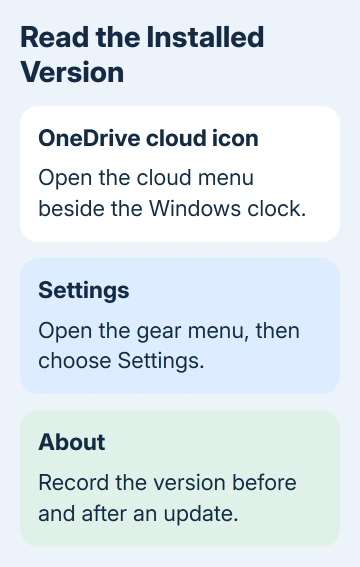
On Windows, click OneDrive's cloud icon beside the clock. Use the gear menu to open Settings > About. Note the version before making changes so you can see whether an update actually installed.
If the cloud icon is hidden, expand the notification area's hidden icons. If it isn't there, search Start for OneDrive and open the desktop app. Open OneDrive first so its cloud menu becomes available.
Microsoft explains the difference in its OneDrive app guide, separating the desktop sync app from the Windows Store viewing app. Updating a viewer doesn't update the program that syncs your File Explorer folders.
On a Mac, use the OneDrive cloud icon in the menu bar and find About in its settings or preferences. Check whether you installed it from the Mac App Store or a standalone download. That decides how you update it.
A browser tab showing your files is another case. The web version has no desktop installer to update. Use the desktop app's version when you're trying to fix synchronization between a local folder and the cloud.
Let the Windows sync app complete its update
Leave OneDrive running with an internet connection. The desktop update process checks for an available update every 24 hours while the app runs. Windows also has a scheduled update task.
When OneDrive starts after being stopped for more than 24 hours, it checks again. That makes opening the app useful after a PC has been switched off or OneDrive hasn't been running for several days.
When an update is available for your installation, it downloads and installs automatically. OneDrive stops and restarts during the update. Ordinary automatic updates keep your existing sign-in and don't need administrator rights.
Don't unlink the account just to look for a newer build. Unlinking changes the sync connection; it isn't the normal update control. I'd check About first and keep the working account connection in place.
When the app returns, check its version again. A changed number confirms that a new build installed. If it hasn't changed, check the release channel and system requirements before deciding the updater is broken.
Compare the release channel before forcing an installation
OneDrive releases reach computers in groups called update rings. Production is the normal public release; Insiders receive earlier builds, while organizations can use Deferred to adopt releases later.
A Production rollout usually takes one to two weeks. That means two working computers can show different versions on the same day. A larger number somewhere else isn't enough reason to reset your installation.
Use the sync release notes for your operating system and ring. Read the requirements as well as the build number. Current Windows sync updates require Windows 10 version 22H2 or Windows 11.
On Windows, use Windows + R, enter winver, and select OK to read the release. If your Windows version isn't supported, downloading the installer again won't make that older system eligible.
Work PCs may be assigned a ring by IT. Ask which ring applies before changing installations. The Microsoft 365 Apps channel and OneDrive sync ring are separate choices, even when both programs arrived together.
Install the current desktop app when automatic updates stall
For an outdated personal Windows installation that isn't updating, use the official OneDrive download and run its installer. Our OneDrive download guide covers choosing the sync app and completing setup.
Use the installer rather than replacing program files by hand. The reinstallation instructions also explain the different Windows and Mac packages if the installed copy needs replacement.
After setup, open the cloud menu, check About, and review the sync status. Check whether the account shown is the personal or work account you need before treating missing files as an update problem.
If the version changes but a folder still won't sync, move on to the OneDrive sync checks. Updating the program and repairing a rejected filename are different jobs.
Use the store that supplied the Mac or phone app
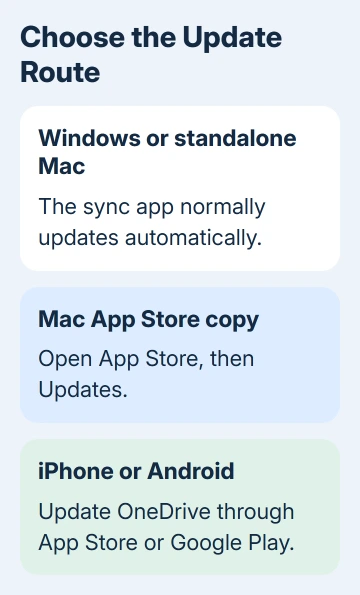
A standalone Mac sync app follows the desktop automatic update process. A Mac App Store installation updates through that store. Open App Store > Updates and install the OneDrive update if one is offered.
If the updated M1 app still lists files but cannot download them, compare the background network filter before trying another installation source.
On iPhone or iPad, open App Store, tap your account picture, and look for OneDrive among available updates. Tap Update when offered. If the button says Open, the store has no update to offer your installed app at that moment.
On Android, open Google Play Store, tap your profile picture, then Manage apps & device. Select Microsoft OneDrive from the available updates if it appears there. Check the app's publisher before installing a similarly named result.
An organization can control its devices' store access and app versions. Give IT the operating system, installed build, app source, and update error. Ask IT to check the update policy and access to the update servers.
On a personal desktop, send those details to OneDrive Support. The updater connects to oneclient.sfx.ms and g.live.com. Report either blocked address to the firewall's administrator instead of disabling its protection.
The Short Version
Read the installed version first. Let desktop sync update automatically, compare its release ring, and use the official installer if it stalls. Store-installed Mac and phone apps update through their respective stores.
Checked November 15, 2026.