
The easiest way to download iCloud notes as readable files is to open them in Notes on a Mac and export them. The iCloud website handles attachment downloads, but saving a note's attachment isn't the same as exporting the whole note.
Choose what you need to keep: a readable copy of a note, editable text for another app, or an original attached file. That tells you whether to use PDF, Markdown, copied text, or the attachment's download control.
In this guide
Choose the file you want to keep
A PDF is useful for keeping the note's readable appearance or sending it to someone who doesn't use Notes. Markdown is a text-based format that another writing app can edit, though it isn't an exact visual copy of the Notes screen.
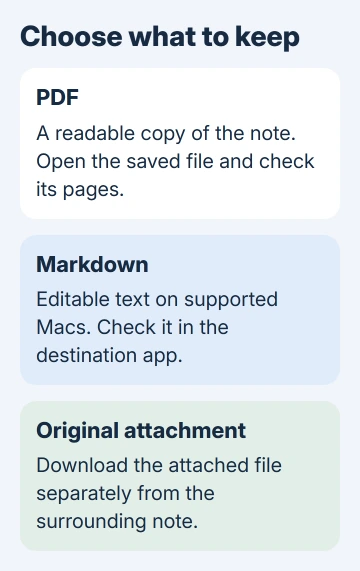
An attachment is its own file, such as a picture, spreadsheet, or PDF already inserted in the note. Downloading it preserves that item separately. It doesn't include the note's surrounding text, checklist, or other attachments.
Sync is different from all three. Seeing a note on another signed-in device means the account is keeping that note in sync. It doesn't save an independent copy that will stay unchanged when you edit or delete the note.
I'd use a PDF for a receipt or reference note that only needs to remain readable. For a note moving into another editor, export a text-based copy and check the imported result before relying on it.
Bring the iCloud notes into Notes on a Mac
Open Notes and show its folder sidebar. Look for the iCloud section and select the folder containing the note. A note under On My Mac, Gmail, or another account isn't part of iCloud simply because Notes displays it alongside that account.
If the iCloud section is missing, open Apple menu > System Settings > your name > iCloud. Find Notes among the apps using iCloud and turn its sync on. The labels for the full app list vary by macOS version.
Use the Apple Account that already contains the notes. A different Apple Account will show its own notes, not the ones you want to export. Give the app time to load the selected note and its attachments before exporting it.
If the note appears on the iPhone but not the Mac, use the iPhone and Mac Notes sync checks first. Exporting an old local copy won't capture edits that haven't reached the Mac.
Open the note itself and read its latest lines. Unlock it if necessary. A title in the sidebar alone doesn't confirm that the full text and attachments are available for the copy you're about to save.
Export the note as a PDF
Select the note in the Mac app. On macOS Tahoe 26, choose File > Export as > PDF. Give the file a name, choose its destination, and click Save. Older macOS versions can show File > Export as PDF directly.
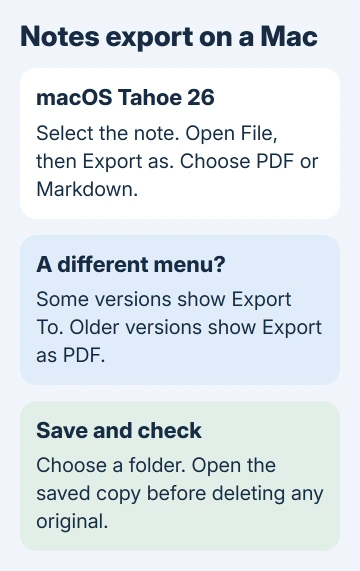
Apple's Notes export instructions describe the current Export To menu. Tahoe 26 uses Export as; check the version selector in the help page when the menu differs.
Open the saved PDF in Preview or another reader. Inspect its beginning, end, tables, and images. A filename tells you something was saved. Reading the file tells you whether it contains what you need.
Keep original attachments separately when their full contents matter. Being able to read an attachment inside Notes doesn't mean every page of that document is included in the exported note.
Repeat the process for each note you need to keep. The normal export command acts on the chosen note; don't expect it to create a complete folder archive with all Notes features and sharing information intact.
Export editable text on supported macOS versions
On macOS Tahoe 26, Notes can export a note as Markdown. Select the note, choose File > Export as > Markdown, choose the filename and location, then save it. The result is an .md file.
Some versions also offer Edit > Copy as Markdown after selecting text within the note. Use it when your destination accepts pasted Markdown. Export instead when you want a separate saved file to keep.
Open the Markdown file with your destination app and check its lists, links, and formatting. The text file won't keep every interactive Notes feature, and another editor may not turn the note's layout into the same working controls.
On a Mac without the Markdown export option, copy the note's text into a text editor and save it there, or choose PDF to preserve the layout rather than edit the text. You don't need to update macOS just to keep a readable copy.
Download original attachments from iCloud.com
On a computer, sign into icloud.com/notes with the account containing the note. Open the right folder and note, then double-click the attachment you want to view or download. Use its download control when available.
This is useful when a Windows computer needs the attached file without access to a Mac. It isn't a full-note export control. Copy the note's accompanying text separately if the file needs that context.
The iCloud Notes browser instructions cover opening the right account and handling notes that won't allow editing. An attachment you download becomes a separate file from the live note.
If the attachment opens in a viewer, check its download or save option there. Save the original file before making changes in another app. Editing that downloaded copy doesn't mean the item embedded in Notes has been replaced.
The website needs a personal sign-in, so its contents depend on your own account. If Notes isn't available after signing in, check that iCloud web access is allowed for the account and that the note is actually stored in iCloud.
Keep the copies somewhere independent
Choose an easy-to-find folder for the exports and include it in your normal file backups. For offline access, check that your computer has the saved files, rather than only a listing in cloud storage.
Use clear filenames to distinguish similar notes. Open a sample of each exported type, particularly notes with attachments or long tables. Counting the files won't tell you whether everything inside them was saved.
Don't delete the original notes until you've checked the saved files and the destination you intend to use. A PDF or Markdown file won't keep every Notes feature, permission for sharing, or connection to your account.
If a note won't load or export, request Notes export help from Apple Support for your installed macOS release. Include whether the note opens on iCloud.com, whether it's locked or shared, and which export command fails.
The Short Version
Export iCloud notes from Notes on a Mac as PDF, or Markdown on supported versions. Download original attachments separately from iCloud.com. Open the saved files before treating them as your archive.
Checked November 16, 2026.





