
A FaceTime call already active on your iPhone can continue on the Mac. Click Move Call to This Mac, or choose Switch from the menu-bar FaceTime control. Enable Handoff on both devices before transferring the call.
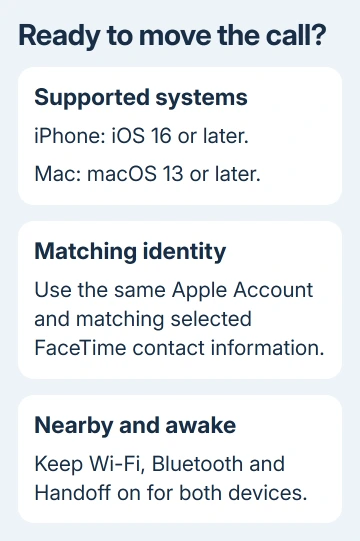
Use at least iOS 16 on the iPhone and macOS 13 (Ventura) on the Mac, using matching Apple Accounts on the two devices. A Mac running an older system can make FaceTime calls but can't use this call-transfer feature.
In this guide
Prepare both devices before the call
Set your iPhone beside the Mac and turn on both Wi-Fi and Bluetooth for each device. Unlock the phone and keep the call active while you're looking for the transfer control on the computer.
Compare the signed-in Apple Account addresses. On iPhone, select the account heading in Settings. On the Mac, open System Settings and select your account. The account address should match on both screens.
Open FaceTime on the Mac before you need to switch. Complete any FaceTime sign-in prompt now. A computer that's signed out of FaceTime isn't ready to take over the current call.
Next, check that FaceTime has the same contact information selected on both devices. Look at the selected phone number and email entries, rather than your contact card's display name.
On current iOS, open Settings > Apps > FaceTime. On iOS 16 and 17, find FaceTime in Settings without opening Apps. Check the selected calling information against FaceTime > Settings on the Mac.
Apple says selected FaceTime contact information must match between the devices. Check those calling addresses as well as the account heading.
Turn on Handoff on the phone and computer
Handoff lets you move an activity between nearby Apple devices. It makes the other device offer to continue the FaceTime call you're already on.
On the iPhone, open Settings > General > AirPlay & Continuity and enable Handoff. Some software versions call that section AirPlay & Handoff; use the Handoff switch inside it.
On the Mac, open System Settings > General > AirDrop & Continuity. Some versions use the name AirDrop & Handoff. Enable Allow Handoff between this Mac and your iCloud devices.
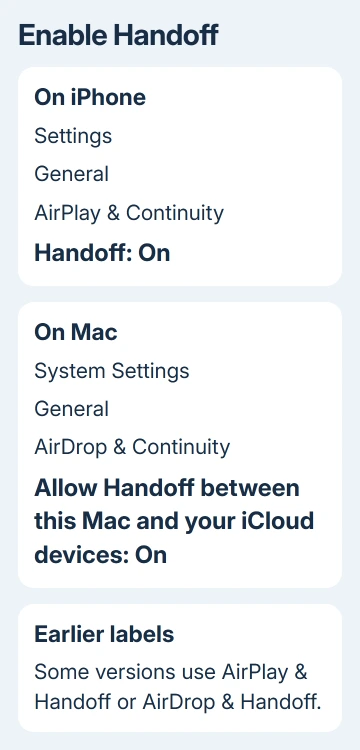
These Mac steps apply to Ventura 13 and later, the systems that support moving FaceTime calls. An older System Preferences window can have a Handoff option for other activities without supporting FaceTime call transfers.
I'd finish these account and Handoff checks before an important call. It's easier to find a missing sign-in when you aren't also trying to keep a conversation going on the phone.
If this is an ordinary cellular phone call, use the separate iPhone calls on Mac setup. A FaceTime transfer and relaying a cellular call through an iPhone aren't the same task.
Switch the live call to the Mac
While you're on the FaceTime call, bring your iPhone beside the Mac you've set up. Keep both devices awake while you move the call. Leave the call connected rather than sending a second invitation.
On the Mac, click the Move Call to This Mac notification when it appears. If you don't see the notification, click the FaceTime button in the Mac's menu bar instead.
Choose Switch, then confirm Switch in the FaceTime window if that additional button appears. Depending on the prompt, you may need to confirm in both the menu bar and the FaceTime window.
Watch the Mac's call window before putting the phone aside. Check with the other person that your voice comes through the Mac's microphone. Check that you can hear them through the speaker or headphones you want to use.
For a video conversation, check the camera view as well. Moving the call and choosing an iPhone as the Mac's webcam are separate features; you don't need Continuity Camera just to move the call.
If the call has moved but sound is wrong, check FaceTime's selected audio device on the Mac. For a call that should remain audio-only, the FaceTime Audio instructions explain that calling mode.
Move the conversation back to the iPhone
During the call on the Mac, look for Move Call to This iPhone on the phone. Tap it to continue the same conversation there when you need to leave the desk.
If that notification isn't present, tap the FaceTime control in the iPhone's top bar. Choose Switch, then tap the Switch button in the FaceTime window when shown.
Listen briefly on the phone before walking away from the Mac. Make sure you can hear and speak to the other person on the phone. Seeing the FaceTime app open there doesn't tell you whether the call has moved.
The same transfer feature also supports an iPad running iPadOS 16 or later. Its notification uses the iPad's name. The devices still need to be nearby, use matching accounts, and have Handoff enabled.
When no transfer option appears
Check your software versions first. On iPhone, open Settings > General > About for the iOS version. On the Mac, use Apple menu > About This Mac. Having FaceTime installed doesn't mean that version supports call transfers.
If either device can't run the required system, use the device already handling the call or start a separate call on the Mac later. Turning general Handoff off and on won't add support to an older operating system.
For supported devices, compare the account and FaceTime calling information, then check the Handoff switches. Keep Wi-Fi and Bluetooth on, and retry with both devices beside each other rather than in different rooms.
If a later attempt still has no transfer control, contact Apple Support about FaceTime Handoff. Give both device models, software versions, whether the transfer works in either direction, and which Switch control is missing.
The Short Version
Use iOS 16 and macOS 13 or later, matching accounts and FaceTime contact information, and Handoff on both devices. During the iPhone call, choose Move Call to This Mac or use the menu-bar FaceTime control and Switch.
Checked November 16, 2026.





