
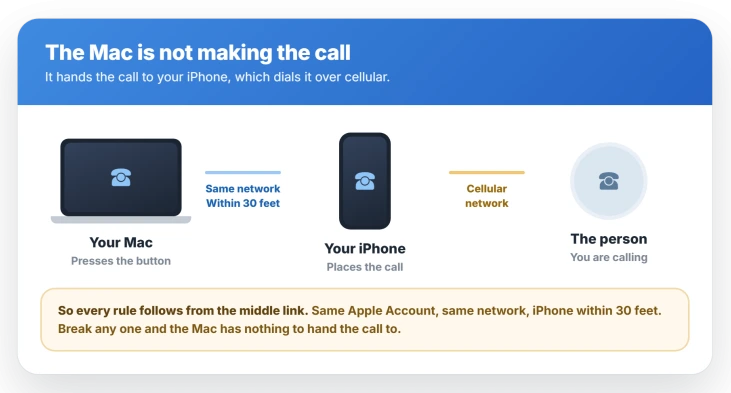
The Phone app on your Mac is not a phone. It is a remote control for the iPhone in your pocket, and every call it places still travels out over your iPhone's cellular connection.
macOS Tahoe attaches conditions to that relay. The two devices have to sit within about 30 feet of each other, on the same network, signed into the same Apple Account.
When calls fail, one of those links has come apart, and the network link is where it usually goes. Two devices can show the same Wi-Fi name and still sit on different networks.
Let me take you through the links in order, because that one catches nearly everybody.
What the Mac actually needs before it can dial
Apple lists four conditions for making or receiving calls on a Mac, and all four have to hold at once.
- Both devices on the same network. Apple's wider guidance adds that Wi-Fi has to be switched on for the Mac even when it sits on Ethernet.
- The same Apple Account signed in on the Mac and the iPhone.
- Signed into FaceTime on both, with your phone number turned on in FaceTime settings.
- The iPhone set to allow calls on that specific Mac.
Apple also puts a number on the distance. The devices have to be within 30 feet, or 10 meters, of each other, so an iPhone charging two rooms away is already out of range.
If both devices show the same Wi-Fi name and calls still fail
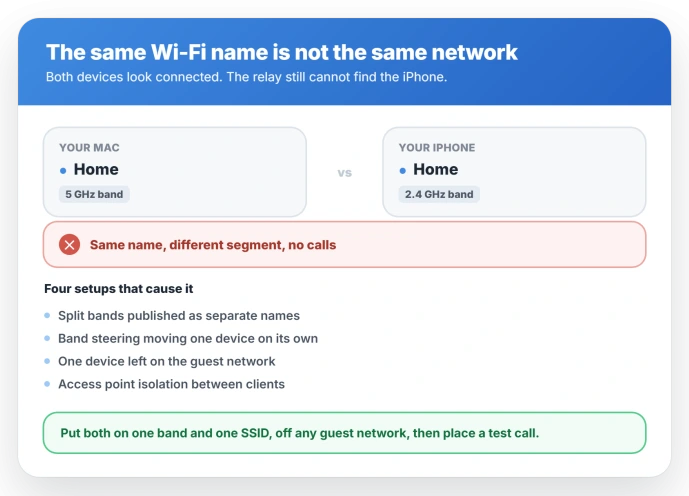
Split frequency bands, band steering, a guest network, and access point isolation all put two devices on separate segments. Everything reads as connected, and the relay still cannot find the iPhone.
A user whose Mac calls failed for a month traced it to a dual band router with both devices sitting on 5 GHz. Moving one to 2.4 GHz cleared it immediately.
Mixed bands worked and 2.4 on both worked, and only the both on 5 GHz combination failed.
That is one report rather than a universal rule, but it is quick to test.
On the Mac, hold Option and click the Wi-Fi icon in the menu bar to see which band and channel it actually joined.
If your router publishes the bands as separate names, move one device onto the 2.4 GHz name and place a test call. Keep both off any guest network either way.
If it uses a single name with band steering, you cannot pick a band from the device, so the reliable test is switching the 5 GHz band off in the router settings for a few minutes and placing a call.
The same split network trap breaks iPhone Mirroring.
If your iPhone is never nearby: turn on Wi-Fi Calling
Wi-Fi Calling lifts the proximity requirement entirely. On the iPhone, open Settings, tap Apps, tap Phone, then Wi-Fi Calling, and turn on Wi-Fi Calling on This iPhone. Then turn on Add Wi-Fi Calling For Other Devices.
With that running, the Mac can place and take calls even when the iPhone is in another building or switched off.
It depends on your carrier supporting it. If Wi-Fi Calling does not appear under Settings, Apps, Phone, yours does not offer it.
Without it, the Phone app stays a nearby iPhone relay. There is no mode where the Mac reaches the cellular network on its own.
If you get Call Failed, suspect the VPN
A VPN on either device is a strong candidate, and it produces this signature: outgoing calls die with Call Failed, while incoming calls ring but cannot be answered.
One Apple Community thread on macOS 26.0 traced exactly that to an active VPN, with calls working the moment it was switched off.
Apple has its own note on VPN and third party security software interfering with local networking and Continuity.
Turn the VPN off completely and place a test call. That single step separates a network policy problem from everything else in this article.
If you cannot find the Calls from iPhone switch
On the Mac, the switch is in FaceTime, not Phone. Open FaceTime, go to Settings, then General, and turn on Calls from iPhone. Check that your number is selected there too.
On the iPhone, it moved into Phone. Open Settings, tap Apps, tap Phone, then Calls on Other Devices, and make sure your Mac is listed and switched on.
Being signed into FaceTime is a real requirement. Keeping the FaceTime window open is not, despite how often that gets repeated.
If clicking a phone number opens Teams or Zoom
If calling back from Recents works but the dial pad and Contacts do not, the relay is fine and another app has claimed the phone number links.
Teams, Zoom, and Chrome have all been reported doing it on Tahoe. Installing them registers the app as a handler for phone number links, and the Phone app stops getting them.
Apple documents the setting to change it back under Phone, Settings, General, Default for calls, described as covering calls made by clicking phone number links.
The option is often missing. Through late 2025 users reported it absent from both Phone and FaceTime settings on Tahoe, and a developer filed a bug about it that Apple has not resolved publicly.
Removing the other app is the common workaround, though it is not guaranteed. It worked for Teams, while one Chrome case kept trying to reinstall it from the keypad even after removal.
Reinstalling takes the handler back either way.
If the call connects but you cannot hear anything
The speaker and microphone pickers are not in the Phone app's settings. They sit in the Video menu in the menu bar, which is an odd home for audio controls.
Open Video with a call running and set the microphone and output explicitly rather than leaving them on the system default. Calls that connect and then sound dead often clear up right there.
Status: still unfixed as of macOS 26.5. No release note since Tahoe shipped addresses the calling failures or the missing Default for calls setting, and the relay requirements are unchanged.
What does not fix it
These come up in every thread on this and none of them resolved it for the people who tried:
- Restarting both devices. Worth 60 seconds, but it does not survive the underlying network or handler problem.
- Signing out of your Apple Account and back in. Reported repeatedly with no result.
- Toggling Calls from iPhone off and on. Only helps if the switch was genuinely off to begin with.
- Resetting network settings on the iPhone. It does not change which band or segment the Mac is on, which is where the failure usually sits.
- Keeping FaceTime open in the background. Signed in matters. Running does not.
When it is a different problem
- FaceTime Audio is not the Phone app. FaceTime Audio runs Apple device to Apple device over the internet, with no carrier and no iPhone involved. If FaceTime Audio works and phone calls do not, the relay is your problem, not your internet.
- Calls ringing on the Mac when you never wanted that. Turn off Calls from iPhone in FaceTime settings on the Mac, or switch that Mac off in the iPhone's Calls on Other Devices list.
- The iPhone not ringing either. Then it is not a Mac problem at all, and a Focus mode is the likely culprit.
- The firewall. Worth a look only if you turned on Block all incoming connections yourself or run a third party firewall. The macOS firewall is off by default, never blocks outgoing calls, and allows Apple's own apps when it is on.
Why can't my Mac make phone calls on macOS Tahoe?
The Mac places calls through your iPhone rather than on its own, so the two have to be within 30 feet, on the same network, and signed into the same Apple Account with FaceTime active on both.
A network that only looks shared, such as split Wi-Fi bands or a guest network, is the most common reason everything appears set up correctly and calls still fail.
Does the Phone app on Mac work without my iPhone nearby?
Only with Wi-Fi Calling. Turn on Wi-Fi Calling on This iPhone and then Add Wi-Fi Calling For Other Devices under Settings, Apps, Phone, and the Mac can call without the iPhone present, if your carrier supports it.
Why does clicking a phone number open Microsoft Teams on my Mac?
Teams claimed the handler for phone number links when it was installed. Recents will still dial correctly, which is how you can tell it apart from a relay failure.
Apple documents a Default for calls setting under Phone, Settings, General, but many Tahoe users report it missing, and removing the other app is the reliable workaround.
Do I need to keep FaceTime open on my Mac for calls to work?
No. You need to be signed into FaceTime with the same Apple Account and have your number enabled, but the app does not have to be running.
The Short Version
- The Mac does not make the call. It relays through your iPhone, which needs to be within 30 feet on the same network with the same Apple Account.
- The same Wi-Fi name is not always the same network. Split bands, guest networks, and access point isolation all break it while looking fine.
- Call Failed on outgoing calls with incoming ringing but unanswerable is the VPN signature. Turn the VPN off and test.
- The toggles are split across two apps: Calls from iPhone lives in FaceTime on the Mac, Calls on Other Devices lives in Phone on the iPhone.
- If Recents dials but the keypad does not, another app grabbed your phone number links. Teams, Zoom, and Chrome have all done it.
Where to Next
And if you were trying to record the call rather than take it, that feature has conditions of its own.
- The other Continuity link that breaks the same way: iPhone Mirroring timed out on Mac
- The camera version of the same pairing problem: Continuity Camera will not connect wirelessly
- Calls not ringing on the iPhone itself: iPhone not ringing after iOS 26

Isaac Smith is the founder and editor of PC Glance, a website that covers computers, laptops, and technology. He is a tech enthusiast and a computer geek who loves to share his insights and help his readers make smart choices when buying tech gadgets or laptops. He is always curious and updated about the latest tech trends.