
Yes, an iPad can make ordinary calls through your iPhone's mobile line. Enable Calls on Other Devices on iPhone and Calls from iPhone on iPad. Dial using Phone on iPadOS 26 or later, or use FaceTime's phone-call option on older versions.
A cellular iPad plan alone doesn't provide this iPhone calling feature. Without an iPhone, FaceTime audio remains an option for other FaceTime users, but it can't replace a mobile line for calls to arbitrary telephone numbers.
Set up the iPhone that will supply the phone line
Keep the iPhone switched on and near the iPad. Use one Wi-Fi network for both devices. Sign into each using the same Apple Account. The iPhone needs an active carrier plan to pass ordinary calls to the iPad.
On the iPhone, open Settings > Apps > FaceTime. Turn FaceTime on and check that your phone number is selected under You can be reached by FaceTime at and Caller ID.
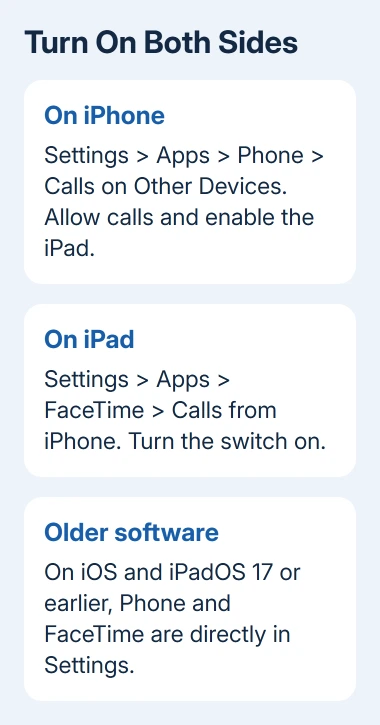
Next, open Settings > Apps > Phone > Calls on Other Devices. Enable Allow Calls on Other Devices, then switch on the iPad in the device list. Each listed device has its own permission.
On iOS 17 or earlier, Phone and FaceTime appear in Settings itself, without opening Apps. Look for the same feature names there. Finish the iPad setup next if it hasn't appeared in the iPhone's list yet.
Apple's cross-device calling instructions describe both halves of this setup. Signing into your Apple Account doesn't automatically give every device permission to make calls.
If the iPhone itself can't place an ordinary call, fix its line first. The iPhone Call Failed checks help separate a carrier-line problem from a problem limited to the iPad relay.
Enable Calls from iPhone on the iPad
Open the iPad's Settings > Apps > FaceTime and turn FaceTime on. Check that it uses the same Apple Account as the iPhone. Select the iPhone's number under You can be reached by FaceTime at and Caller ID where those settings appear.
Tap Calls from iPhone, then enable Calls from iPhone. On iPadOS 17 and earlier, open Settings > FaceTime to reach those controls. Return to the iPhone's allowed-device list if you couldn't select the iPad before.
Both devices need your account for this feature. Family Sharing doesn't replace that requirement. An iPad using a relative's account won't become your calling device through shared family subscriptions.
If you're using a VPN, check whether it allows devices to communicate on the local network. If it blocks communication on the local network, it can disrupt Continuity, the features that let your Apple devices work together.
For the first call, keep both devices close on one home network. This gives them the connection needed for calls through a nearby iPhone. Get that working before trying the carrier-supported option for calls farther away.
Dial in the Phone app on iPadOS 26 or later
Open Phone on the iPad and enter the telephone number on its keypad. Tap the call control to place the call. You can also choose a contact, a favorite or a recent call instead of typing the number.
If Phone isn't installed on a supported iPad, get Apple's Phone app from the App Store. The iPad calling guide describes the available dialing options. The app is available starting with iPadOS 26.
A normal call uses the iPhone's cellular service. The call uses that line's caller ID and carrier rates; your iPad doesn't get a separate voice subscription. Check the carrier's rates before making an international call.
A telephone number in Contacts, Calendar, Messages or Safari can also offer a call action when tapped. Choose the phone-call option for an ordinary number rather than a FaceTime invitation when that's what you need.
Dial a familiar non-emergency number and check that both sides can hear the conversation. The keypad alone doesn't confirm that calls and sound work. Incoming iPhone calls should also offer an answer option on the configured iPad.
If the app opens but the call fails, check whether the iPhone can dial that same number. A failure on both devices belongs with the phone line; if only the iPad fails, check the cross-device setup.
Use FaceTime when the iPad has no Phone app
On older iPadOS, open FaceTime and tap New FaceTime. Enter a contact or number, tap that entry and use Audio Call. For a regular telephone call, use the iPhone calling option when offered.
The calling options look different depending on your iPadOS version. Choose the number's telephone-call option; a FaceTime audio button can start an internet call instead. You can also tap a telephone number inside Contacts.
FaceTime audio uses an internet connection and requires FaceTime at both ends. It's useful without an iPhone, but can't place a conventional call to every landline or mobile number.
I'd try a number from Contacts first when the older interface is unfamiliar. It avoids retyping the number and shows the calling choices available for that contact on the iPad.
Set up carrier-supported Wi-Fi Calling for more freedom
Ordinary calls passed through your iPhone need it to be nearby. With carrier-supported Wi-Fi Calling on other devices, your iPad can dial without the iPhone nearby. Owning a cellular iPad doesn't by itself provide that support.
On the iPhone, open Settings > Cellular, choose the line if there are several, then tap Wi-Fi Calling. Switch on Wi-Fi Calling on This iPhone. Confirm the emergency address if your carrier requests it.
Return to the line's settings and open Calls on Other Devices. Enable Allow Calls on Other Devices and select the iPad. Keep the iPad's Calls from iPhone setting enabled as described earlier.
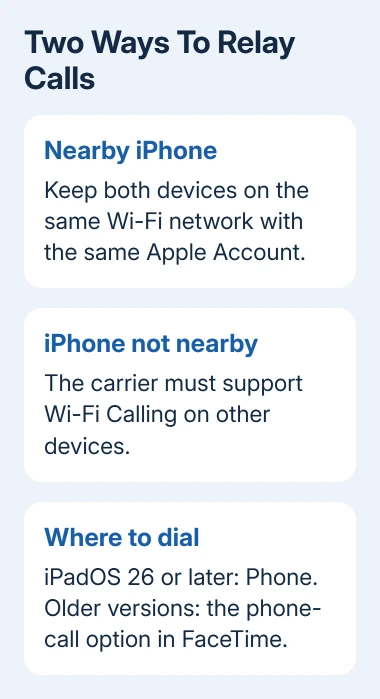
The Wi-Fi Calling setup explains the carrier requirement and available controls. If the needed setting isn't available, ask the carrier whether your line supports Wi-Fi Calling on other devices.
When the iPad still won't place a call
Check the account, FaceTime number and calling switches. Confirm the iPad is allowed on the iPhone and each uses the same Wi-Fi network for ordinary relay. If those settings are correct, restart both devices and retry.
For a VPN or managed network, ask whether the network lets your devices communicate locally. The Mac calling troubleshooting page explains similar relay and network problems when another Apple device also fails.
For an iPad-only failure, ask Apple Support about iPhone Cellular Calls on iPad. Give both software versions and say whether the iPhone is nearby.
If calls work only when the iPhone is nearby, check with your carrier that the line supports calling on other devices without it.
The Short Version
Allow the iPad in Calls on Other Devices on iPhone, then enable the iPad's Calls from iPhone switch. Use Phone from iPadOS 26 onward or the older FaceTime phone-call option. Remote Wi-Fi Calling needs carrier support.
Checked November 9, 2026.

Isaac Smith is the founder and editor of PC Glance, a website that covers computers, laptops, and technology. He is a tech enthusiast and a computer geek who loves to share his insights and help his readers make smart choices when buying tech gadgets or laptops. He is always curious and updated about the latest tech trends.