

An SSD that disappears after a Windows 11 update needs a storage check before you remove the update. Phison's testing didn't reproduce the widely reported August 2025 issue, so the update date alone can't explain a missing drive.
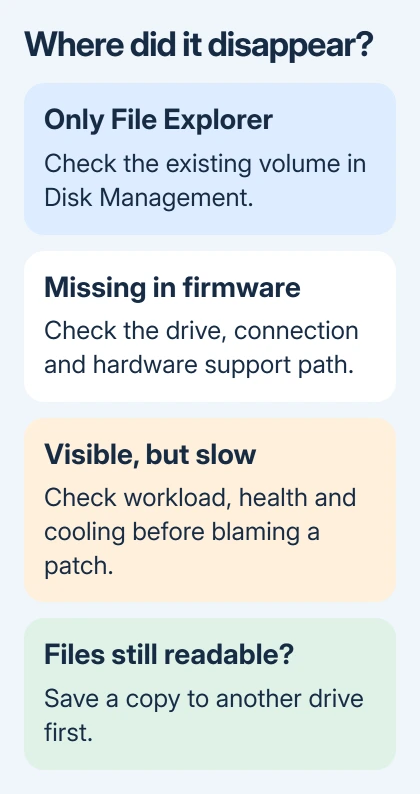
Check whether the drive has vanished from File Explorer, disappeared from the PC's firmware, or just slowed during copying. Protect readable files first, then use the section matching what your PC shows.
1. Save accessible files before changing anything
Stop the failed transfer and save essential files on a different physical drive or through your backup service while they're still readable. A second folder on the same SSD won't protect those files if the drive stops responding.
Record the SSD model, the Windows update number, and the exact symptom. Open Settings > Windows Update > Update history to read the installed KB number. Press Windows + R and enter winver to read the Windows version and build numbers.
Don't initialize, format, or delete partitions on a previously used SSD that contains needed files. Those actions set up storage for use; they won't recover files that disappeared after a restart.
The August 2025 reports focused on KB5063878 for Windows 11 24H2 and the earlier KB5062660 preview. If your update number differs, don't assume a workaround written for those packages applies to your computer.
Phison's published review says its testing couldn't reproduce the reported problem. It also recommends suitable SSD cooling for long, heavy workloads. Don't assume every failure after an update was caused by that update.
2. Check a drive that vanished only from File Explorer
Open Disk Management through the menu that appears when you right-click Start. Identify the disk by capacity and check its existing partitions. File Explorer lists accessible volumes, not every physical disk Windows detects.
A healthy existing data volume with no assigned letter can be present here while absent from File Explorer. Right-click that volume, open Change Drive Letter and Paths, then Add, select an unused letter, then choose OK.
Return to File Explorer. Look for the volume and try opening its files. If the files open, Windows could still see the SSD; it was the existing volume you couldn't access. Check important files against your backup.
If the volume is RAW, Unallocated, or Not Initialized, stop before changing its structure. If the SSD held files yesterday, decide how to recover them before using the new-drive setup wizard.
For other Disk Management states, the SSD detection checks explain how to separate a missing letter from an undetected disk. Microsoft's Disk Management troubleshooting also covers offline and unreadable disks.
If the SSD doesn't appear as a physical disk at all, move to the firmware check. Assigning a letter can't help a drive Windows isn't detecting.
3. Check firmware when the physical SSD is missing
Restart into the PC's BIOS or UEFI setup, the configuration screen that runs before Windows. Use the maker's setup instructions because the startup key and storage menu differ between desktop motherboards and laptops.
Look for the SSD model in the Storage, NVMe, or SATA information page. A boot-priority list isn't always a complete device list, so check the hardware information page before deciding the drive is absent.
If firmware also can't see the SSD, focus on the drive, connection, power, slot compatibility, or motherboard firmware. Windows update removal can't repair a loose connection or make a physically failed device readable.
For an external SSD, try a known working data cable and a direct USB port before a hub. For an internal drive, have the PC maker or a technician check seating and compatibility if opening the computer isn't practical.
If firmware sees the drive but Windows doesn't, tell support. Have the PC maker review the storage-controller driver and the SSD's compatibility with the installed firmware, using your exact PC and drive models.
4. Treat slow copying differently from a missing disk
If the SSD remains visible and files still open, note whether slowing happens only during long writes or also during ordinary use. Open Task Manager > Performance > Disk to see which drive is busy while the transfer runs.
A high activity percentage doesn't mean the update caused a fault. A large transfer, another app using the disk, the write cache (space used to speed up writes), and temperature can affect speed. Note the task and when slowing starts.
Use the SSD maker's utility to check health, firmware availability, and temperature if that model supports it. Follow the maker's instructions for your exact drive; a firmware package for a similar name isn't interchangeable.
I'd save the files before doing a firmware update. If the utility reports a warning, or the SSD disconnects during normal copying, give the warning and model number to the drive maker rather than repeatedly stressing it with benchmarks.
Windows' built-in SSD health display supports particular drive types. A missing health panel doesn't tell you that every SATA, USB, or otherwise unsupported SSD is healthy.
For a drive that slows under extended work, ask the PC or SSD maker whether its cooling arrangement meets the drive's requirements. Follow the advice for your computer: laptop thermal pads and desktop M.2 heatsinks need different handling.
5. Use update recovery only when the evidence fits
If the disk remains detected and a specific update is followed by a repeatable Windows failure, check that update's known issues before removing it. A recovery screen, an app error, and a missing storage volume aren't the same symptom.
If support recommends removal and Windows starts, open Settings > Windows Update > Update history > Uninstall updates. Select the named update and use Uninstall if offered. Some updates can't be removed through this screen.
When Windows can't start, Recovery Environment offers Troubleshoot > Advanced options > Uninstall Updates. Choose quality or feature update to match the change. Have the BitLocker recovery key ready if requested.
If removing the update helps, tell support. That helps explain the fault, but won't repair files or identify a failed part. Record the result and ask which replacement update or driver to use before leaving security updates paused.
If valuable files won't open, ask a data recovery specialist about getting them back before approving formatting or a warranty replacement. For a detected but unreliable SSD, ask its maker to review your diagnostics and warranty options.
The Short Version
Back up readable files, then check Disk Management and firmware to see where detection stops. Treat sustained slow writes separately. Use a specific update rollback only when it matches the fault, and keep recovery ahead of formatting.
Checked November 9, 2026.

Isaac Smith is the founder and editor of PC Glance, a website that covers computers, laptops, and technology. He is a tech enthusiast and a computer geek who loves to share his insights and help his readers make smart choices when buying tech gadgets or laptops. He is always curious and updated about the latest tech trends.