
An SSD missing from File Explorer may still be detected by your PC. Check Disk Management first. A missing drive letter and a drive absent from firmware, your PC's startup settings, call for different fixes.
If the drive held files before, cancel any request to initialize or format it while you check what Windows can see. Those actions prepare storage for reuse; they aren't how you start recovering your files.
1. Look for the physical disk in Disk Management
Press Windows + R, enter diskmgmt.msc and press Enter. In the lower pane, look for the SSD by its capacity. If you're unsure which disk it is, open that disk's Properties and check the model.
Check the disk's status on the left and its volumes, the sections that hold files, on the right. A disk can be Online with a volume that has no letter, or Unknown, Not Initialized with no usable volume.
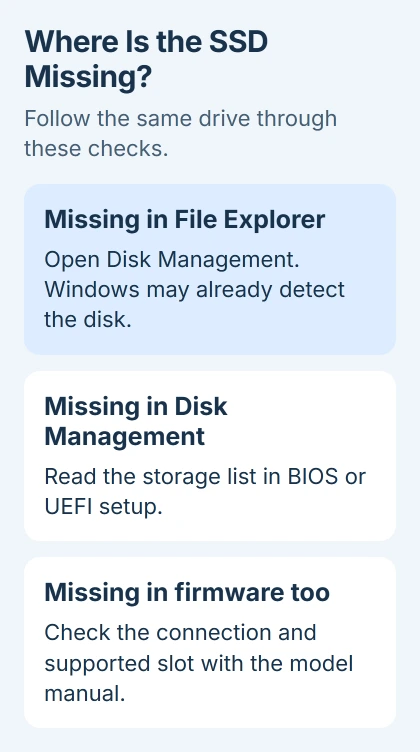
Microsoft's disk troubleshooting guidance explains these different states. If the disk appears here, Windows can detect the hardware, even if you can't open your files yet.
If your SSD is listed, use the section that matches its status. If it isn't there at all, skip to the firmware check. Repeatedly refreshing File Explorer won't answer whether the hardware has been detected.
2. Give a healthy data volume its missing drive letter
Look for a regular data volume marked Healthy, with a recognized file system such as NTFS, but no letter in parentheses. This can explain why an installed second SSD doesn't appear under This PC.
Use the volume's Change Drive Letter and Paths command, then Add. Select Assign the following drive letter, choose an unused letter and confirm. Open File Explorer and check whether the volume appears.
The drive-letter procedure applies to accessible data volumes. Leave EFI System Partition, Recovery Partition, Windows and application volumes alone.
If the option is unavailable, check the volume's status before continuing. Unallocated space isn't an existing volume waiting for a letter. If Windows can't read the file system, you'll need another way to access its contents.
3. Prepare a genuinely new, empty SSD
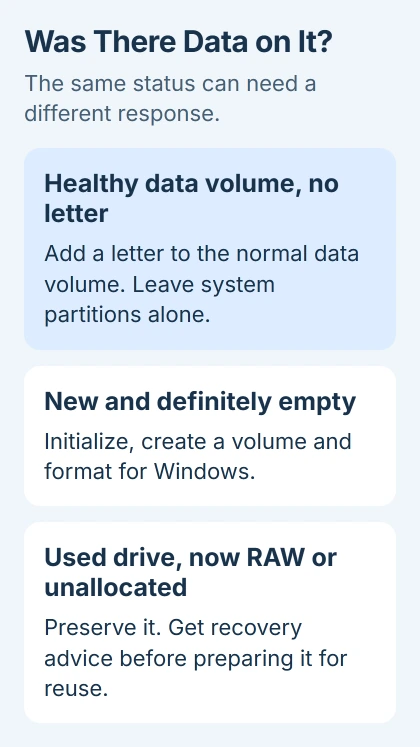
A new secondary SSD may need to be initialized, given a volume and formatted before you can save files to it. Only do this when you know it's empty. A used drive suddenly showing RAW or Unallocated needs recovery advice instead.
Open Disk Management with administrator permissions. Right-click the new disk's left-hand label and choose Initialize Disk. Confirm the selected disk carefully, keep GPT for a normal modern PC and select OK.
Then right-click its Unallocated space, select New Simple Volume and follow the wizard. Choose the size you want, assign a letter and use NTFS for a normal Windows data drive. Finish, then check This PC.
The new-disk instructions cover this process. If the drive already shows Online and has the volume you expect, you don't need to initialize it again.
For a newly fitted M.2 drive, the SSD installation guide also covers the slot's size and interface. A drive can fit the connector without being compatible with the slot.
4. Check whether firmware lists the SSD
Restart into your PC's BIOS or UEFI setup, the settings that run before Windows. Use the key and menu in the computer or motherboard manual. Common keys include F2 and Delete, but the correct one depends on the machine.
Find its Storage, SATA Information or NVMe Configuration page. Look for the SSD's model or capacity. A Windows Boot Manager entry is a startup choice; check the storage listing itself when deciding whether the SSD is present.
If the SSD is absent there too, check its connection and compatibility next. Adding a Windows drive letter won't help when the firmware doesn't detect the drive.
If it appears in firmware but not Windows, note the current storage-controller mode, such as RAID, AHCI or VMD. Don't change that mode blindly on an installed system; Windows may stop booting.
If the drive list is empty inside the Windows installer, use the NVMe setup detection checks. Setup may need a storage driver rather than a drive letter.
5. Check the connection that your SSD actually uses
Shut down and disconnect power before checking internal connections. Follow the model's service manual, including its battery and static precautions. If opening that computer is unfamiliar, have a technician handle this step.
A 2.5-inch SATA SSD needs both power and a data connection. On a desktop, check both ends of the SATA data cable and the power connector. Try another suitable data cable, then a supported spare SATA port.
An M.2 SSD uses its motherboard socket instead. Check the supported length and whether the slot accepts SATA, NVMe or both. The internal-drive checks also suggest trying another port and another computer if the drive isn't detected.
Read the board's storage notes if adding the SSD made another drive disappear. Slots and SATA ports can share connections. Use a supported arrangement, then check firmware again before returning to Windows.
6. Keep the detection result for support
If firmware sees the SSD but Windows doesn't, check Device Manager > Disk drives and Storage controllers for an error. Write down the device's status and any code, then get the matching driver from the PC or motherboard maker.
If the drive also disappears on another compatible connection, contact the SSD maker. Give support its model, whether firmware detected it and any diagnostic error. A diagnostic utility can't test a drive it can't detect.
I'd get recovery advice first if the missing drive contains the only copy of important files. For a new, empty SSD, contact the seller about compatibility with your PC and replacement options.
The Short Version
Start in Disk Management. Add a letter to a healthy data volume or prepare a known-empty new disk. If Windows sees no disk, check firmware, then its connection and compatibility.
Checked November 5, 2026.

Isaac Smith is the founder and editor of PC Glance, a website that covers computers, laptops, and technology. He is a tech enthusiast and a computer geek who loves to share his insights and help his readers make smart choices when buying tech gadgets or laptops. He is always curious and updated about the latest tech trends.