

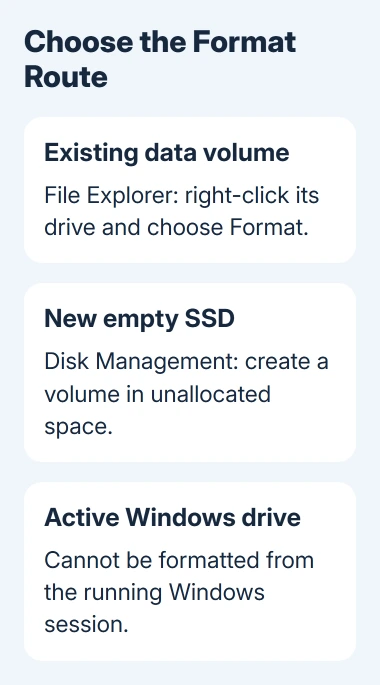
Format an SSD in Windows 11 through Disk Management if it's new and unallocated. For an existing data volume, File Explorer also offers Format. First, check which drive you're erasing and back up its files.
Formatting removes access to the files on that volume, a storage area Windows treats as a drive. Keep anything you need on a different device before you start.
The SSD running Windows is a separate case: Windows can't format its own active system partition while it's using it.
In this guide
Identify the SSD and protect its files first
Connect the SSD and open File Explorer > This PC. For an external SSD, note its name, drive letter, and capacity. Open it and check the contents before deciding to erase it.
For a second internal SSD, use the Start button's right-click menu to open Disk Management. Compare its capacity and partitions with the disk you're planning to format. Check the model too; disk numbers alone don't identify physical drives.
Copy anything you're keeping to a different physical device or another reliable backup destination. Open some copied files from that destination before continuing. Another folder on the SSD you're formatting won't protect those files.
Leave EFI System Partition, recovery partitions, and partitions you're unsure about alone. If a drive that used to hold files suddenly appears as RAW or Not Initialized, stop and consider recovery instead of treating it as empty.
The SSD detection guide helps when the physical drive isn't appearing. Formatting is useful only after you've identified the correct drive and decided that its contents can be erased.
Format an existing data volume in File Explorer
Use this route when the SSD already appears with a drive letter and you want to reuse that volume. Close files and applications using it, then return to This PC.
- Right-click the SSD's drive and select Format. Select Show more options first when Format isn't in the first menu.
- Check the capacity and make sure the dialog shows the drive you intend to erase.
- Choose the file system that suits how you'll use the SSD.
- Leave Allocation unit size on the default value, unless an app's instructions call for a different size.
- Enter a useful Volume label and choose whether to use Quick Format.
- Select Start, read the erase warning, and confirm only when the selected drive is correct.
After the format completes, reopen the drive and create a small test file. If the file saves and opens, the formatted volume is usable. Delete that test file when you're finished with the check.
Formatting one volume doesn't combine every partition on the SSD. If the device has several drive letters, each can represent a separate volume. Check which volumes you want to change before deleting partitions or changing their sizes.
Prepare a brand-new SSD in Disk Management
A new empty SSD can appear in Disk Management without appearing in File Explorer. It needs a usable volume and drive letter before you can store ordinary files on it.
Microsoft says to initialize a new disk before creating its first volume. Its Disk Management instructions also cover formatting an existing volume. Initializing gets the disk ready for volumes; formatting prepares a volume to hold files.
If your confirmed new empty disk says Not Initialized, right-click its disk label and choose Initialize Disk. If it's Offline, bring it Online first. Choose GPT for modern Windows 11 PCs unless compatibility requires otherwise.
If the disk already says Online and its space is Unallocated, skip initialization. Right-click the unallocated space and select New Simple Volume to start the volume wizard.
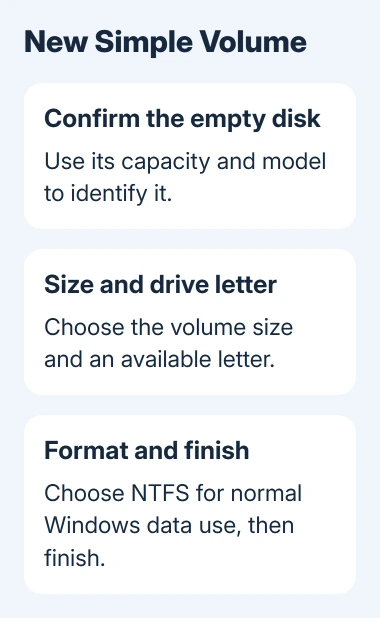
Choose the volume size, accepting the maximum if you want one volume using that available space. Assign an available drive letter, choose the file system and volume label, review the choices, and finish the wizard.
When formatting finishes, the volume should have a file system and drive letter. Open that letter in File Explorer. If it doesn't appear, check Disk Management for the assigned letter rather than initializing the disk again.
Some USB storage devices don't use the initialization step. Follow the state shown in Disk Management: a usable existing volume needs formatting only if you intend to erase it, while unallocated space needs a volume.
Choose NTFS or exFAT for how you'll use it
Choose NTFS for normal storage on a Windows-only data SSD. It's also the file system used for the main Windows installation. Keep the allocation unit size at its default for ordinary files.
exFAT is useful for an external SSD shared between Windows and modern Macs. Check any TV, console, camera, or other device's manual separately because its supported file systems can differ.
FAT32 has a single-file size limit that makes it unsuitable for many large videos, backups, and disk images. Don't choose a file system solely because another removable drive happens to use it.
I'd use NTFS for an SSD staying inside a Windows PC, and consider exFAT for a portable drive that must accept files from both Windows and macOS. The right answer follows the devices that need to write to it.
Changing the volume label later doesn't change the file system. Moving from one file system to another can require another backup and format, so decide compatibility before putting your files back.
Understand what Quick Format leaves behind
Quick Format creates a fresh file table without fully overwriting the volume. It's suitable for preparing a known working data drive for reuse, but it isn't a secure erasure method for selling or giving the SSD away.
An SSD's controller manages where data is stored internally. For disposal or passing it on to someone else, use the manufacturer's secure-erasure or sanitize instructions for your model and connection type to remove its data.
Don't treat an empty File Explorer window as confirmation that private data can't be recovered. Formatting for reuse and securely removing old data solve different problems.
If the SSD has been unreliable, check its condition before trusting it with your files. The SSD health guide explains the drive information to check; a successful format doesn't repair failing hardware.
Handle the Windows drive and failed formats separately
The active Windows partition can't be formatted in Disk Management. A clean installation requires a backup and Windows installation media. Follow the installation procedure and check the selected disk in Windows Setup.
To start Windows fresh, consider Settings > System > Recovery > Reset PC and its keep-or-remove choices instead. A reset works on your Windows installation; it isn't the same as formatting a separate data volume.
When a data-drive format fails, record the exact message and check whether files or applications still have the drive open. Restart if needed, then confirm the drive identity again before retrying.
For a disconnecting external SSD, compare a supported cable and another port before retrying. If errors continue, tell its maker your model, how it's connected, and what the health check shows. Don't start with destructive clean commands.
The Short Version
Check which SSD you're erasing and that your backup is ready. Use File Explorer for an existing data volume or Disk Management for a new empty disk's volume. The active Windows drive needs its own recovery or installation procedure.
Checked November 15, 2026.
 If you have any business, I can build it online






