A MacBook's battery condition appears in System Settings > Battery > Battery Health. Read that condition first, then compare capacity with cycle count to see why your Mac doesn't last as long on a full charge.
The percentage in the menu bar shows today's charge. Battery health describes how the battery is aging. A MacBook can reach 100% charge while holding less energy than when it was new.
In this guide
Read Battery Health in macOS settings
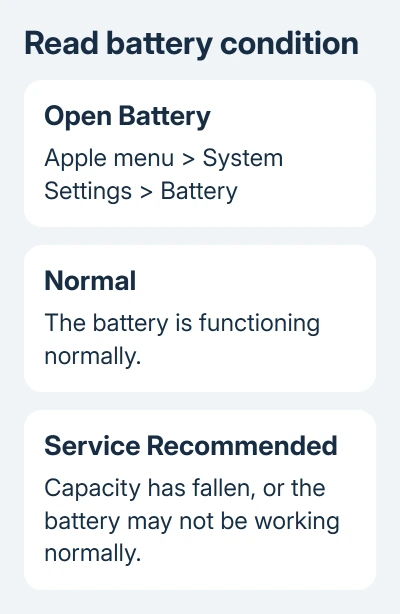
Open the Apple menu > System Settings, then select Battery in the sidebar. Find Battery Health. Current macOS versions share this route across Intel models and MacBooks with Apple silicon.
Start with the condition message. Normal means the battery is functioning normally. Service Recommended means its ability to hold a charge has fallen, or the battery may not be functioning normally.
Click the information button beside Battery Health to see its details. On supported models, Maximum Capacity compares today's usable battery capacity with its original capacity. Don't confuse it with the current charge level.
For example, a battery showing 85% maximum capacity has less room for energy than a new one. Charging it to 100% fills that smaller capacity. It doesn't restore the capacity lost through age and use.
Apple's battery condition instructions explain the two condition messages and the service route. Read the actual message before deciding the battery needs replacement.
If the Mac has an older macOS release, the menus differ. Big Sur and Monterey use System Preferences > Battery > Battery > Battery Health where supported. Use System Information next when the expected health panel isn't available.
Find the cycle count without installing an app
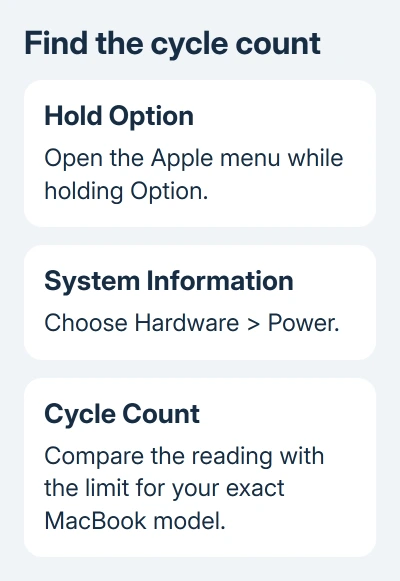
Hold Option while opening the Apple menu, then choose System Information. In the window's sidebar, open Hardware > Power. Look for Cycle Count in the battery information on the right.
This is useful on older Intel MacBooks as well as newer Apple silicon models. The battery details can differ, so note the condition and cycle count your Mac shows.
A cycle isn't each time you plug in the charger. Two sessions that each use half the battery make a full cycle, even with a recharge between them. Several short sessions can therefore make one cycle.
Compare the number with the matching model limit using the cycle-count table. Many newer MacBooks list 1,000 cycles, while some older models list 300 or 500.
Open Apple menu > About This Mac to record the full model and year before checking that table. MacBook, MacBook Air, and MacBook Pro don't all share one limit, especially across older generations.
At the maximum cycle count, the battery is considered worn out. It doesn't mean the Mac suddenly stops working on that cycle. How much charge it holds and how your Mac behaves still matter when deciding about service.
I'd keep the condition, capacity if available, and cycle count together. One number alone leaves things out: a low cycle count doesn't tell you how many years the battery has been aging.
Put capacity and everyday runtime together
Heat and charging habits affect battery aging, as well as the years it's been in use. A lightly used MacBook can still have a worn battery. A Mac with many cycles can still last long enough for the work you do.
The design target is up to 80% of original capacity at the model's maximum cycle count under normal conditions. That design target doesn't mean every battery loses capacity at the same steady rate.
On Apple silicon, battery health management can temporarily reduce maximum charge to slow aging. The reported capacity can also be recalibrated after a software update.
A small change in that percentage tells you less than a clear condition warning or repeated shutdowns. Record the reading and date if you're tracking a change, along with how long the Mac lasts during similar work.
Don't judge health from one demanding afternoon. Video calls, games, and other heavy work use energy faster than reading a document. Check both battery health and what you were doing when comparing how long a charge lasts.
If battery condition is normal but charge disappears mainly while the lid is closed, check the MacBook overnight drain fixes. Replacing a battery won't remove software that keeps the Mac awake.
Recognize a charging pause before calling it wear
A battery that stops near 80% isn't automatically unhealthy. Optimized Battery Charging can delay charging past that level based on your routine. Read the battery menu's charging message as well as the health condition.
Before a trip, open the battery menu and choose Charge to Full Now if that option appears. That charging pause is different from losing maximum capacity as the battery ages.
Don't repeatedly run the Mac flat to try to raise its health percentage. Routine charging doesn't reverse chemical aging. Use the built-in condition information rather than treating a charge-discharge ritual as a repair.
For a Windows laptop you're comparing with the MacBook, the battery health report compares its full-charge reading against design capacity instead. The Mac's System Information route doesn't apply to Windows.
Decide what to give the service team
When Battery Health says Service Recommended, request a battery assessment from Apple or a repair provider authorized by Apple. The message can appear with reduced runtime, and it can also appear before you notice an obvious change.
You can keep using the Mac normally while you arrange to have that battery message checked. A visibly swollen case or battery is a different situation: stop using the Mac and arrange service rather than pressing the case back into shape.
Provide the exact MacBook model, macOS version, condition message, maximum capacity if shown, and cycle count. Describe the actual symptom too, such as short runtime, unexpected shutdowns, or failure to charge.
Ask for a battery assessment and replacement options for that model. For a used Mac, have the seller open these screens on that computer; a photo showing 100% charge won't tell you its condition.
The Short Version
Read Battery Health in Battery settings and Cycle Count in System Information's Power section. Check the limit for the exact model. Use the condition, capacity, and actual symptoms together when deciding about service.
Checked November 13, 2026.