For repeated iMessage sign-outs on a Mac, sign in to Messages again and check your other devices for account alerts. Open Messages > Settings > iMessage, check whether it shows Sign In, then restart and try signing in once.
A Mac that stays signed in but misses conversations has a syncing problem instead. A Contact Key Verification warning also needs its own account checks; repeatedly entering the password won't clear that warning by itself.
In this guide
1. Refresh the Messages sign-in once
Open Messages, then choose Messages > Settings > iMessage from the menu bar. Older macOS versions call this Preferences. Check the account address and look for Sign In or Sign Out.
If it offers Sign Out and shows your receiving addresses, Messages still has an account signed in. A failed message or missing chat alone doesn't mean the app signed you out. Use the later address check if that is what you're seeing.
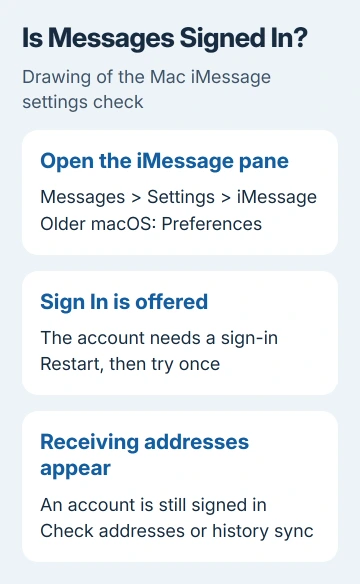
For an actual sign-in loop, choose Sign Out if you're still signed in, restart through Apple menu > Restart, then return to the same iMessage pane. Use your chosen Messages account to sign in.
Apple's iMessage sign-in procedure uses this sign-out, restart and sign-in sequence. If FaceTime also refuses the account, sign out through FaceTime > Settings > General > Sign Out.
Send a known iMessage contact a message, then quit Messages and reopen it. Check again after the usual trigger, such as restarting the Mac. If it keeps happening, check whether you're still signed in after that same trigger.
I'd do this cycle once, then move to the matching check. Repeating it without changing anything makes it harder to notice whether the issue follows the connection, the account or another device.
2. Deal with a Contact Key Verification alert
If you're signed out at the same time as a Contact Key Verification alert, open System Settings and check for an Apple Account settings alert. Also look in Settings or System Settings on the other devices signed in to that account.
An iPhone, iPad or another Mac can have the pending alert even when your current Mac doesn't. Follow the action shown for the device or account. Don't treat a warning in a conversation as the same thing as an ordinary password prompt.
Apple says to address a Contact Key Verification alert first when it appears alongside other account-settings alerts. That order matters: signing in again on the Mac can leave the original account issue untouched.
For a warning about a particular contact, use the alert's verification instructions. Stop exchanging sensitive information with that contact until you've checked who you're messaging through another trusted means.
The iMessage sign-out and verification page covers the reported cross-device pattern in detail. Clearing an alert is the supported next action; check the exact alert before applying those account steps to your Mac.
If there is no verification alert anywhere, leave that feature alone and continue with the Mac's clock and connection. Turning off unrelated account protections adds another change without answering why this Mac loses its session.
3. Fix an incorrect clock and test another network
On macOS Ventura or later, open System Settings > General > Date & Time. Check the actual date, time and time zone. Enable the automatic date and time option if the Mac is showing an incorrect clock.
Older releases use System Preferences > Date & Time and may require unlocking the padlock before changes. Check the time zone as well as the displayed hour, especially after traveling or restoring a Mac.
An incorrect clock can interfere with login. Correct it, reopen Messages and check the session. If the time changes back after a restart, include that behavior in your report so support can address the clock too.
Next, open an ordinary website to confirm the Mac is online. If you use a VPN, network filter or security app, try connecting without it if you're allowed to. On a work Mac, ask IT to make that comparison.
Compare another trusted network if possible. If the session survives there, the first network's connection or filtering needs attention. Tell your administrator which network worked if the sign-outs happen only at work.
4. Check for an outage before changing the account
Open the System Status page and look for iMessage. If FaceTime is affected too, check its entry. Read the incident details rather than assuming that every Apple service is affected together.
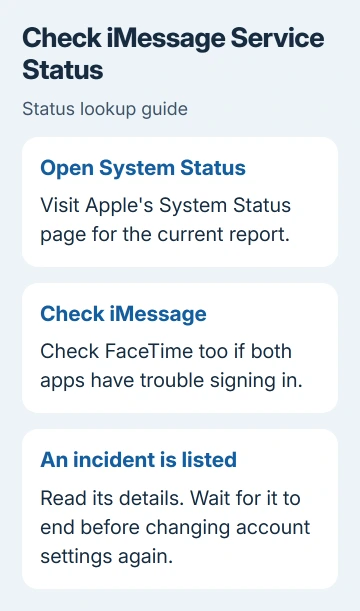
During a listed incident, wait for it to end before changing your account settings again. The diagram explains the check; open the page for the current report.
When no incident is listed, install the macOS update offered under System Settings > General > Software Update. Older versions place Software Update in System Preferences. Restart if requested, then repeat the same close-and-reopen check.
An update is a sensible maintenance step, but don't assume a version fixes this particular sign-out unless its release information says so. Note your exact macOS version for the support team if the problem returns.
5. Verify the account and receiving addresses
Sign in at account.apple.com using the same address as Messages. If that login fails too, resolve the password, locked account or verification prompt shown there before trying to repair Messages locally.
For an unverified-email alert, verify that address in the account settings. If account access works but Messages activation fails, open apple.co/IMFT-mac, select Get Started and complete its activation prompts.
Sign in to use that activation route, follow the account instructions and check for its confirmation email. Use it for activation or sign-in trouble. Missing conversation history after you've signed in needs the sync checks instead.
Back in Messages > Settings > iMessage, check the selected receiving email addresses and phone number. If Messages remains signed in but older chats are absent, use the Messages in iCloud sync checks.
If sign-outs continue on working networks, open a Messages on Mac case with Apple Support. Include the alert, macOS version and what triggers the sign-out. Say whether FaceTime works and whether the same account signs out on other devices.
The Short Version
Refresh the Messages login once. Check Contact Key Verification alerts across your devices, the clock and a second network. Look for a service incident, then use account verification or activation help for a persistent sign-in failure.
Checked November 13, 2026.