An iPad connects to a MacBook in different ways depending on the job. Use a USB cable and Finder to sync content, Sidecar to make the iPad a second Mac display, or AirDrop to send a few files without a cable.
For using the MacBook's keyboard and trackpad inside iPad apps, choose Universal Control. The iPad continues running iPad apps while you control it from the MacBook.
In this guide
Choose what the connection should do
Start with the result you want on the iPad. A Finder connection shows the iPad as a device on the Mac. Sidecar puts your Mac's desktop on the iPad screen. Universal Control moves one pointer between two separate systems.
Apple's cable connection guide explains the physical connection. A charging cable alone doesn't turn the iPad into a monitor, and pairing the devices through Bluetooth settings isn't the setup for these features.
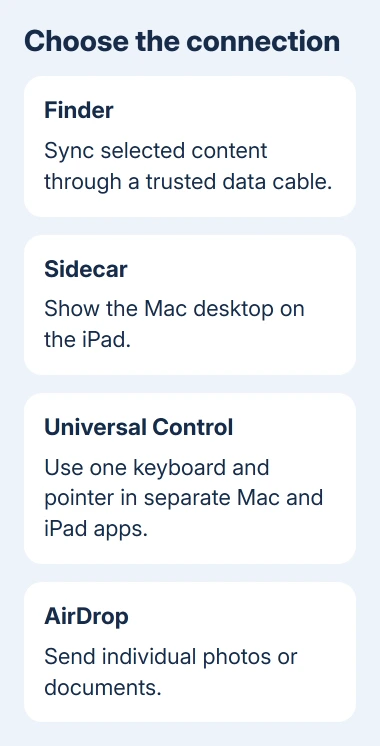
For a few photos or documents, I'd start with AirDrop. It needs less setup than syncing a library, and the original stays on the sending device. Use Finder when you need to manage the iPad or sync selected content from your library.
Connect with a cable and approve Finder access
Choose a cable that carries data and fits the ports on both devices. A USB-C iPad can use USB-C to USB-C with a compatible MacBook. A Lightning iPad needs a Lightning cable with the right USB end, or a suitable adapter for the Mac.
- Unlock your iPad, then plug its data cable into the MacBook.
- In the Mac's Finder sidebar, select the iPad from Locations.
- Choose Trust if the Mac asks. On the iPad, approve Trust and enter its passcode when prompted.
- Let Finder load the device information and content tabs.
Trust allows that computer to access device information and content. Approve it on your own Mac, rather than casually accepting the prompt on an unfamiliar computer.
Finder handles this on macOS Catalina 10.15 and later. On macOS Mojave 10.14 or earlier, use iTunes instead. An old Mac can still have a cable connection even if it doesn't meet Sidecar's newer requirements.
If the iPad charges but never appears, test another port with a cable you know supports data. Look for the Trust prompt on the unlocked iPad. For a prompt that never appears, use the Trust This Computer checks.
Sync selected content or enable Finder over Wi-Fi
Select the iPad in Finder, then choose the content type you want, such as Music, Movies, or Photos. Choose the sync options for that category and click Apply. Review the selected items before starting.
Syncing isn't the same as dragging any Mac file into any iPad folder. Finder's Files tab works with apps that support file sharing. For an ordinary document, AirDrop may be a simpler choice.
If Finder warns about syncing with another library, read the message carefully. Replacing synced content can remove the items already synced in that category. Keep the files you need before agreeing to replace them.
To keep the Finder connection available without the cable, open the iPad's General tab and select Show this iPad when on Wi-Fi. Click Apply, then disconnect the cable and connect both to one Wi-Fi network.
The iPad should appear in Finder wirelessly. This enables Finder syncing, not Sidecar. For a complete copy of device data rather than library syncing, follow the iPad backup procedure.
Use Sidecar to extend or mirror the Mac display
Sidecar needs macOS Catalina 10.15 or later on a supported Mac. For MacBooks, that means MacBook Air introduced in 2018 or later, or another MacBook model from 2016 onward.
The iPad needs iPadOS 13 or later and must be an iPad Pro, iPad 6th generation or later, iPad mini 5th generation or later, or iPad Air 3rd generation or later.
The Apple Account sign-ins must match, and that account needs two-factor authentication. For wireless use, turn on Wi-Fi, Bluetooth, and Handoff, and keep them within 30 feet. Neither device should be sharing its internet connection.
On a current Mac, open Control Center > Screen Mirroring and choose the iPad. For the older Catalina interface, use the display or AirPlay menu in the menu bar. The iPad should start displaying the Mac desktop.
Move a Mac window to that display to extend your workspace. For display arrangement and mirroring choices in macOS Ventura 13 onward, open System Settings > Displays, select the iPad, and review its display options.
On Monterey 12, select the iPad in System Preferences > Displays > Display Settings. USB also works once the iPad trusts the Mac.
The wireless Sidecar troubleshooting guide covers a connection that works only with the cable.
Share the keyboard and trackpad with Universal Control
Universal Control needs macOS Monterey 12.4 or later and iPadOS 15.4 or later. Supported MacBooks are from 2016 or later, except the 13-inch MacBook Air from 2017. The supported iPad models are the same ones listed in the Sidecar section.
Sign both devices into one Apple Account with two-factor authentication. Enable Bluetooth, Wi-Fi, and Handoff. Keep the devices nearby without internet sharing. These requirements still apply even though the iPad keeps its own apps open.
On the Mac, open System Settings > Displays > Advanced and enable Allow your pointer and keyboard to move between any nearby Mac or iPad. On Monterey, open System Preferences > Displays > Universal Control.
On the iPad, open Settings > General > AirPlay & Continuity or AirPlay & Handoff, then turn on Cursor and Keyboard. Put the iPad beside the Mac and push the pointer past the matching edge of the Mac's screen.
Keep pushing when the connection strip appears on the iPad. Once the pointer enters, try clicking an iPad app and typing. Arrange the device positions in the Mac's Displays settings if the pointer crosses at the wrong edge.
Send files with AirDrop, then check the result
Turn on Wi-Fi and Bluetooth and keep the devices near each other. On the Mac, open Finder > AirDrop. On the iPad, select a file or photo, tap Share > AirDrop, and choose the MacBook.
To send a file from the Mac, use the file's Share menu and choose AirDrop, then select the iPad. Approve the incoming transfer if prompted. Your own devices can accept AirDrop automatically when their Apple Account sign-ins match.
If the other device doesn't appear, check its AirDrop receiving setting and contacts. The received item may open in an appropriate iPad app; it doesn't always land in one universal Downloads folder.
For a connection that still fails, check the requirements for that specific feature and use its linked support page. Tell support whether the iPad is missing from Finder, Screen Mirroring, AirDrop, or the keyboard-sharing connection.
The Short Version
Use Finder and a trusted data cable for syncing, Sidecar for a Mac display, Universal Control for typing in iPad apps, and AirDrop for individual files. Each has its own setup, so choose the result before changing connection settings.
Checked November 13, 2026.