
Back up your iPad to iCloud for a copy that can update automatically, or to a computer when iCloud has no room left. For the simplest setup, open Settings, tap your name, then iCloud > iCloud Backup and choose Back Up Now.
Check that the backup actually finished. Having the switch on doesn't mean you have a completed copy. Before erasing or replacing the iPad, also check files that sync separately through iCloud.
Make an iCloud backup and check its date
Connect the iPad to Wi-Fi. Open Settings > [your name] > iCloud > iCloud Backup, then tap Back Up Now. Leave Wi-Fi connected until the backup finishes rather than starting it just before leaving home.
Look under Back Up Now for when the last successful backup finished. That time should match the copy you just made. If the date is old, the latest attempt hasn't finished a new backup yet.
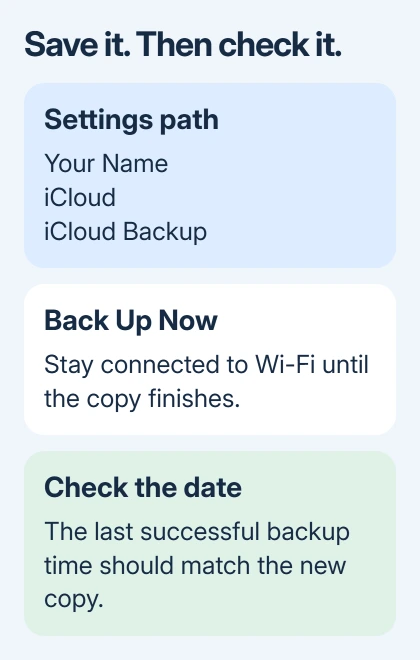
Apple says to check the completed date in its iCloud backup instructions. I'd look at it before erasing an iPad, even when automatic backup has been switched on for months.
For future copies, leave Back Up This iPad enabled. Automatic backups need the iPad connected to power and Wi-Fi with its screen locked. Plugging it in overnight gives the process a chance to run without interrupting your work.
Some Wi-Fi + Cellular models support backups over a cellular connection. If Back Up Over Cellular appears, check your data allowance before enabling it. Wi-Fi remains the straightforward choice when a backup contains a lot of app data.
Check space when iCloud won't finish
Open Settings > [your name] > iCloud and compare available storage with the next backup's size. In iCloud Backup, select this iPad to review the backup details and the apps included in the copy.
Wait for Next Backup Size to finish calculating. The iPad's total storage capacity isn't the number to compare with your iCloud allowance: backups leave out some content, including information already syncing through iCloud.
If space is short, buy more iCloud storage, delete unwanted content, or back up to a computer. Turning off an app in the backup list deletes its iCloud backup data, so exclude only information you can replace.
A slow upload can also leave the backup running for a long time. Keep the iPad on power and Wi-Fi and check again later. For a repeated failure, follow the iCloud backup troubleshooting steps for the actual message.
The same storage comparison applies when an iPhone won't finish its iCloud copy. Check the device's own backup entry rather than assuming two devices need the same amount of space.
Save a local copy on a Mac
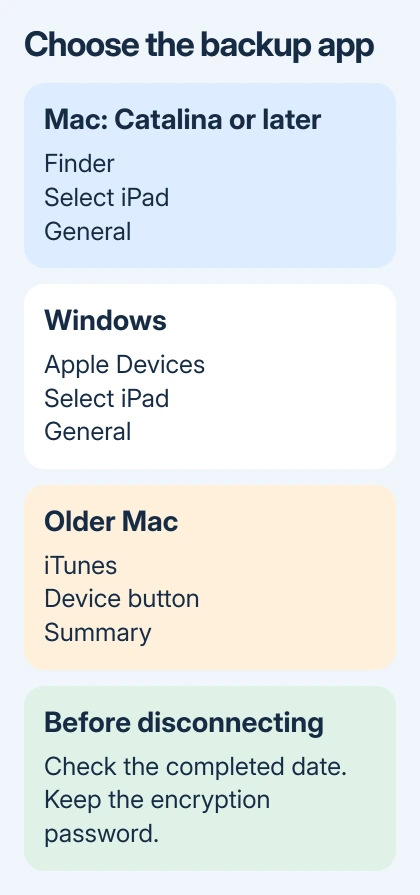
On macOS Catalina 10.15 or later, connect the iPad with a data cable and open Finder. Select the iPad in the sidebar under Locations, then open General. Unlock the iPad and accept a trust request when prompted.
Select Back up all of the data on your iPad to this Mac. This saves the backup on your Mac. It doesn't download an existing iCloud backup to your computer.
Choose Encrypt local backup if you want the additional protected information described in the next section. Then click Back Up Now, leaving the iPad attached until the progress indicator finishes.
Check the latest backup date under General. Manage Backups lets you review the saved copies. Confirm you're looking at the intended iPad, especially when the Mac has backed up several family members' devices.
On macOS Mojave 10.14 or earlier, use iTunes instead. Select the device button, open Summary, choose This computer, and click Back Up Now. On these older macOS versions, you'll find the backup controls in iTunes rather than Finder.
Use Apple Devices on a Windows PC
Open the Apple Devices app, then connect and unlock the iPad. Select the iPad in the sidebar and open General. Approve Trust on the iPad when asked, using its passcode to confirm.
In the backup section, select Back up all of the data on your iPad to this computer. Choose whether to encrypt the backup, then select Back Up Now. Keep the cable connected while the app creates the copy.
When the process finishes, check the last backup date and time. Seeing the iPad in the sidebar tells you it's connected. The last backup date and time tell you whether the copy finished.
For a Windows setup that still uses iTunes, select the device button, choose Summary, then This computer > Back Up Now. Use the app that manages the iPad on that PC rather than looking for identical controls in both apps.
These are also the main app choices when backing up an iPhone to a computer. Check which device you've selected: backing up your phone doesn't save the app data stored separately on your iPad.
Decide on encryption before relying on the copy
Encrypted local copies can save passwords, Wi-Fi settings, website history, Health data, and call history. An unencrypted backup leaves out that information. Passcodes and saved face or fingerprint settings aren't included.
Enable Encrypt local backup, create a password, and store it somewhere you can recover. You'll need it to restore that copy. The backup password isn't automatically the same as the iPad passcode.
Check for a lock beside the backup in Manage Backups when reviewing encrypted copies. I'd turn encryption on for the first backup if you need that information, rather than discover it's missing when it's time to restore.
Know what the backup doesn't duplicate
Information already syncing through iCloud, such as iCloud Photos or Messages in iCloud, isn't duplicated inside the iCloud backup. Getting it back depends on that separate service and the Apple Account you use after restoring.
A computer backup also leaves out certain content, including media synced from a computer and information already stored in iCloud. Neither method copies every file and downloaded app you can see on the iPad.
Check that important photos and documents have finished syncing, and keep the originals of files imported from a computer. Synced deletions can reach other devices too, so keep a separate archive of cloud files you need to preserve.
If neither method completes, tell Apple Support which iPad model you have, software version, exact error, destination, and last successful backup time. Ask for help completing the backup before you erase or replace the iPad.
The Short Version
Use iCloud for automatic copies or Finder, Apple Devices, or iTunes for a local backup. Check the completed date, protect an encrypted backup's password, and confirm that separately synced photos and files are available.
Checked November 9, 2026.

Isaac Smith is the founder and editor of PC Glance, a website that covers computers, laptops, and technology. He is a tech enthusiast and a computer geek who loves to share his insights and help his readers make smart choices when buying tech gadgets or laptops. He is always curious and updated about the latest tech trends.