
Your iPhone will not show up as a wireless camera on your Mac, and what fixes it for some people sounds completely mad. Stay with me, because there is a reason for it.
With it plugged in, the iPhone connects fine.
That odd habit points straight at what blocks Continuity Camera over Wi-Fi. On a Mac with no camera of its own, it is the missing hardware.
On a MacBook or iMac, it is almost always the firewall, a VPN, or a requirement that slipped.
Macs with no built-in camera: plug in any camera
This is the one that catches Mac mini, Mac Studio, and Mac Pro owners. With no camera of its own, the Mac will not offer your iPhone as a wireless webcam at all. The iPhone simply never appears in the camera list.
The workaround is the odd one from the top: connect any camera to the Mac. An old USB webcam works, even a cheap one you never plan to use. You can also connect the iPhone itself with a cable.
Once the Mac sees a camera, the iPhone becomes available wirelessly.
One catch comes with it. After the Mac recognizes the external camera, you can unplug it and the iPhone keeps working wirelessly, right up until you restart the Mac.
After a reboot it usually breaks again, and you have to plug a camera back in.
This is a long-standing bug that carried into macOS Tahoe, and it is documented across community threads rather than by Apple.
There is no official fix as of 26.2, so treat plugging in a camera as the fix, not a glitch the next update clears.
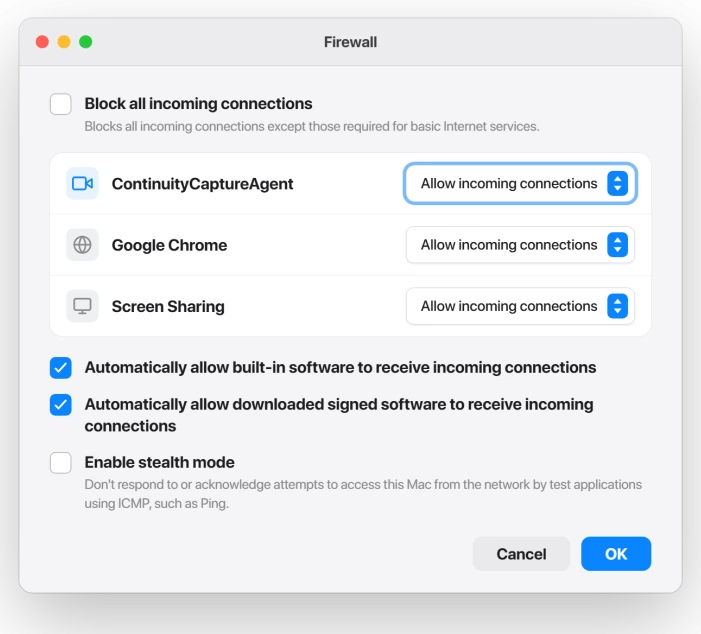
Check the firewall for ContinuityCaptureAgent
This one hits any Mac, camera or not, and it is a leading cause once the hardware split is ruled out. Continuity Camera runs through a helper process called ContinuityCaptureAgent.
If your Mac firewall is set to block incoming connections, that helper is blocked and the wireless Continuity Camera connection never forms.
Open the Apple menu, System Settings, Network, Firewall, then click Options. Find ContinuityCaptureAgent in the list and set it to Allow incoming connections.
While you are there, make sure Block all incoming connections is off, because that setting overrides the per-app allowances.
The reason a plain firewall breaks it: Continuity Camera uses a random high-numbered port each time, so a firewall that blocks incoming traffic has no fixed port to open and shuts the feature out.
That is also why third-party firewalls and security suites can break it the same way.
Turn off VPN, and check AirPlay Receiver
A VPN on the Mac is the next usual suspect, and it often shows as a black screen where the video should be, rather than a missing camera.
- VPN. Disconnect it, then fully quit the VPN app. Turning it off is not always enough, since some clients keep a network profile active. If you use a work VPN you cannot remove, test on a personal network.
- AirPlay Receiver. Turn it off under System Settings, General, AirDrop & Continuity (called AirDrop & Handoff on older macOS). It can hold the video pipeline that Continuity Camera needs.
- Thunderbolt Bridge. In System Settings, Network, if Thunderbolt Bridge is listed, set it to Inactive. A few Mac mini owners report this alone fixed it, and it is a cheap thing to try.
Continuity Camera rides your local Wi-Fi, so if your MacBook Pro Wi-Fi keeps dropping on macOS Tahoe, fix that alongside these, since a shaky link times the handshake out on its own.
Run the requirements checklist
If the camera still will not connect, walk the requirements. Continuity Camera is strict, and one missed item stops it.
- Compatible devices. iPhone XR or later on iOS 16 or later, and a Mac on macOS Ventura or later. macOS Tahoe qualifies.
- Same Apple Account, two-factor on. Both devices signed in to the same Apple Account, with two-factor authentication turned on.
- Bluetooth and Wi-Fi on, both devices. They do not have to share a Wi-Fi network, but they must be near each other, within about 30 feet.
- iPhone positioned right. Locked, held steady on a stand or propped up, rear cameras facing out, screen off. Held in your hand, it often will not engage.
- Nothing else claiming the link. The Mac must not be using AirPlay or Sidecar, and the iPhone must not have Personal Hotspot running.
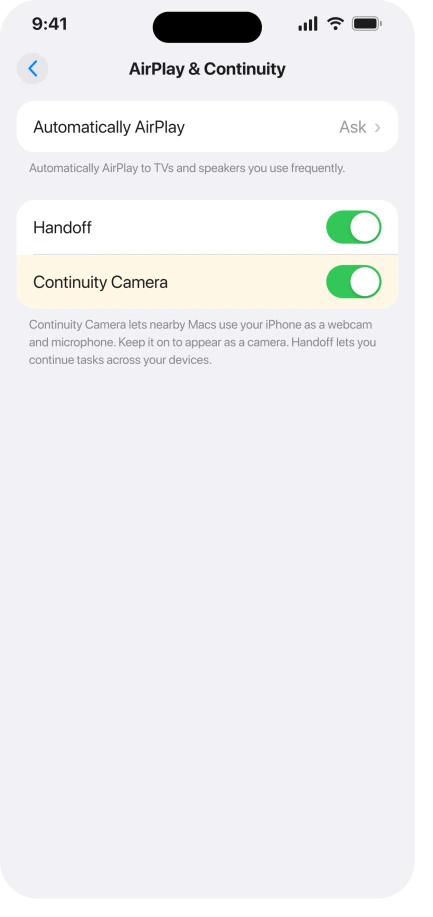
- Continuity Camera on. On the iPhone, Settings, General, AirPlay & Continuity (labeled AirPlay & Handoff on older iOS), and make sure Continuity Camera is on. It is on by default.
Apple lists the full set in Continuity features and requirements.
One more Mac setting can block a video app on its own: Camera under Privacy and Security. If your video app never appears there, make it ask again.
The cable trick, and quick resets
When the setup is right and it still stalls, these clear a stuck state.
- Cable, then unplug. Connect the iPhone to the Mac with a cable, tap Trust, let it work as a webcam, then unplug it. Wireless often keeps working after that. On a Mac with no built-in camera, though, this lasts only until the next restart, just like plugging a camera in does.
- Reboot the iPhone, then the Mac. Restarting the iPhone is the single most effective reset here. Do it first, then restart the Mac.
- Toggle Wi-Fi and Bluetooth. Turn both off and on from Control Center on each device.
- Toggle Continuity Camera off and on. On the iPhone, in the AirPlay & Continuity settings. If it is still stuck, toggle Handoff off and on as well.
- Reset Network Settings, last. On the iPhone, Settings, General, Transfer or Reset iPhone, Reset, Reset Network Settings. This wipes saved Wi-Fi passwords, VPN configs, and Bluetooth pairings, so keep it for last. It clears stuck-connection cases, but it does not fix the no-built-in-camera bug.
Choose the iPhone in your app
Continuity Camera usually switches on by itself once the iPhone is nearby, locked, and mounted. When it does not, pick it by hand in whatever app you are using.
- FaceTime. Menu bar, Video, Camera, then your iPhone.
- Zoom, Meet, or Teams. Open the app's video settings and choose the iPhone as the camera.
- Photo Booth or QuickTime. Select the iPhone from the app's camera menu.
Apple covers the basics in Use iPhone as a webcam for Mac.
Once the camera preview works, take and export a still picture in Photo Booth when a call is not the intended task.
Status: these wireless failures are community-documented, not acknowledged by Apple, and unfixed as of macOS 26.2. Plugging in any camera and clearing the firewall are the fixes that hold.
What will not fix it
- Waiting for an update. As of macOS 26.2 the wireless bugs are still open, so an update is a maybe, not the fix.
- Blaming the iPhone. If it works as a webcam over a cable, the iPhone and its camera are fine. This is a wireless connection problem, not hardware.
- Reset Network Settings for the no-camera bug. It clears stuck connections, but on a Mac with no built-in camera it does nothing. Plug in a camera instead.
- Confusing it with iPhone Mirroring. Controlling your iPhone screen from the Mac is a different feature with its own timeout. If that is your issue, iPhone Mirroring timed out on Mac is the one to read.
Why is Continuity Camera not working wirelessly?
Most often the Mac firewall is blocking ContinuityCaptureAgent, a VPN is in the way, or a requirement is unmet: same Apple Account with two-factor, Bluetooth and Wi-Fi on, and the iPhone locked and nearby.
On a Mac mini, Studio, or Pro, the cause is usually the no-built-in-camera bug. Plug any camera into the Mac and the iPhone appears.
How do I turn on Continuity Camera on my iPhone?
Open Settings, General, AirPlay & Continuity, and make sure Continuity Camera is on. It is on by default, so if it is already on, the problem is on the Mac side or in the connection, not this switch.
Older iOS labels this menu AirPlay & Handoff.
Is Continuity Camera the same as iPhone Mirroring?
No. Continuity Camera uses your iPhone as a webcam for the Mac. iPhone Mirroring puts your iPhone screen on the Mac so you can control the phone.
They are separate features with separate errors, so a webcam that will not connect is a Continuity Camera problem.
The Short Version
- The wireless failure splits by Mac. A Mac mini, Studio, or Pro with no built-in camera will not offer the iPhone until you plug in any camera, even an old USB webcam or the iPhone by cable.
- That workaround usually holds until you restart the Mac, then you plug a camera back in. It is a community-documented bug with no Apple fix as of 26.2.
- On any Mac, allow ContinuityCaptureAgent through the firewall (System Settings, Network, Firewall, Options) and make sure Block all incoming connections is off.
- Turn off and quit any VPN, turn off AirPlay Receiver, and confirm the requirements: same Apple Account with two-factor, Bluetooth and Wi-Fi on both, iPhone locked and mounted nearby.
- The cable-then-unplug trick and an iPhone restart clear most stuck states. Reset Network Settings is a last resort and does not fix the no-camera bug.
Where to Next
Where the AirPods themselves are meant to trigger the shutter, that remote has its own short list of causes.
Where the iPad camera tracks you around the room, that is a feature with a switch rather than a fault.
- Controlling the iPhone from the Mac instead: iPhone Mirroring timed out on Mac
- Sending your screen to a TV: AirPlay can't find devices on iOS 26

Isaac Smith is the founder and editor of PC Glance, a website that covers computers, laptops, and technology. He is a tech enthusiast and a computer geek who loves to share his insights and help his readers make smart choices when buying tech gadgets or laptops. He is always curious and updated about the latest tech trends.