To make a FaceTime audio call, open FaceTime, choose New Call, select the person and tap the phone-shaped Audio button. That starts a voice call over the internet without turning on your camera.
Choose the audio control before placing the call. Starting a video call and switching off the camera afterward isn't the same choice, and tapping an ordinary Call button can use your carrier instead.
In this guide
1. Turn on FaceTime and check your calling address
On current iPhone and iPad software, open Settings > Apps > FaceTime and turn on FaceTime. Use your Apple Account to sign in if the app asks.
On iOS 17 or iPadOS 17 and earlier, the FaceTime settings sit outside the Apps submenu.
Check which phone number and email addresses are selected to receive FaceTime calls. The person you're calling must also have FaceTime available at the number or address you select.
A saved contact can have several addresses, including an old one.
Use Wi-Fi or an available cellular data connection. An iPad without an active cellular plan needs Wi-Fi or another internet connection, such as a hotspot. Each device can use FaceTime audio without having its own iPhone cellular line.
For a first call, I'd use someone you know already receives FaceTime calls. That way, an old contact address won't leave you wondering whether the audio button works.
If Settings shows a waiting-for-activation message, finish that setup before expecting calls to your phone number.
The iPhone FaceTime connection checks cover activation and connection failures separately.
2. Start the iPhone or iPad call with Audio
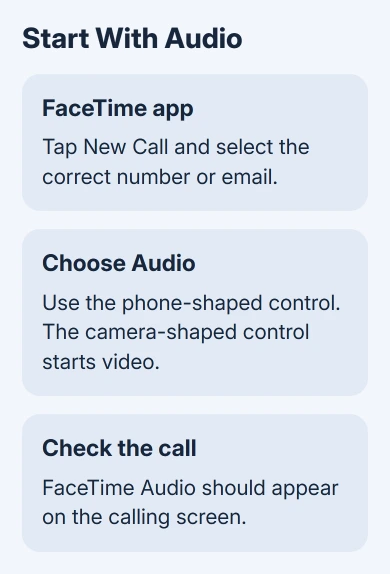
Open the FaceTime app, rather than staying on its Settings page. Tap New Call, search by name, number or email, then select the person you want to call. Check the displayed address when the contact has several.
Tap the phone-shaped Audio control to start the call. The camera-shaped FaceTime control starts video instead. On older app layouts, the starting button is labeled New FaceTime rather than New Call.
Apple's iPhone and iPad calling steps list the audio and video controls separately. Look for the phone symbol if the button's wording or position differs in your app.
The calling screen should identify the call as FaceTime Audio. Speak once the recipient answers. Your camera doesn't send video during this audio-only call.
If the app won't offer audio for that recipient, check which address you selected.
Ask them which number or Apple Account email they use for FaceTime, then try that address directly instead of repeatedly selecting the same contact suggestion.
Once the call works, save that address in the correct contact card. This is especially useful after someone changes a mobile number or stops using an older email account.
3. Choose FaceTime Audio on a Mac
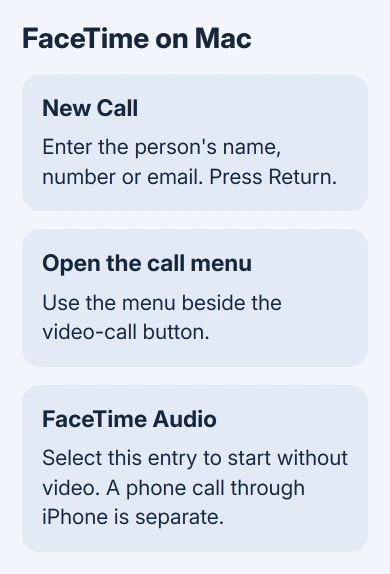
Open FaceTime on your Mac and sign in if needed. Click New Call, enter the person's name, phone number or email, then press Return to select them.
Open the menu beside the FaceTime video-call button and choose FaceTime Audio. That's the audio option in the current Mac guide. Choose it before placing the call so you'll start with voice only.
Older macOS layouts can show New FaceTime and an Audio button or menu instead. Choose the entry that says FaceTime Audio, particularly if the Mac also offers an ordinary phone call through your iPhone.
The Mac FaceTime setup steps show the current calling route.
FaceTime audio uses your Mac's internet connection. You only need an iPhone for the separate feature that lets your Mac make calls through your phone's cellular line.
Check the microphone and speaker selection if the call connects but sound uses the wrong device. A connected headset can make a successful call seem silent at the Mac's speakers. Choose your microphone and speakers before calling again.
For a Mac that can't connect at all, the Mac FaceTime settings guide separates account, connection and audio-device checks.
An internet FaceTime call doesn't require changes to iPhone cellular-call settings.
For a conversation already active on the phone, transfer the FaceTime call to your Mac through Handoff instead of dialing again.
Use the call controls without starting video
During the call, Mute stops the other person hearing your microphone. Tap it again to speak. Turning your volume down changes what you hear, so it won't replace muting the microphone.
On an iPhone, use the speaker or audio-output control when you want hands-free audio or a connected headset. The output choices depend on what is connected. Check that choice if sound seems to vanish after Bluetooth earphones connect.
When that accessory is Ray-Ban Meta glasses, separate call audio from glasses-camera sharing so the picture you expect matches the app you're using.
Press the volume buttons while the call is active to adjust the listening level. Adjusting the phone's ringtone while no call is active changes a different setting.
Use the red end-call control to hang up. Don't rely on locking the screen or leaving the app to end the conversation. Check that the active call has ended before putting the phone away.
Understand the connection, cost and availability
FaceTime audio travels over Wi-Fi or cellular data. It doesn't become a standard carrier voice call just because the recipient was selected by phone number. Cellular data charges can still apply, including while roaming.
Ordinary Wi-Fi Calling is another feature. It carries a carrier phone call over Wi-Fi and follows your carrier's service and billing rules. Look for FaceTime Audio on the call screen when that is the service you intended to use.
FaceTime and FaceTime audio aren't available in every country or region. Where the device was sold and where you're using it can matter, so a missing feature doesn't always mean your account is at fault.
Check regional availability before resetting the device to recover a missing button.
If a confirmed FaceTime address still won't connect on a working network, note the error and whether another contact works.
Open FaceTime support and choose the help for your device. Give support those details and the software version.
These details help support tell whether one contact, your account, the service or your device is affected. I'd leave a factory reset out of this: one contact failing to answer doesn't call for erasing your device.
The Short Version
Enable FaceTime, open its app and start a new call to the correct number or email. Choose Audio on iPhone or iPad, or FaceTime Audio from the Mac's call menu. Check the call label before speaking.
Checked November 10, 2026.