Notes sync from iPhone to Mac through iCloud when both devices use one Apple Account. Turn on iCloud Notes on each device, then open an iCloud folder. Notes under On My iPhone stay on that phone until you move them.
Folder location matters too. iCloud sync can work while older notes remain local or in Gmail. Check which account holds the missing note before changing any settings.
In this guide
Check which account holds the notes
Open Notes on the iPhone and return to the Folders list. Look at the headings over the folders. iCloud, On My iPhone, and an email account name describe different places where notes are stored.
Open the folder holding a note you want on the Mac. If it's in the iCloud section, it can sync through iCloud once both devices are set up. If it's under On My iPhone, the phone is keeping that note locally.
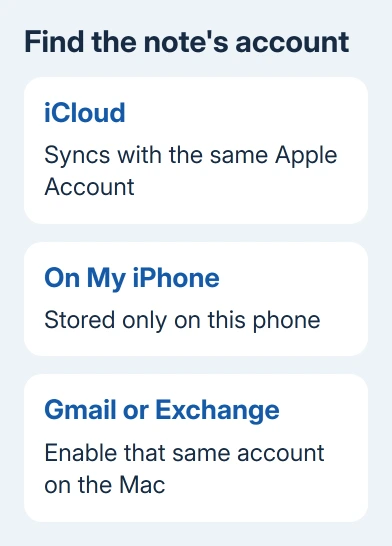
A Gmail or Exchange folder needs that same notes account on the Mac, or its notes need moving to iCloud when supported. Turning on iCloud doesn't automatically gather the notes from every account listed in the app.
On the Mac, open Notes and show its sidebar with View > Show Folders if needed. Check the account headings there too. On My Mac keeps notes on the Mac itself, so a note created there won't arrive on the iPhone through iCloud.
I'd check one specific missing note rather than the total number first. Checking its account and folder usually explains why one group appears everywhere while another group stays on a single device.
Enable iCloud Notes on the iPhone
Open Settings, tap your name, then tap iCloud. Open Notes and enable Sync this iPhone. If you don't see Notes, tap See All or Show All to reach the full list of apps using iCloud.
In Settings, tap your name and read the Apple Account details. It must match the account used for iCloud on the Mac. Having the same email account inside Mail isn't enough; the Apple Account controls this Notes connection.
Return to Notes, open All iCloud or a folder in the iCloud section, and look for your notes there. A local folder won't become an iCloud folder when you enable the switch, so don't use it to judge whether sync is working.
Apple explains the account requirement in its iCloud Notes setup steps. Keep the phone online while notes become available. A large attachment may need more time than plain text.
Enable Notes in the Mac's iCloud settings
On macOS 15 or later, choose Apple menu > System Settings, click your name, then select iCloud. Under Saved to iCloud, open Notes and turn on Sync this Mac. Use See All if you can't see the full app list.
On macOS 13.3 through 14, go to the same iCloud settings, open Show All or Show More Apps under Apps Using iCloud, then open Notes and enable Sync this Mac.
On macOS 13 through 13.2, turn on Notes in the iCloud settings. With the older System Preferences interface, choose Apple ID > iCloud and select Notes. The app list looks different, but you're enabling the same iCloud service.
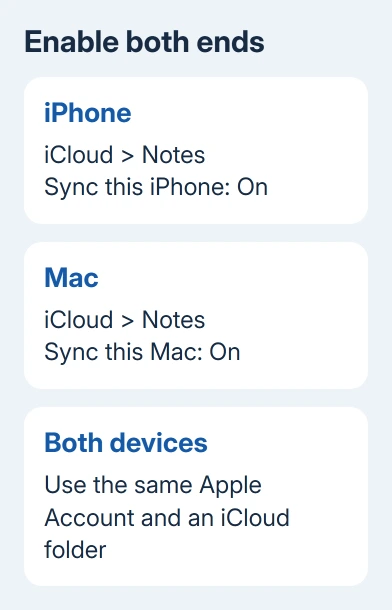
Open Notes on the Mac and select All iCloud, or the matching iCloud folder in its sidebar. Look for the same note title you checked on the phone. Searching only a local Mac folder can hide a note that's already synced successfully.
Create a short text note in an iCloud folder on the phone and find it on the Mac. Add a word on the Mac, then check the phone. This checks both directions without relying on an older note from a different account.
Move local notes into an iCloud folder
On the iPhone, open the folder under On My iPhone. Touch and hold the note you want to sync, tap Move, then choose a folder under iCloud. Open that destination folder and check the note's text and attachments.
For several notes, open the folder's selection control, select your notes and use the move-folder control. Choose the iCloud destination. Move one note first to check that folder before transferring the collection.
Moving the note changes where it's stored. Once it's in iCloud, edits and deletions reach the account's other devices. Before reorganizing a large collection, save your irreplaceable notes in a separate copy.
Use iCloud note exports for those saved copies, then open the files before moving the originals.
On the Mac, drag a note out of On My Mac into the sidebar's iCloud destination folder. Check it on the phone afterward. Moving a note differs from sharing a note with another person, which changes who can access it.
Keep Gmail or another notes account separate if preferred
Notes don't have to move to iCloud when you prefer their existing email account. On the Mac, open Notes > Accounts, select Add Account, choose the provider and sign in. Turn on Notes for that account.
On the iPhone, current software uses Settings > Apps > Notes > Notes Accounts. Check that the matching account is present and Notes is enabled. In earlier iOS releases, open Settings > Notes instead.
Return to each device's Notes app and open the folder under that account. The notes won't appear under All iCloud because they aren't stored in iCloud. Some Notes features also differ between email accounts and iCloud.
Recover a missing sync without removing the account
For missing iCloud notes, check the sync switches and account again, then restart the affected device. On the iPhone, the missing iCloud notes procedure calls for checking the setting again after restarting.
If needed, sign in to icloud.com/notes with that Apple Account and check for the note. This shows whether the note is already online or still stored only on one device. The guide to editing Notes through iCloud covers that browser view.
If a note is online but still missing on one device, contact Apple Support about the iCloud Notes sync problem. Give the software version, account and folder, plus the results of sending a new text note in each direction.
The Short Version
Use the same Apple Account and turn on iCloud Notes on the iPhone and Mac. Open the iCloud folders on both devices. Move local notes into iCloud, or enable the same separate notes account on each device. Check a new note in both directions.
Checked November 15, 2026.