
Yes, you can edit notes at icloud.com/notes in a web browser, including on a Windows PC or Chromebook. The note must be stored in iCloud; a note kept only on your iPhone or in Gmail won't appear there.
Open the note, click in its text and make your change. iCloud saves your edits automatically and sends them to devices using the same account with Notes sync turned on. Shared notes and locked notes have a few extra limits to check first.
Open the note under the right account and folder
Visit iCloud Notes and sign into the Apple Account you use for your notes. Select a folder, then choose the note from its list. On a smaller screen, open the folder or notes list if it's hidden.
Apple's Notes browser overview explains that the website only shows notes stored in iCloud. Notes from other accounts on your phone won't appear there.
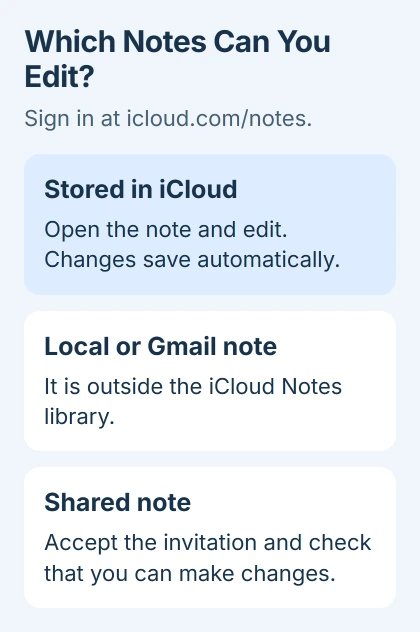
If the note isn't listed, check Notes > Folders on the iPhone. Look under iCloud, On My iPhone and any mail accounts. A note under Gmail won't appear in the iCloud browser list.
If the note is also missing from your phone, look for the original before trying to edit it. Creating a blank note with the same title won't recover one stored in a different account or folder.
Edit the text and check that the change arrives
Select the note and click or tap inside its text. Type your change normally. To format existing words, select them, open the formatting control in the Notes toolbar and choose the format you want.
For a new note, use the Create a note control in the toolbar and start typing. Its first words appear in the notes list. The browser writing instructions explain how your changes save automatically.
Keep your browser online while editing. After a small change, open the same note on your iPhone or Mac and check for the new text. If it appears, your edit has reached the device where you need it.
On iPhone or iPad, open Settings > your name > iCloud > See All > Notes if edits don't arrive. Enable its Sync this iPhone switch (on iPad, Sync this iPad). Some versions call See All Show All.
On macOS 15 or later, open System Settings > your name > iCloud > Notes and check Sync this Mac. The Notes sync setup guide gives the settings for each system version.
If your phone's search misses a note you can still see in the browser, use the Notes search checks. A search problem can hide a recent edit even when it saved correctly.
Check permission when a shared note won't accept changes
A shared note can allow viewing only or allow participants to make changes. If you can read it but can't edit, ask the owner to check your permission rather than changing your own iCloud sync settings.
Open the invitation link before looking for the shared note in your normal list. Select Accept Invitation when asked. After you open it that first time, it can appear alongside your other notes on iCloud.com.
The invitation must go to an address or phone number linked to your Apple Account. If it went elsewhere, ask the owner to resend it to the right one. Signing into a different account won't give that account access to the note.
The shared-note editing procedure covers accepting an invitation. Others sharing the note can see your changes, so use a private note for anything they shouldn't see.
To change who can contribute, the owner can review the Notes sharing permissions. Sending a copy of a note and inviting someone to collaborate are different choices.
Know which locked notes the website can open
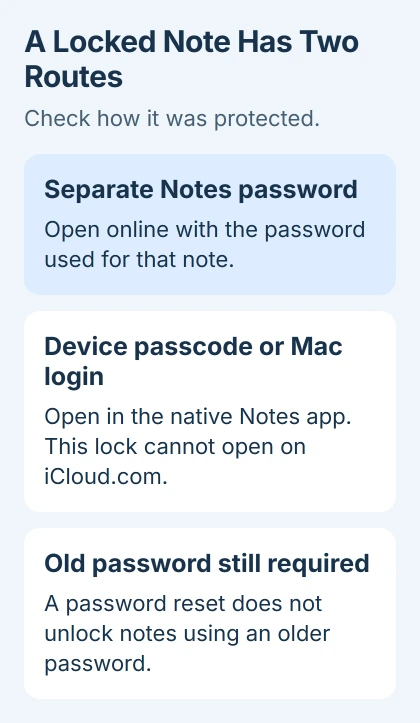
A note locked with a separate Notes password can be opened on iCloud.com using that password. Select the locked note and enter the password used when it was locked.
A note protected with your iPhone's device passcode, or a Mac's login password, can't open on iCloud.com. Use Notes on that Apple device instead. Repeatedly entering your Apple Account password won't change the restriction.
The locked-note browser rules also distinguish older Notes passwords. Resetting a forgotten Notes password doesn't unlock a note that still uses the old one.
Use the Notes app on your Apple device to add or remove a lock or change lock settings. If an attachment shows only a placeholder online, check it on an Apple device where you can open the locked note.
Handle attachments separately from the note's text
You can view or download many attachments already added to a note. Open the note, then double-click the attached item on a computer, or tap it on a phone or tablet.
To add a photo, scan or other attachment, use Notes on iPhone, iPad or Mac. You won't get all of those apps' photo, scanning and attachment features in the browser.
Attached Pages, Numbers and Keynote documents work differently. If you open one for editing on a computer, it saves a copy in iCloud Drive and opens that copy in its web app.
Your edits change the Drive copy; the attachment in the note stays as it was. The attachment instructions explain this, so check which copy you're sharing when someone needs the updated document.
Restore web access when sign-in succeeds but Notes is blocked
On iOS or iPadOS 26.4 or later, open Settings > your name > iCloud > iCloud.com and enable Allow Data Access to use Notes in a browser. On an earlier version, look for the web-access switch on the main iCloud settings page.
With Advanced Data Protection enabled, approve temporary access from your trusted device after signing into iCloud.com. The web-access procedure lets you keep that protection enabled while approving access.
I'd keep the original note open on a trusted device while sorting out browser access. If the correct iCloud note still won't save, tell Apple Support whether it's shared, locked or editable in the Notes app.
The Short Version
Yes: open iCloud Notes, choose an iCloud-stored note and edit. Saving is automatic. Check sharing permission, the lock method and attachment limits when something opens without letting you change it.
Checked November 5, 2026.

Isaac Smith is the founder and editor of PC Glance, a website that covers computers, laptops, and technology. He is a tech enthusiast and a computer geek who loves to share his insights and help his readers make smart choices when buying tech gadgets or laptops. He is always curious and updated about the latest tech trends.