Restart OneDrive by choosing Quit OneDrive from its cloud menu, then opening OneDrive again from Start on Windows or Spotlight on Mac. That closes and relaunches the sync app without unlinking your account.
If the cloud menu says syncing is paused, choose Resume syncing instead. A reset is a separate repair that rebuilds OneDrive's settings and sync connections, so try the ordinary restart first when you only need syncing to start again.
In this guide
Find the cloud and check whether syncing is paused
On Windows, look near the clock for the OneDrive cloud. Open the hidden-icons area if it isn't visible. Personal and organization accounts can display separate clouds, so choose the one that syncs the files you're having trouble with.
On Mac, use the cloud in the menu bar. Open it and read the status before closing the app. The fix for paused syncing differs from the fix for a sign-in error or an upload problem.
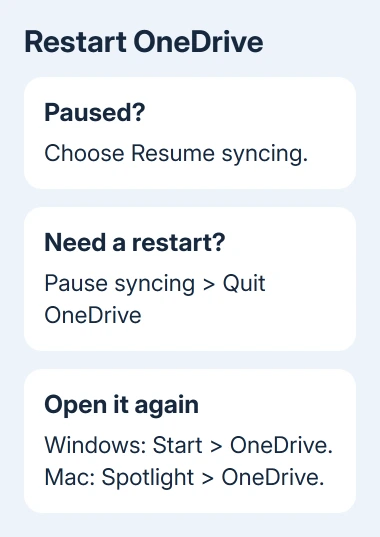
If syncing is paused, choose Resume syncing. Scheduled pauses can last two, eight or twenty-four hours, so an app can be running normally while file transfers remain stopped.
Resume is enough when a pause was the whole problem. Watch whether the status changes and files begin transferring.
If it still reports an error, save that message for the later check. A pause alone doesn't mean the installation is broken.
If no cloud appears, open Start, type OneDrive, and select the app on Windows. On Mac, open Spotlight, type OneDrive, and launch it. An app that was already closed doesn't need another quit command.
Quit and reopen OneDrive on Windows
Save the documents you're editing so the latest changes can be uploaded after the app reopens. Restarting the sync app doesn't close Word or Excel for you.
- Select the OneDrive cloud beside the clock.
- Open Help & Settings, shown as a gear in current versions.
- Expand Pause syncing and select Quit OneDrive.
- Confirm the quit prompt if one appears.
- Open Start, type OneDrive, then select OneDrive.
The cloud should disappear when the app quits and return after launch. If another cloud stays visible, open it and check which account it represents.
Microsoft's stop and restart instructions place Quit OneDrive inside Pause syncing.
It's easy to overlook because that label sounds like it only offers timed pauses.
Opening the OneDrive folder in File Explorer isn't the same as launching the sync app. The folder can remain available after OneDrive quits. Use the Start search result for the app, then check the cloud's status.
A web page that shows only a dotted drop area needs the browser drag-and-drop workaround, which uses the upload menu rather than relaunching sync.
If the cloud returns with the same file-specific error, the restart worked but the underlying file issue remains. Follow the OneDrive syncing checks for the message or filename involved.
Restart the menu-bar app on a Mac
Select the OneDrive cloud in the menu bar, open its settings menu and choose Pause syncing > Quit OneDrive. Older layouts may put the quit choice under Preferences > Pause.
Then open Spotlight, search for OneDrive, and select the installed app. Finder's Applications folder provides another way to open it. Watch for the cloud to return to the menu bar.
OneDrive normally works through that menu-bar cloud rather than a large permanent window. The lack of an app window alone doesn't mean the restart failed. Select the cloud and check the account and sync status inside it.
If sign-in is requested, choose the account associated with the affected folder. Signing into your personal account won't reconnect an employer's shared files, even when you use both accounts on the same Mac.
On an M1 Mac with downloads stuck at 0 KB, check AdGuard and safe mode if reopening the app makes no difference.
If new saves create computer-name duplicate files, keep both versions and refresh the relevant OneDrive credential.
I'd check one recently changed document after the cloud returns. Seeing that document finish syncing gives you a clearer result than opening the menu again.
Confirm that transfers resumed
Open the cloud menu and read the activity list. Circular arrows indicate syncing; a pause symbol indicates a pause; a red error symbol needs attention. A running app with an error hasn't completed the transfer you need.
Save a small change to an existing document you normally sync, then wait for the app's status to update. For important work, check the saved version from your usual other device or cloud account before assuming it arrived.
Don't delete and recreate the OneDrive folder as a restart technique. File deletions inside an actively synced folder can reach the cloud, while relaunching the app leaves those files in place.
A restart also doesn't expand account storage or remove filename restrictions. Read the actual activity message when transfers still fail. It helps you tell whether storage, account access or a particular file is stopping the transfer.
For choices such as folder backup and Files On-Demand, use the separate OneDrive settings guide. Those settings control what syncs and what stays downloaded, rather than whether the app is running.
Use a reset only when a restart doesn't repair syncing
A reset can help when the app runs but syncing remains stuck.
Microsoft's OneDrive reset procedure says the reset rebuilds connections and settings, keeps your files and starts a full sync.
On Windows, press Windows+R and run the command for the installed location. Try the first path, then the next only after a program-not-found message:
%localappdata%\Microsoft\OneDrive\onedrive.exe /reset
"C:\Program Files\Microsoft OneDrive\onedrive.exe" /reset
"C:\Program Files (x86)\Microsoft OneDrive\onedrive.exe" /reset
Then reopen OneDrive from Start if it doesn't start itself. Windows also has a Store reset step, wsreset.exe, in the linked procedure; the OneDrive commands target the desktop sync app itself.
On Mac, quit OneDrive, open Applications, and right-click or Control-click OneDrive. Choose Show Package Contents, then open Contents > Resources.
Double-click ResetOneDriveApp.command, or ResetOneDriveAppStandalone.command for the standalone edition. Start OneDrive and complete setup. Choose the previous OneDrive folder if setup asks for its location.
The filename depends on the installed edition, rather than on Intel versus Apple silicon.
After reset and sync finish, check which folders you had chosen to sync. Rebuilding the connection can require you to choose those folders again.
When the app still won't return
An app that won't launch needs startup troubleshooting rather than more quit commands. Record whether the Start or Spotlight result exists, whether a cloud appears briefly, and any error shown.
Use Get Help or Contact Support from the OneDrive help page for a personal account. For work or school, give your administrator that information, including whether another account on the computer still syncs.
The Short Version
Quit OneDrive from the cloud menu and reopen the app through Start or Spotlight. Resume a timed pause directly. Check file activity afterward, and reserve a reset for a sync problem that survives the ordinary restart.
Checked November 13, 2026.