
A second OneDrive file with your computer's name added can mean the app needs fresh sign-in credentials. Keep both versions, close the document, and refresh the saved credentials on the affected computer before deleting duplicates.
Office merge conflicts also create copies. A computer name added to the filename is the symptom the credential fix covers. A warning about changes that couldn't be merged means you need to compare the edits as well.
In this guide
1. Keep the edits in both copies
Open the original and the extra copy before choosing the version to keep. Compare the text, worksheet changes or slides that were edited most recently. A later date doesn't mean it includes all the edits.
Keep independent copies outside OneDrive for the comparison. If OneDrive backs up Desktop and Documents, choose another local folder. OneDrive syncs those backed-up folders too.
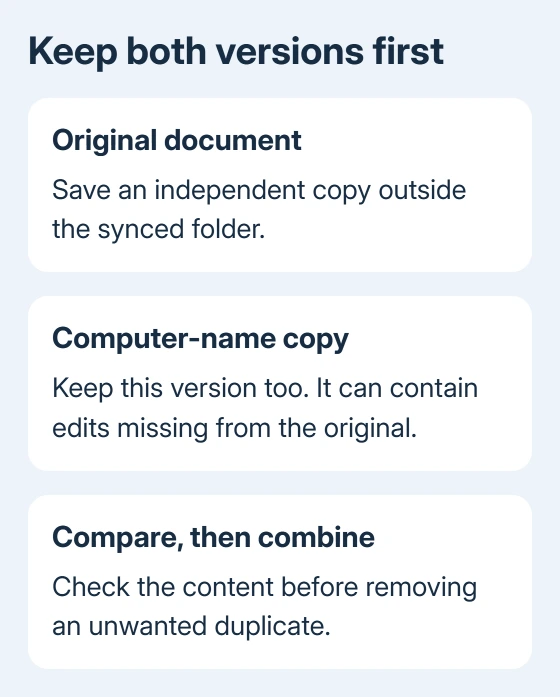
Ask other editors to pause until the edits are combined. For a Word document, open both versions alongside each other and transfer the missing edits into the version you'll keep. Confirm the result with the other editor.
Look at the extra filename. A suffix that matches your device name, such as Report-DESKTOP123.docx, is the specific case covered by Microsoft's duplicate-file credential fix.
A manually saved Copy file, a downloaded duplicate, or two files in different folders has a different cause. Don't clear sign-in information just because two documents happen to share similar names.
2. Refresh the Windows credentials for this account
Save and close Office documents on the affected PC. Open Start, type credentials, and choose Credential Manager. Select Windows Credentials, then look under Generic Credentials.
Find entries containing MicrosoftAccount and your username. Remove the matching entries, following the current duplicate-file instructions. Leave other accounts and unrelated saved credentials alone, particularly on a shared computer.
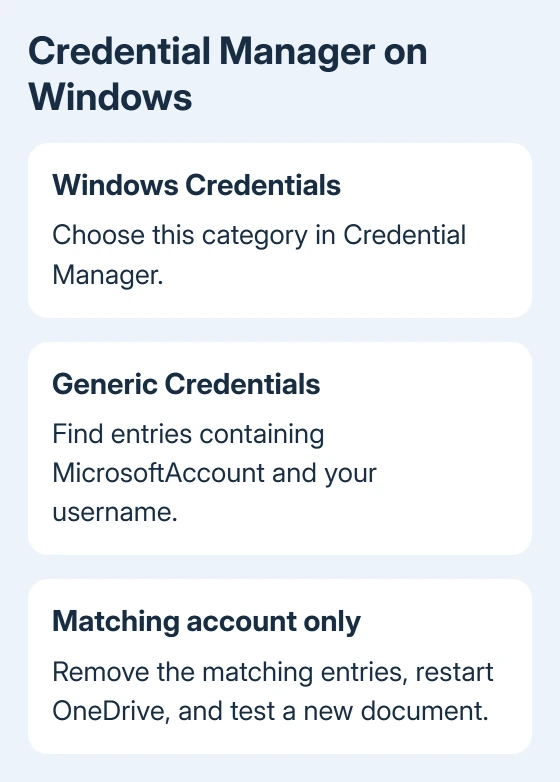
Restart OneDrive after removing the matching credentials. Select its cloud icon, open the gear menu, and choose Pause syncing > Quit OneDrive. Then open OneDrive from Start. If OneDrive asks you to sign in, use the folder owner's account.
Create a new test document in that folder, make a small change, save it and close it. Wait for the cloud activity to finish, then reopen it. Check that the change is there and that another PC-name copy hasn't appeared.
If duplicates stop, compare the earlier copies before cleanup. Refreshing credentials reconnects the app; it doesn't combine existing copies. If the same new document creates another copy, move to the Office conflict check.
3. Refresh the Mac's OneDrive credential
On a Mac, use Keychain Access rather than Windows Credential Manager. Open Spotlight and search for Keychain Access. If it isn't listed there, open the Utilities folder inside Applications and look for it.
Search the keychain for OneDrive. Delete the item named OneDrive Cached Credential, then run OneDrive again and sign in if asked. This is the Mac procedure for the PC-name duplicate symptom, even though the device is a Mac.
Remove only that named credential. Removing an entire keychain would affect far more than OneDrive and isn't part of this fix. On a managed Mac, have IT help if the item is unavailable or its removal is restricted.
Repeat the small document save after reconnecting. If it syncs as one file, OneDrive has synced that test successfully. If the duplicate returns, note whether the suffix names this Mac or another device that also edits the folder.
That device name can tell you which computer needs attention next. Fixing the Mac won't refresh credentials on a Windows laptop that later reconnects with old sign-in information.
4. Handle the Office changes-couldn't-be-merged message
The older Office 2016 case involved saving a new Word file, immediately editing it, and closing Word while saving again. OneDrive then created a computer-name copy and reported that it couldn't merge the changes.
A PDF created through printing needs a separate OneDrive PDF replacement check, starting with Excel export instead of the print driver.
One owner reported that enabling Use Office 2016 to sync Office files stopped their duplicates, but it brought back other problems. It stopped the copies, but it didn't fix everything in their setup.
That advice belongs to the old OneDrive Office tab. If that tab and checkbox still exist, check with your administrator before changing the setting. Don't search current Settings for a tab that isn't there.
On current OneDrive, save the combined document and let sync finish. Test a fresh file with one editor. Tell support if only shared documents create extra copies, and include the merge message so they can check how shared edits are syncing.
I'd keep the new test document separate from the document your team is actively editing. You can check whether duplication continues without risking more changes to the team document.
5. Reinstall only after the account checks
If refreshing credentials fails, the vendor procedure recommends reinstalling OneDrive. Use the Windows or Mac download and reconnect your account. Keep independent copies of unsynced edits throughout setup.
For the app's normal shutdown and launch controls, follow restarting OneDrive. Once syncing is stable, review what deleting a OneDrive file changes before removing the unwanted versions.
For persistent PC-name duplicates, request a OneDrive case through your work administrator. Include both filenames, the suffix, app versions, and the single-editor result. Support can try to reproduce the problem with that sample.
The Short Version
Preserve both documents, refresh that device's credentials, and check a fresh save. A merge warning also needs an edit comparison. Combine changes before deleting copies; report recurring duplicates with device and app versions.
Checked November 16, 2026.






