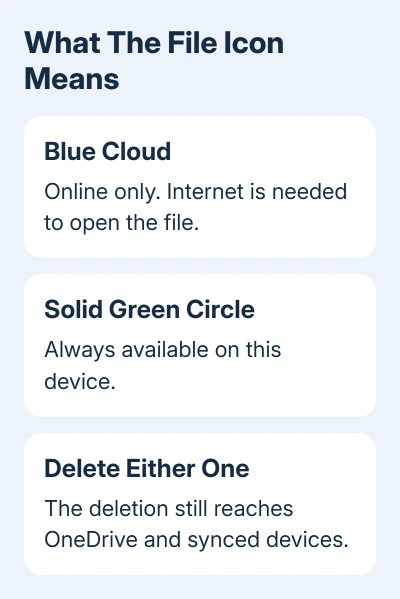
Yes, deleting a file inside a synced OneDrive folder removes it online and on other synced devices. It doesn't erase unrelated files on the computer. Deleting a whole folder also removes its contents.
To save space on your PC while keeping the online copy, choose Free up space instead of Delete. To keep a separate local copy while removing a cloud file, copy it outside OneDrive and check it before deleting the synced original.
In this guide
Check whether you're deleting a synced file
Open File Explorer and look at the folder containing the file. A location inside OneDrive or OneDrive - your organization is part of that account's synced storage. Check the folder itself, even if you reached it through a shortcut.
Desktop, Documents and Pictures can also be backed up through OneDrive. A file on your desktop isn't automatically separate from the cloud. Check its actual location before treating it as an independent local copy.
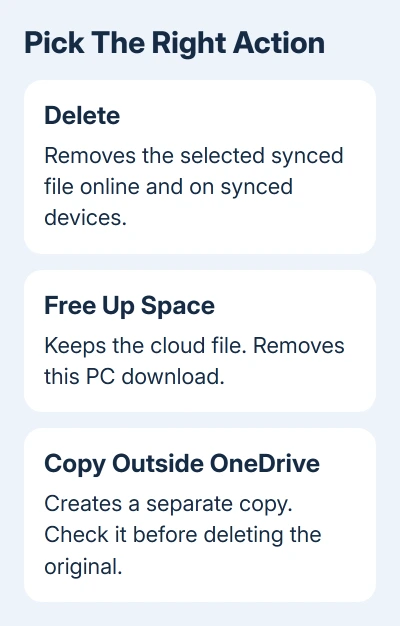
Deleting through File Explorer, OneDrive on the web, or another synced device acts on the same cloud file. Once the change syncs, the deletion reaches the connected devices using that account.
Microsoft's Files On-Demand explanation makes an important point: even an online-only file is deleted everywhere when you delete it from the computer's OneDrive folder.
The blue cloud symbol means the full contents aren't currently stored on the PC. It doesn't mean the visible entry is a disposable shortcut. Delete removes the file whether you see a cloud icon or a check mark.
Keep the cloud file and reclaim PC space
In File Explorer, open the OneDrive folder, right-click the file or folder you want to stop storing locally, and choose Free up space. This removes its downloaded contents from this device while keeping the file in OneDrive.
After the change completes, look for the blue cloud icon. The file remains listed in the folder. Opening it later while connected to the internet downloads its contents again, so seeing it in File Explorer is expected.
For a file that should remain available offline, select Always keep on this device. Look for the solid green circle containing a white check mark to check that the file will stay downloaded.
I wouldn't use Delete for a disk-space cleanup inside OneDrive. Free up space is the control designed for that job, and it avoids turning a storage decision into a recovery task.
An online-only file needs an internet connection before you can open its full contents. Keep the files needed for travel or a meeting downloaded before going offline. That choice is about availability on this PC, not a separate backup.
Remove the cloud file but keep an independent copy
Create a folder outside OneDrive and outside any Desktop, Documents or Pictures folder that OneDrive backs up. Copy the files there rather than relying on another folder that still belongs to the same synced account.
Let online-only files download during the copy, then open each copied file at its destination. Check that each document, photo or other file opens with all its contents. Seeing file names alone isn't enough to know the copy finished.
Confirm the address of the destination folder in File Explorer. The new copy needs to be outside the OneDrive path. Giving a folder a different name inside OneDrive still leaves it in synced storage.
Once you've checked the separate copy, delete only the cloud files you intend to remove. Their synced copies will disappear, while the independent copies stay in the location you chose outside OneDrive.
For stopping the service rather than removing individual files, the turn off OneDrive procedure covers downloading files, folder backup and unlinking. Those steps serve a different goal from Delete.
Know what unlinking or uninstalling changes
Unlinking the computer stops its OneDrive connection. Uninstalling removes the OneDrive app where Windows allows it. Neither action deletes the cloud files in your OneDrive account.
Microsoft's unlink and uninstall guidance says those actions don't lose files or data, and the online files remain accessible by signing in to OneDrive.
That doesn't turn online-only entries into downloaded documents. To keep files on this PC without OneDrive, download and check them before you disconnect the account. Don't assume an entry with a cloud icon is an offline copy.
Pausing syncing also isn't a safe way to delete a file on just one side. A pause delays changes; when syncing resumes, OneDrive can process the deletion. Choose what to do based on which copy you want to keep.
If OneDrive's account and folder controls are confusing, the OneDrive settings guide explains which settings affect sync and folder backup. Confirm the signed-in account before a large deletion.
Restore something already deleted
Stop deleting more files and open OneDrive on the web using the account that held them. Select Recycle bin, select the deleted items, then choose Restore. Once restored, they return to their original locations.
For a personal Microsoft account, deleted OneDrive items are normally kept in the recycle bin for 30 days. For work or school accounts, the usual period is 93 days, unless the administrator has changed the setting.
Check the recycle bin promptly after a mistaken deletion. Permanently deleted items need another recovery route, and an empty bin can't return the file just because the usual time limit hasn't passed.
Locally available files deleted on Windows can also appear in the PC's Recycle Bin. Online-only files don't appear there in the same way, so check OneDrive's web recycle bin even when the Windows bin is empty.
For large losses, Microsoft 365 subscribers can use Restore your OneDrive to undo file activity from the last 30 days. In the personal account's web settings, choose Options > Restore your OneDrive.
Select a date, review the activity list, and choose Restore when you've chosen the point to return to. This rolls back other file changes too, so review that list before confirming. Work or school accounts use Settings > Restore OneDrive.
For work or school storage, ask the Microsoft 365 administrator about missing items and retention. Give the account, original folder, file names and deletion time. Your organization may have recovery options you can't access yourself.
If a personal account's bin has nothing recoverable, use OneDrive Help and Support and say whether the file was permanently deleted. Check an independent backup too. Reconnecting a device won't reverse a synced deletion.
The Short Version
Delete removes selected files from OneDrive and synced devices. Free up space keeps them online while clearing the PC download. Check a separate copy outside OneDrive before deleting the original. Recover files in the web recycle bin.
Checked November 11, 2026.