When PowerPoint cannot insert a video from the selected file, fix the format first. Export or convert a new copy to MP4 with H.264 video and AAC audio, then insert it. Renaming the file to .mp4 won't change its contents.
If a correctly converted file also fails, check whether Windows is an N edition with missing media features. A protected movie is another case: permission to watch it in its original app doesn't mean PowerPoint can embed it in a slide.
In this guide
1. Replace the encoding, rather than the file extension
An MP4 is a container for video and audio. H.264 and AAC name the formats stored inside it. Two files ending in .mp4 can contain different formats, so the extension alone doesn't tell you whether PowerPoint can read the clip.
Microsoft's insertion-error guidance recommends converting to H.264 video with AAC audio. Start with a new export from the video's original editor if you still have that project.
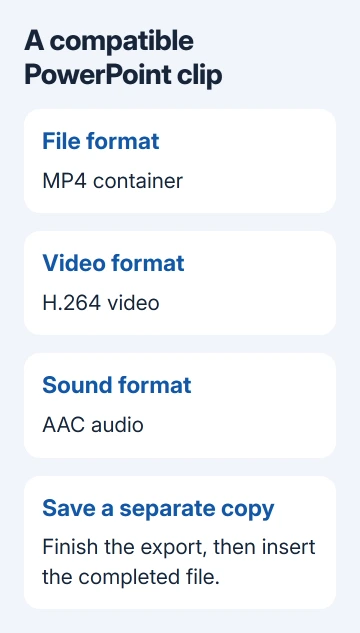
Choose MP4 as the output format, H.264 for video and AAC for audio if your editor lets you choose them. Finish the export and play the resulting file before returning to PowerPoint. Keep the original clip as a separate file.
An export preset named for a phone or high efficiency can choose a different video format. Check the codec setting, which tells you how the video is compressed. An MP4 preset doesn't always use H.264 video and AAC audio.
For a clip from someone else, request that exact export. Asking only for an MP4 can get you another file with the same incompatible video or audio inside. Specify H.264 picture and AAC sound for the PowerPoint presentation.
2. Make a compatible copy in HandBrake
For a normal video file without an editor project, open it in HandBrake, then select General > Fast 1080p30. The official preset table lists MP4, H.264 and AAC stereo for that preset.
Check the selected output settings before starting. The Summary tab should show MP4, the Video tab an H.264 encoder, and the Audio tab AAC. Don't choose an H.265 or AV1 preset just because it offers a smaller output file.
Choose a new destination filename with Browse. Use Start Encode on Windows or Start on Mac, and wait for conversion to finish. Choose the finished file for PowerPoint, not one HandBrake is still creating.
The quick-start procedure explains source selection, presets, destination and encoding. This preset can change resolution and frame rate; use the original editor's export controls if you need to preserve specific production settings.
Open the finished copy in a media player. Check the beginning, a later scene and the sound. If the converted copy itself is incomplete or silent, fix the conversion before putting the clip in your presentation.
I'd try a fresh compatible export before adding a collection of codecs to Windows. It gives you a replacement file that can travel with the presentation, rather than relying on extra playback software on this particular PC.
3. Insert the completed copy using the local-file command
In desktop PowerPoint for Windows, select the slide, then choose Insert > Video > This Device. Older versions can call the command Video on My PC. Select the converted file and choose Insert.
On Mac, use Insert > Video > Movie from File, select the converted clip and insert it. If an option to link the file appears, leave it unselected when the video needs to be stored inside the presentation.
Use the PowerPoint video insertion walkthrough for the complete embedding procedure. These steps replace a file PowerPoint won't accept. They don't change how a video already on a slide plays.
When it works, you'll see the video on your slide with a playback control. Preview it, then run that slide in Slide Show. Save the presentation and reopen it before relying on the clip for a meeting.
If PowerPoint accepts the clip but then displays a playback error, move to the cannot play media checks. Once insertion succeeds, missing linked media and slide playback controls become different problems to check.
For a comparison, open a blank presentation and insert the completed converted clip. If that works, keep the original presentation and tell support it works in a blank one. If it fails in both, check the computer's media features next.
4. Restore missing media features on Windows N
This step applies to Windows 10 N or Windows 11 N, not every Windows installation. Open Settings > System > About and read the edition under Windows specifications. Look for the N in the edition name.
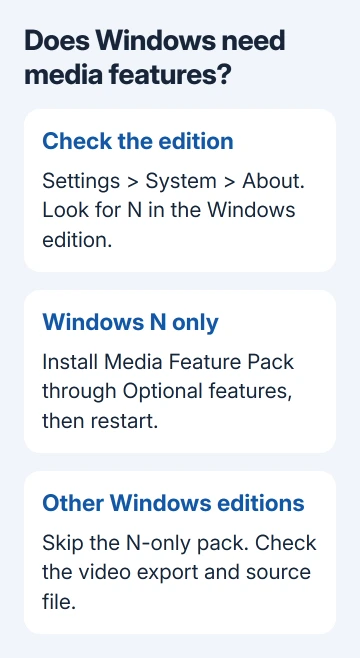
The Media Feature Pack instructions explain that N editions exclude media technologies. Installing them adds that missing support to Windows. It doesn't convert the video file.
On Windows 11 N, open Settings > Apps > Optional features, choose View features beside Add an optional feature, and find Media Feature Pack. If Optional features has moved in your build, search Settings for its name.
On Windows 10 N, use Settings > Apps > Apps & features > Optional features > Add a feature, then select Media Feature Pack. Install it and restart the computer afterward, even if Windows doesn't prompt for the restart.
Return to PowerPoint and insert the converted H.264/AAC file again. If your edition isn't an N edition, skip this pack. For a managed PC where the optional feature isn't available, ask IT to check the edition and media-feature installation.
5. Check older formats and protected source files
Windows PowerPoint restricts legacy formats, including AVI, WMV and MPEG-2 from version 2505. Some convert during insertion, depending on their contents. An older Office version accepting the file doesn't mean a newer one will.
Check the supported format list for your platform. Converting a normal source to the recommended MP4 means you won't have to rely on support for an older format.
For PowerPoint 2010 or 2013, a separate protected-media error can use the same insertion wording. DRM means digital restrictions on how a purchased or licensed file can be used.
Get an unprotected source that you're allowed to use in the presentation. A protected download can't be converted like an ordinary video file. Changing its extension or linking it from a slide won't remove its restrictions.
If a normal converted clip still fails in a blank deck, give Microsoft Support the error, PowerPoint version, system edition and export settings. Include whether that file inserts on a different computer.
The Short Version
Export MP4 with H.264 video and AAC audio, then insert the completed copy. Restore media features only on Windows N. Check protected and legacy files separately, and report a compatible clip that still fails in a blank deck.
Checked November 11, 2026.