
Your Documents folder is not where it used to be. Your Desktop has a little cloud icon on it.
Files you were sure were on this computer turn out to be somewhere else, and you are being asked to buy more storage for things you never chose to upload.
The worry underneath all that is simple and worth answering before anything else: if I switch this off, do I lose my files?
No. And Microsoft says so in writing, which I will quote before we touch anything.
The reassurance, from Microsoft, in its own words
Documented by Microsoft on its turn off OneDrive page, twice, about two different actions.
On unlinking: "You won't lose files or data by unlinking OneDrive from your computer. You can always access your files by signing in to OneDrive.com."
On uninstalling: "You won't lose files or data by uninstalling OneDrive from your computer. You can always access your files by signing in to OneDrive.com."
Read those carefully, because they say something specific. Your files stay in two places: on your machine in the OneDrive folder, and online. Switching the sync off stops them moving between the two, and it does not delete either copy.
One genuine caution before you start. If any of your files show a cloud icon rather than a green tick, they are online only and not currently on your machine.
Those need downloading before you unlink, or you will unlink and find placeholders. The next section deals with that.
Step one: bring everything down first
Do this before anything else. It is the step that protects you.
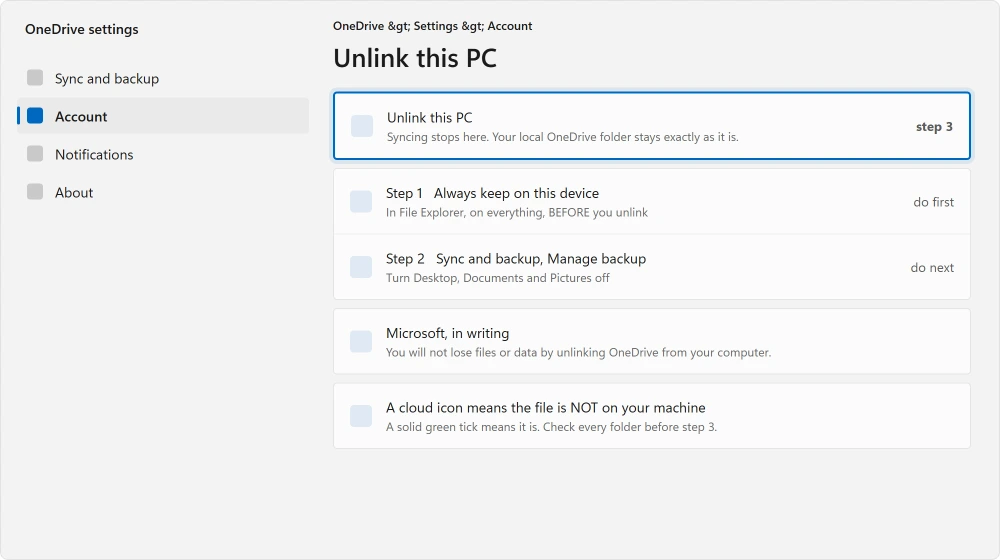
Open your OneDrive folder in File Explorer. Select everything. Right-click and choose Always keep on this device.
Then wait. Depending on how much is up there and how fast your line is, this can take a while, and it is not finished until every item shows a solid green tick rather than a cloud.
Ours, and marked as ours: only this part of the process can genuinely lose you access to something, and it is entirely avoidable.
Do not skip it because the folder looks like it already has your files in it. A cloud icon means it does not.
Step two: stop it backing up your folders
This is the setting that moved your Desktop and Documents in the first place, and turning it off is separate from unlinking.
Click the OneDrive cloud icon in the notification area, then the gear, then Settings. Go to Sync and backup, then Manage backup, and turn off every folder listed there: Desktop, Documents, Pictures.
Doing this before you unlink matters. If you unlink first, the folder redirection can stay in place and you end up with your Desktop still pointing somewhere you did not intend.
Step three: unlink
Same Settings window. Go to the Account tab and choose Unlink this PC, then Unlink account. That is the moment syncing stops. Your local OneDrive folder stays exactly where it is with everything in it.
If that old folder later refuses every delete with a cloud file error, Command Prompt's rmdir clears what PowerShell cannot.
Step four: find your original folders again
This is the part nobody explains, and it is why people think their files vanished.
Reported by an adviser on Microsoft's Q&A boards, answering somebody in exactly this position. Open This PC, then C:, then Users, then your username.
In his words: "you may see a Folder just called Documents>That is your original system Document Folder. It will or should be empty>Right click on it>Properties>You will see a location tab, indicating it is a system folder. All your documents were in there before OneDrive grabbed them!"
So you have two Documents folders, and always did. The original one at C:\Users\YourName\Documents, and the OneDrive one at C:\Users\YourName\OneDrive\Documents.
Windows pointed your shortcuts at the second and left the first sitting empty.
If the drive is filling up rather than the files moving, where your disk space went finds it.
Ours, and marked as ours: move your files back to the original if you want them out of the OneDrive folder entirely. Drag them, do not copy them, so you do not end up maintaining two versions of everything.
The problem this page exists for: it comes back
Now the frustration, and it is why the standard advice is not enough.
Reported by an owner in February 2026, who had already done everything above.
In her words: "I've done ALL the required steps: turn off autosync, unlink my pc, etc… Yet, with every Windows update, my files are hijacked back to OneDrive (startbackup). I'm forced to delte the OneDrive app. I hate that."
And the part that shows this is not somebody who dislikes the product: "I love OneDrive. I shouldn't be FORECED to delete OneDrive app to keep my files where I want them! I pay to use OneDrive."
Four advisers replied on that thread and nobody confirmed a fix. One suggested keeping your files in a folder OneDrive does not manage. Another agreed. A third asked what she actually wanted.
A Microsoft MVP pointed her back at the unlink page she had already used.
What actually holds, if that is happening to you
Ours, and marked as ours, and I am labelling it clearly because nobody confirmed it on that thread.
Keep your working files outside the managed folders entirely. Not in Desktop, Documents or Pictures. Make a folder at C:\Users\YourName\MyFiles and use that.
OneDrive's backup feature only ever claims the shell folders listed under Manage backup, which on current Windows 11 means Desktop, Documents, Pictures, Music and Videos. A folder of your own outside all five is never in scope.
That is what the adviser above was recommending, and it is the only approach that survives an update reinstating the backup setting, because there is nothing there to reinstate.
If you want it gone completely
Documented by Microsoft, which is honest about the limit: OneDrive "is built in to some versions of Windows and can't be uninstalled", and on those you hide it instead.
And if you want away from the Microsoft account entirely, the missing local account option covers where that setting hides.
Where it can be removed: Start, type Add or remove programs, find Microsoft OneDrive, and uninstall.
Your local OneDrive folder and everything in it stays on the machine as ordinary files. Your online copy stays online. Neither is touched.
Status: written 22 August 2026. Microsoft states in writing that unlinking and uninstalling lose you no files. One owner had Windows updates reinstate the folder backup repeatedly.
Will I lose my files if I turn off OneDrive?
No. Microsoft states it twice on its own page, for unlinking and for uninstalling: you will not lose files or data, and you can always reach them by signing in to OneDrive.com.
Do download anything showing a cloud icon first, because those are online only.
Why does my Documents folder keep moving to OneDrive?
Because the folder backup setting redirects Desktop, Documents and Pictures into OneDrive. Turn it off under Sync and backup, then Manage backup.
One owner reported Windows updates switching it back on repeatedly, which is why keeping files outside those three folders is safer.
Where are my original files after OneDrive took over?
You have two sets of folders. The original ones are at C:\\Users\\YourName\\Documents, usually empty, and the OneDrive ones at C:\\Users\\YourName\\OneDrive\\Documents.
An adviser put it plainly: your documents were in the first one before OneDrive grabbed them.
Can I uninstall OneDrive completely?
On some versions of Windows, yes, through Add or remove programs. Microsoft notes it is built into some versions and cannot be uninstalled there, and you hide it instead. Either way your local folder and its contents stay on the machine.
The Short Version
- Microsoft states in writing that unlinking and uninstalling lose you no files.
- Download anything with a cloud icon first. Those are online only, not on your machine.
- Turn off folder backup before unlinking, or your Desktop stays redirected.
- You have two Documents folders and always did. The original is usually empty.
- One owner had Windows updates switch the backup back on after every update.
- Files kept outside Desktop, Documents and Pictures are never in scope for backup.
Where to Next
If your problem is that it will not sync rather than that it will not stop, that is the opposite job. One character in a file name stops the whole thing.
Open your OneDrive folder and look for cloud icons before you change a single setting. Everything else on this page is safe. That one step is the only thing standing between you and a folder full of placeholders.
If you are trying to get away from a Microsoft account entirely, the missing local account option covers where that setting hides.
And if the drive is filling up rather than the files moving, where your disk space went finds it.
Before removing it entirely, it is worth knowing which four settings actually decide what you notice. Turning one of them off may be enough.
If Windows keeps switching your backup back on, say so below with your build number. I would like to know how widespread that one really is.

Isaac Smith is the founder and editor of PC Glance, a website that covers computers, laptops, and technology. He is a tech enthusiast and a computer geek who loves to share his insights and help his readers make smart choices when buying tech gadgets or laptops. He is always curious and updated about the latest tech trends.