Move OneDrive to another drive by unlinking the computer, moving its folder and signing back in with the new location. Dragging an actively synced folder can leave the app looking in the wrong place.
The move changes where your computer keeps synced files; it doesn't move your account to a different cloud service or increase your online storage.
In this guide
1. Finish syncing and choose a suitable drive
Click the OneDrive cloud beside the Windows clock and check its activity. Let pending uploads finish before unlinking. A file saved only on your computer needs to finish uploading before you can rely on its online copy.
Open several important documents from their current location. Make an extra copy of irreplaceable work before moving a large folder, especially if the source drive has been reporting errors.
Do this before moving anything, while the files are still where you normally open them.
For important documents you need during setup, right-click their files and select Always keep on this device. Wait for their green circles with white checkmarks before unlinking; a cloud-only placeholder needs an online connection to open.
For a second internal Windows drive, confirm that it has room for the files you plan to keep locally. In File Explorer, open This PC, right-click the destination drive and choose Properties. Check its free space and file system.
An external drive has extra requirements. The supported external-drive setup requires a drive treated as non-ejectable; removable USB drives aren't supported. Windows uses NTFS for this setup, while the Mac instructions call for APFS.
Before formatting an unsuitable drive, copy its existing contents elsewhere. Formatting removes the files already stored there. A spare USB stick isn't automatically a suitable home for your sync folder.
I'd use a second internal drive when one is available. It avoids the practical problem of opening a document after the external drive has been disconnected.
If space is your only concern, review OneDrive's local storage settings first. Files On-Demand can reduce local storage without relocating the entire folder. A move makes sense when you actually need a different drive.
2. Disconnect this computer from the current folder
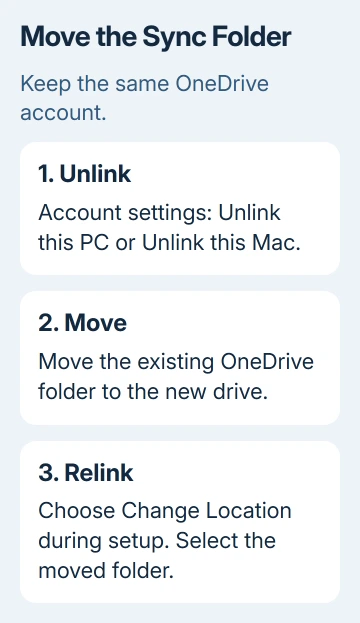
On either supported Windows version, select the OneDrive cloud icon > Help & Settings > Settings. Open Account, choose Unlink this PC, then confirm with Unlink account.
For macOS, select the menu-bar OneDrive cloud, open Help & Settings > Preferences, choose Account, then select Unlink this Mac. Unlink the account inside OneDrive; leave your Mac login session running.
Microsoft says to unlink first in its folder relocation procedure before reconnecting the moved folder. The app needs setup again afterward.
Unlinking stops this computer's sync connection. It doesn't delete the files held in your OneDrive account. It also isn't the same as deleting files from an actively synced folder, which can send deletions to the cloud.
If two clouds appear, check the account shown in each app window. A personal account and an employer's account can have separate folders.
Move only the folder for the account you just unlinked. The other account has its own folder.
Leave the setup window available if it stays open. You'll return to it after moving the local folder. If unlinking fails or the account controls are unavailable on a managed PC, ask your administrator before changing the folder yourself.
3. Move the existing folder to its new home
Use File Explorer for Windows, or Finder for macOS. Find the OneDrive folder you were using, then move that folder to the chosen location. For example, a Windows folder on C: can move to a suitable folder on D:.
Check the destination path carefully before starting a large transfer. Your OneDrive folder should end up on the drive or inside the folder you chose, with its existing subfolders still inside it.
Don't scatter its contents into the root of the drive.
A transfer between drives can take time. Let the file operation finish before returning to OneDrive setup. Wait until the move finishes so you know which folder has all your local files.
If File Explorer reports that a file is in use, close the document and the app using it, then retry the move. If the destination runs out of space, stop and choose a suitable location before reconnecting sync.
Check several subfolders at the destination once the operation finishes. You need to reconnect OneDrive to the folder you moved. A second, empty folder won't contain the files you meant to move.
4. Point OneDrive setup at the moved folder
Return to OneDrive setup and select Get started. Sign in with the same account you unlinked. Continue until the setup screen shows the proposed OneDrive folder location.
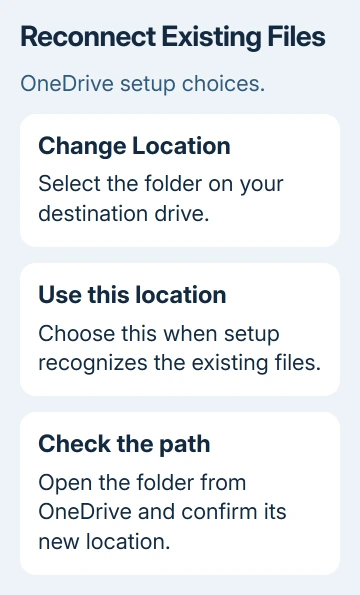
Select Change Location, choose the new folder location, then select OK. Read the displayed path before continuing. An old C: path means setup is still pointing at the original location.
When setup says the chosen location already contains files, select Use this location. That message is expected when you've selected the existing folder you just moved. Finish the remaining setup screens.
If your earlier setup synced selected folders only, check those choices again after sync completes. The relocation steps include choosing those folders again, so don't assume your earlier selections carried across.
Open OneDrive's folder from its cloud menu and check the address shown in File Explorer or Finder. Then open a document from that location.
The path tells you which folder OneDrive is using. Opening a document checks that you can use the files there.
If the new location is refused
If setup says it can't create the folder on that drive, the system might treat the drive as removable. Return to the destination-drive requirements instead of repeatedly signing in.
Signing in with another account won't make a removable drive suitable.
For a personal account, use Contact Microsoft Support from the relocation help page and provide the full error, destination path and drive format. With an employer or education account, give those details to your organization's IT team.
If the actual goal is to stop using the service, follow the separate steps for turning off OneDrive safely. Relocating its folder keeps syncing enabled and isn't a substitute for that process.
The Short Version
Finish pending sync, unlink the right account, move its folder and relink through Change Location. Select Use this location for the existing files, then verify the new path and folder selections.
Use a supported drive rather than an ordinary removable USB stick.
Checked November 13, 2026.