
OneDrive can be disabled at startup or blocked by a policy. Launch it from Start first: if it opens, check automatic startup; if nothing happens, read the policy value before reinstalling it again.
A gray cloud, paused sync and an app that isn't running need different checks. Open the cloud icon if it's visible and read the message first; the app may need you to fix a sign-in or sync error.
1. Open OneDrive and read its current state
Open Start, type OneDrive, and select Microsoft OneDrive. Also check the notification area's hidden icons before deciding that its cloud icon has disappeared.
If the app opens a sign-in screen, choose the account whose files you need. Personal and work or school accounts can appear separately, so check the address before reconnecting folders.
Microsoft's OneDrive icon explanations distinguish a gray signed-out cloud from paused sync and an app that isn't running. Click the icon to see the actual status.
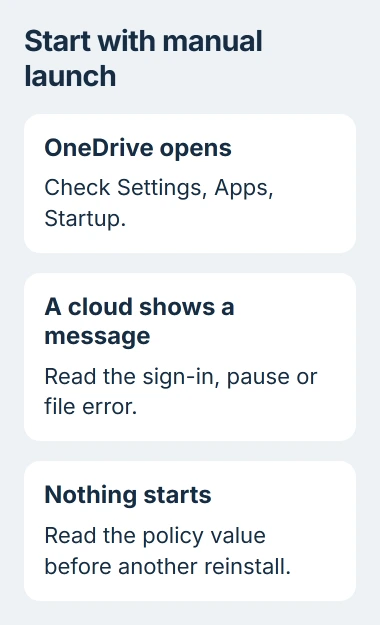
If the cloud appears and reports paused syncing, use Resume syncing from its menu. If it reports an account or file error, follow that message rather than treating every inactive-looking cloud as a startup block.
If OneDrive runs but some files won't upload, use the OneDrive filename and sync checks. Check the policy if the app won't start or Windows blocks OneDrive file storage.
2. Re-enable startup when manual launch works
In Windows 11, open Settings > Apps > Startup. Find Microsoft OneDrive and turn its startup switch on if you want it to open when you sign in.
Task Manager also lists startup apps. Open it with Ctrl+Shift+Esc, select Startup apps, and check OneDrive's status. If it's disabled, select the entry and choose Enable.
On Windows 10, that Task Manager page is named Startup. Change the OneDrive entry; you don't need to enable unrelated background apps to bring back its cloud icon.
Save your work, then sign out and sign into Windows again, or check after the next normal restart. Look for the cloud and open its panel to check that you're using the right account.
I'd check startup before opening Registry Editor. If OneDrive works when you launch it yourself, it can already start in your current Windows session.
If startup is on but OneDrive also stops opening manually, check the policy next. If the app works but has no startup entry, check its settings or ask support how to restore that entry.
3. Read the policy value that can block OneDrive
Press Windows+R, type regedit and press Return. Approve the administrator prompt if you're allowed to inspect this computer's settings.
In Registry Editor, open this location:
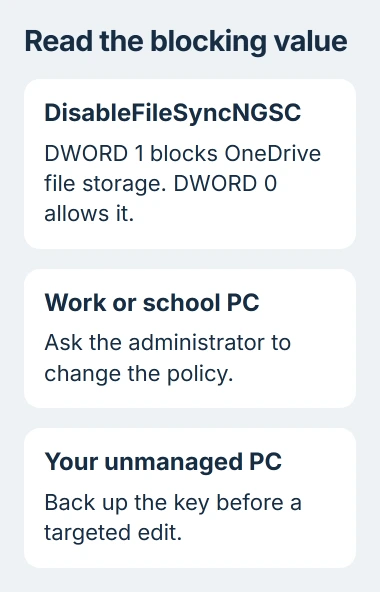
HKEY_LOCAL_MACHINE\Software\Policies\Microsoft\Windows\OneDriveLook in the right pane for DisableFileSyncNGSC. This is a DWORD, a registry setting that stores a number. A value of 1 blocks OneDrive file storage and can stop the sync app from starting.
Microsoft says this value can explain a OneDrive app that won't start, even without a sign-in prompt or error. The policy blocks the app; it doesn't mean OneDrive is missing from your PC.
If the OneDrive key or value is missing, don't create it to try to fix the app. This check hasn't found that policy block, so tell support the value is missing when asking about the startup problem.
Looking at the value doesn't change it. Note its name, type and data, plus whether this is your employer's or school's PC, before deciding who should change it.
4. Have the correct owner remove the block
On a PC managed by work or school, send the value and symptom to the administrator. The block can return after sign-in, a restart or the next policy update, even if changing it by hand seems to work.
The policy is called Prevent the usage of OneDrive for file storage. Its Group Policy location is Computer Configuration > Administrative Templates > Windows Components > OneDrive.
Watch the wording: enabling this policy blocks OneDrive. If your organization allows syncing, the administrator needs to remove or disable the policy.
On your own PC, if it isn't managed by an organization, check whether a privacy or setup utility turned on this restriction. Undo it in that utility first if it controls the setting, so it doesn't put the block back.
If you control the PC and decide to edit the existing DWORD, back up the affected registry key first using File > Export. Then open DisableFileSyncNGSC and change its value data from 1 to 0.
Leave other values alone. Close Registry Editor and launch OneDrive again; if a restart is needed, save your work first and check the app after signing back in.
5. Confirm syncing without moving your folders
Open the cloud panel after OneDrive starts. Check that it's using the right account and let it finish syncing, watching for any error that needs its own fix.
Try syncing a small file you don't need, placed in your intended sync folder. Check its status and the app's activity; seeing a cloud beside the clock doesn't tell you whether that file synced.
You don't need to delete the existing OneDrive folder or move Desktop and Documents to re-enable the app. Those folders can hold both downloaded files and online-only placeholders, whose contents aren't stored on the PC.
If you wanted to stop folder backup instead, follow the safe OneDrive removal sequence. That's a separate task from getting a blocked sync app working again.
If the value returns to 1, tell support the policy keeps coming back instead of reinstalling OneDrive again. If it stays at 0 but the app won't open, give Microsoft Support your Windows version and this check's result.
If the account belongs to your organization, start with its administrator. Include the full error if there is one, or explain that clicking OneDrive opens no window and shows no cloud icon.
The Short Version
Launch OneDrive manually, fix disabled startup if it opens, and read DisableFileSyncNGSC if it doesn't. Ask the administrator to change a managed policy; back up an unmanaged PC's key before correcting an existing block.
Checked November 5, 2026.

Isaac Smith is the founder and editor of PC Glance, a website that covers computers, laptops, and technology. He is a tech enthusiast and a computer geek who loves to share his insights and help his readers make smart choices when buying tech gadgets or laptops. He is always curious and updated about the latest tech trends.