
Outlook on Android can stop syncing one account while the mailbox still works on a computer. Use Force stop in Android Settings, open Outlook again, then try Reset Account to refresh the data it shows.
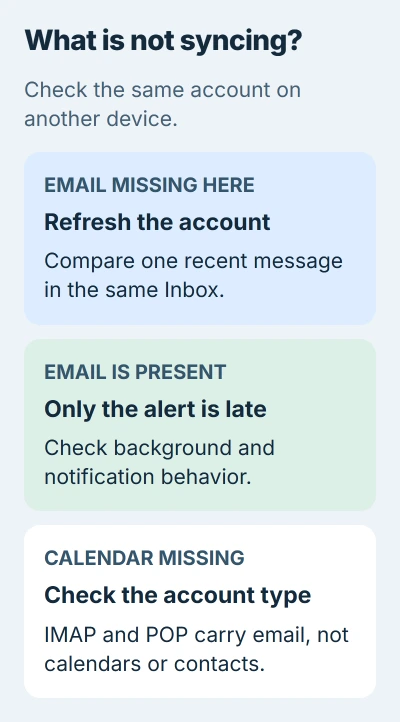
Check whether email is missing, only notifications are late, or calendars and contacts never appeared. Those symptoms lead to different settings, even when they all look like a sync problem.
1. Compare the mailbox and the selected account
Open Outlook and select the account that isn't updating. Use that account's Inbox so mail from your other accounts doesn't get in the way. If Focused Inbox is on, check Other as well as Focused.
Look for one recent message that you can identify by sender and subject. Check the same mailbox on a computer or another device where you're already signed in. You'll use that message to see whether each repair worked.
If that message is missing everywhere, start with your email provider or the sender. Resetting the phone app won't help if your mailbox hasn't received it. If it's on the other device, continue with the Outlook app.
If your phone has trouble connecting, try cellular data instead of Wi-Fi, or the other way around. Open Android Settings and use Network & internet or Connections, depending on your phone. Check Outlook on the other connection.
If switching connections restores mail, check the failing network before removing the account. For trouble reaching other services too, use the Android Wi-Fi checks.
2. Reopen Outlook, then use Reset Account
Open Android's Settings > Apps > Outlook and select Force stop. Confirm if asked, then reopen Outlook from its app icon. Some phones put the app list behind See all apps.
Microsoft recommends reopening Outlook before resetting an account with incomplete data. Use its Outlook refresh steps.
If the same message is still missing, open Outlook's account menu and its Settings gear. Select the affected email account, opening Accounts first if your version shows that section, then choose Reset Account.
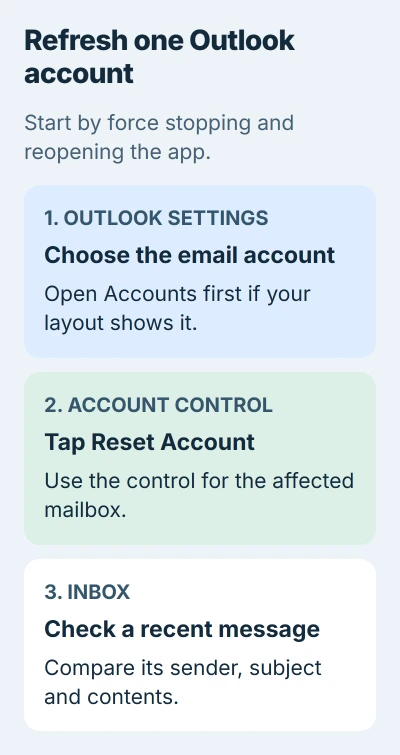
Let the account's Inbox refresh, then open the recent message you checked on the other device. Seeing old messages in the list doesn't tell you whether Outlook can download new ones and their contents.
Reset Account refreshes that account inside Outlook. It isn't Android's Clear storage control or a phone factory reset. If your mail starts arriving, leave the other accounts alone.
If you can't find Reset Account, check for an Outlook update next. Write down any sign-in error. Follow any request to sign back in instead of repeating Reset Account.
3. Update the app and clear only its cache
Open Google Play, tap your profile picture, and choose Manage apps & device. Install an Outlook update if one is offered. The wording can vary slightly with your Play Store version.
Restart your phone after the update if Outlook still won't refresh. Check for the same recent message in that account's Inbox. This lets you try the updated app before removing an account you can still sign into.
If Outlook also freezes or closes unexpectedly, open Settings > Apps > Outlook > Storage, or Storage & cache, and choose Clear cache. This removes temporary app files while keeping its data.
Leave Clear storage or Clear data alone for this check. Those controls go further than clearing the cache and can make you set up the app again.
The mobile troubleshooting instructions include force stopping, clearing Outlook's Android cache, updating and restarting for app crashes.
I'd try the account refresh before reinstalling Outlook. It lets you check whether that one account starts working without having to set up every mailbox again.
4. Check account type when calendars or contacts are missing
If email arrives normally but your calendar stays empty, check the connection method. Open that account's details in Outlook Settings and read the account type.
IMAP and POP are ways to connect an email account, but they don't sync calendars and contacts. Resetting won't add those features. Your provider needs to support a connection that includes them.
For a Microsoft work or school mailbox, ask your administrator which Exchange setup to use. For another provider, choose its account option and follow its instructions instead of guessing server addresses.
In Outlook's Calendar view, open the calendar list and select the calendar you want to see. If it isn't selected, it won't appear alongside your other calendars, even when the account is connected.
For contacts in Android's address book, check Outlook's Sync Contacts setting and Android's Settings > Apps > Outlook > Permissions. Permission to use contacts is separate from receiving email.
For a shared calendar, check the service it comes from on your other working device too. Make sure you're comparing the same calendar, since two can have similar names.
5. Keep work-account sign-in apps available
Some work accounts also need Microsoft Authenticator or Company Portal. These apps handle sign-in and your organization's device requirements. If Android stops one in the background, Outlook can lose its mailbox connection.
Open Authenticator or Company Portal before Outlook and complete any waiting request. Follow the instructions on the work-account page.
That page covers power-saving restrictions that stop those sign-in apps from running. Your mailbox can depend on them even when Outlook has permission to stay active in the background.
Use your phone's battery controls to let the required sign-in app run in the background. The setting names depend on the phone maker, so search Settings for the app's name or ask IT which setting your model uses.
Leave your organization's security settings and Company Portal in place while IT checks the problem. If a work policy blocks the change or a sign-in request keeps returning, send IT the prompt you see.
If mail appears only after you open Outlook, report that timing separately. Follow the Android background-app checks when screen-off behavior causes the delay.
6. Re-add the account only after checking the server copy
Before removing an account, confirm that important email, calendars and contacts are available on its other working device. Keep any unsent text somewhere safe, and make sure you can complete the account's sign-in verification.
Then open the affected account in Outlook Settings and choose Delete Account > Delete From This Device when offered. Add it again using the correct provider and complete the sign-in prompts.
If mail still won't sync, contact your email provider or work administrator. For an Outlook app problem, use its support option. Include your phone model, Outlook version, account type, error, and what happened in each comparison.
The Short Version
Start with reopening Outlook and Reset Account after comparing the mailbox elsewhere. Check updates, calendar connection type and work-account sign-in apps. Protect unsent work before removing and re-adding an account.
Checked November 5, 2026.

Isaac Smith is the founder and editor of PC Glance, a website that covers computers, laptops, and technology. He is a tech enthusiast and a computer geek who loves to share his insights and help his readers make smart choices when buying tech gadgets or laptops. He is always curious and updated about the latest tech trends.