

Follow-up flags can disagree between two Outlook apps when one PC's local mailbox copy hasn't caught up.
For a work Exchange account, turning off Cached Exchange Mode restored flag syncing for one owner, but first check the same message in webmail so you know which copy is wrong.
This workaround applies to classic Outlook's Exchange connection. POP, IMAP, personal Outlook.com and new Outlook don't offer the same cache switch. The fix in the older discussion doesn't cover every account type.
In this guide
1. Compare one message in the same mailbox
Choose a message whose flag is different on the two PCs. Check its sender, subject, date and folder, then confirm that both Outlook installations are showing the same mailbox address.
A message copied into a local Outlook Data File isn't the same server item. Likewise, a Favorites shortcut can hide which mailbox owns a folder. Expand the folder tree and check its account before changing anything.
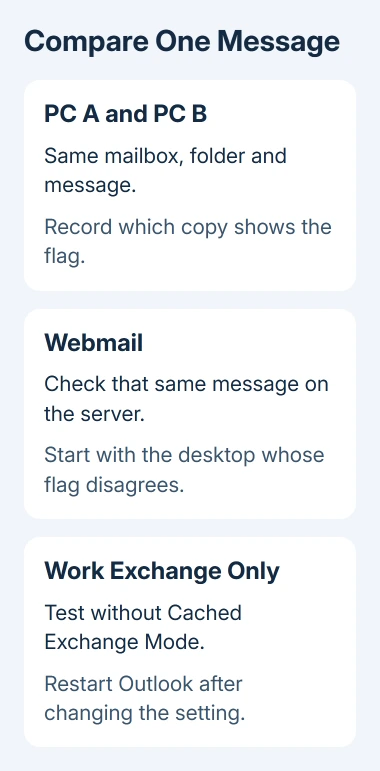
Open the same mailbox through its normal webmail service and find that message in the same folder. Note whether the flag is present there. This gives you a third view without removing either desktop account.
If webmail matches PC A, start with PC B's connection and cache. If webmail matches neither, check whether recent changes from either PC are reaching the server before treating the issue as a display problem.
For flags used as your daily task list, record the current state of important items before experimenting. That lets you compare the changes without forgetting which tasks were meant to remain flagged.
If mail itself is stale too, use the Outlook mailbox update checks. A client that isn't receiving new messages needs its connection restored before its flags can be compared usefully.
2. Reconnect Outlook and refresh the affected folder
Check Outlook's status bar for Working Offline or Disconnected. If Work Offline is selected on Send / Receive, click it to return online, then allow Outlook to reconnect.
Select the affected mail folder and choose Send / Receive > Update Folder. Repeat on the other PC, then compare the chosen message's flag with webmail again.
This checks whether Outlook just needs to refresh; it wasn't a confirmed fix in the original discussion. If the flag catches up, check that changes made on either PC reach the other before deciding the problem is gone.
Microsoft's offline-mode instructions explain the status indicators. Disconnected can also mean the connection itself needs attention, rather than that Work Offline was chosen.
If refreshing changes nothing while new mail arrives normally, try comparing cached and online mode next. Keep the same message and folder so a different test item doesn't hide the original disagreement.
The original reports weren't limited to custom folders. Another owner saw the failure in Inbox. Moving every message into Inbox therefore isn't a confirmed general solution.
3. Check whether the cache workaround applies
In classic Outlook, open File > Account Settings > Account Settings. On the Email tab, find the account that owns that folder. Check the account type listed beside it.
Microsoft Exchange or a work Microsoft 365 connection is the account type needed for Cached Exchange Mode. The setting controls whether Outlook keeps a local copy of that server mailbox for offline use.
POP and IMAP accounts don't use this feature. Personal Outlook.com accounts default to cached mode and don't let you change it. New Outlook for Windows doesn't provide classic Outlook's Cached Exchange Mode control either.
If the checkbox is unavailable for a work Exchange account, your administrator may control it. Ask IT to perform the comparison rather than changing another mailbox's settings because its controls happen to be available.
For a personal or non-Exchange mailbox, tell its support team the account type and what each PC and webmail shows. The Exchange success report doesn't justify adding registry values to force a missing checkbox into that account.
4. Try online mode on the affected Exchange client
With the correct Exchange account selected, choose Change. Under Offline Settings, clear Use Cached Exchange Mode. The longer label in some builds is Use Cached Exchange Mode to download email to an Outlook data file.
Finish the account dialog, close Outlook and start it again. It now needs an online connection for mailbox access, so do this while the PC has a dependable connection to the mail service.
Open the affected folder and check your chosen message. Change one flag, then check the other client and webmail. Repeat with the reverse change so you can see whether setting and removing flags both travel correctly.
One owner in the flag-sync discussion reported that turning off cache mode got it working.
They reported success early on and didn't post a later result. If this works for you, use it as a workaround and tell IT what changed.
The cache-mode instructions recommend cached mode for normal Microsoft 365 use, so don't leave the change unexplained on a managed PC.
To return to the earlier setup, select that same checkbox and restart Outlook again. If the disagreement returns only with cached mode enabled, tell IT that exact result and ask them to assess the local cache or Outlook profile.
5. Keep failed fixes out of your task workflow
The accepted answer in the old thread suggested several checks, including defaults, hidden folders and synchronization filters. The answer was marked accepted, but the original owner didn't confirm that those changes fixed their flags.
Another owner reported success after deleting months of mail, but a follow-up six days afterward said the fault returned after roughly four days. Don't delete old messages to repair follow-up flags.
I'd keep one verified copy as the place to manage urgent flags while the fault is being checked. If webmail updates reliably, use that message list and compare it with the desktop before trusting an overdue-task list.
For Outlook on Android showing separate account problems, follow the Android account refresh steps. Rebuilding a phone's account doesn't repair a stale Windows cache on a different PC.
Give support the direction that fails
Ask your Exchange administrator to check flag updates for the affected mailbox and folder. Provide both Outlook builds, the account type, a sample message and whether online mode changes the result.
State whether PC A to PC B, PC B to PC A, or both directions fail, and what webmail shows. This is more useful than a general report that Outlook doesn't sync, especially when normal mail continues to arrive.
The Short Version
Check one message across webmail and your two computers.
Reconnect and update the folder, then try online mode for a work Exchange account if its cached copy stays wrong.
Tell IT whether the workaround helps. If the problem returns, ask them to check your cached mailbox copy.
Checked November 16, 2026.
 If you have any business, I can build it online






