OneNote error E000006B blg57 can appear when the app can't sync with the notebook service, even while the internet works. Check the same notebook online and keep unsynced pages safe.
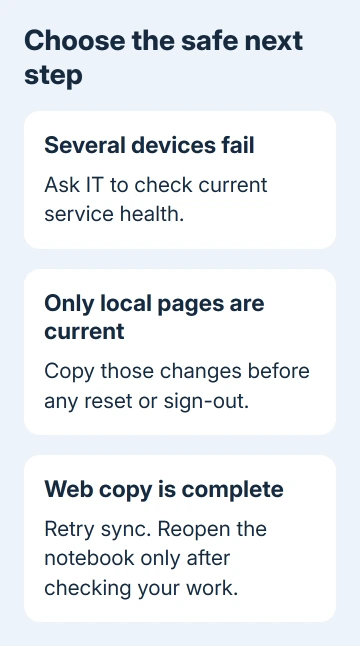
If several devices fail together, have IT look for a service incident before resetting an app.
This exact code appeared during a confirmed September 2021 service incident. The browser version kept working for some owners, but today's failure needs a current service check.
In this guide
1. Check what reached the online notebook
On Mac, choose Notebooks > Notebooks > Copy Link to Notebook. Paste its address into the browser. When sign-in appears, use an account permitted to open the notebook. Check a recent page, not just the notebook title.
In desktop Windows OneNote, find the web address in File > Info. Paste that URL into your browser. From a phone or tablet, use the notebook's known sharing link or open it from its OneDrive account.
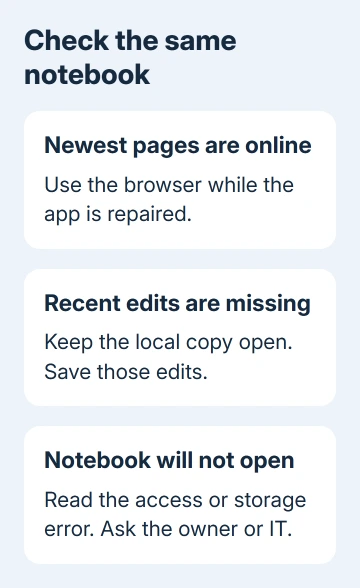
If recent pages are visible online, those pages have reached the service and you can use the browser to continue working. If the notebook opens but the newest edits are absent, those changes haven't reached that online copy.
If the browser can't open it, read the actual message. If access is denied, ask the owner or school administrator to check permissions. A missing notebook needs a storage check; neither result is fixed by repeatedly pressing Sync.
Microsoft's OneNote sync instructions use the browser result to work out where syncing has failed.
For an empty home list when the notebook link still opens, follow the missing-online-notebook checks. That is different from an app failing to upload a page you can still read locally.
2. Keep changes that exist only on the affected device
Leave the affected notebook open while you compare its recent pages with the browser. Copy unsynced text and other content you can access to a safe location before closing the notebook, signing out or removing app data.
On a computer, make a new notebook in an allowed storage location if the service lets you, then put copies of the affected pages there. Verify that the new pages open online before relying on that second notebook as your saved copy.
If no notebook will upload, save important readable content in a separate local file, such as copied text or a PDF where the app offers printing.
Check that attachments are saved too; being able to read a page doesn't mean you've saved its attached files.
For school or work notes, use storage the organization permits. A personal notebook isn't an appropriate automatic destination for student records or company material. Ask IT where to keep the temporary copy if you're unsure.
This is the point to avoid an app reset. A cached page is the app's local working copy, and the latest edits may exist in that copy alone. Clearing that data can remove work the server has never received.
In the historical discussion, one owner described losing content during support troubleshooting and still having trouble after the incident was marked resolved.
So even after a service repair, check that your own pages are safe.
3. Check whether several apps fail at the same time
Check that notebook using another of your existing devices. Don't install multiple apps or change accounts just to make this comparison. Note whether Mac, Windows, iPad, iPhone or Android shows the same code.
If a notebook opens normally online but several apps fail together, send that result to IT. It gives them a reason to check the service and account rather than assuming each device needs its own app repair.
The original incident report was OP283538. The support-case update shared in that discussion says a service change caused the problem and was rolled back, with the incident ending on September 7, 2021, at 7:00 PM UTC.
That report listed several affected apps but excluded OneNote 2016 and the web client. An owner also had working web access while newer apps failed. That explains the 2021 incident. A new E000006B error needs a fresh check by IT.
Ask a school or workplace administrator to open Microsoft 365 admin center > Health > Service health. They should look for a current incident affecting the account's services and check its listed next steps.
I'd check that before reinstalling several devices. During a current service fault, changing local app files won't undo the service change. Continue in the working browser copy, while keeping any newer local edits separate.
4. Request one sync and read the result
On Mac, open File > Sync All Notebooks, then check the warning beside the affected notebook. Record the complete code and wording if it remains. If the warning clears, check that the updated page also appears online.
In Windows desktop OneNote, open File > Info > View Sync Status. Choose Sync Now beside the affected notebook and read any section-specific error. This can show whether one section fails while the others finish.
For an iPhone or iPad, pull down the open notebook list to request syncing. On Android, use Sync all from the notebook list's menu where offered. Let the request finish, then compare the recent page in the browser again.
One owner in 2021 said repeated sync requests eventually loaded pages on Mac and iPad. They could carry on temporarily, but repeated clicking wasn't a lasting repair. Skip their twenty-click routine.
If the error changes, use the instructions for the new message. Different sync codes can need different repairs. For a Mac that reports saved-offline status, the Mac offline-note checks cover its refresh and connection steps.
5. Reopen only after the online copy is complete
If the web notebook contains all your latest changes and no active incident explains the failure, try closing and reopening the affected notebook in the app.
Keep the saved content from section 2 until you've checked the reopened copy.
On Mac, choose Notebooks > Notebooks > Close This Notebook. Return to the working web notebook and use Open in OneNote. Let the app download its content, then check the page that previously failed to sync.
For Windows desktop OneNote, right-click the notebook in the notebook list and choose Close This Notebook. Reopen the same notebook from its web location using the desktop-app command offered there.
If it still fails, give support the complete code, app and operating-system versions, notebook location and web comparison. Include when the error began and whether another device fails too.
For an organization account, ask IT for a Microsoft 365 support request covering that notebook and service. For a personal account, use OneNote's Help support route.
Tell support about any unsynced pages before following instructions to sign out or reset app data.
The Short Version
Save local-only edits, compare the online notebook and check another existing device. Have IT review service health when several apps fail together. Retry sync, then reopen only after your work is safely online.
Checked November 22, 2026.
 If you have any business, I can build it online