Windows OneNote is replacing Feed with Sticky Notes, so its missing Feed icon can be an intended change. Open Sticky Notes in current OneNote for quick notes, or check the web Feed for the older combined view.
Reinstalling Windows OneNote won't restore a retired button.
An older 2021 case did have a privacy-setting fix. That report applies to an app that still offered Feed, so check which interface you're using before changing privacy options or following old Insider instructions.
In this guide
1. Separate the retired Windows button from the web Feed
Check whether you're using a browser tab or the Windows OneNote application. Both can open the same notebook, but their toolbars have different features.
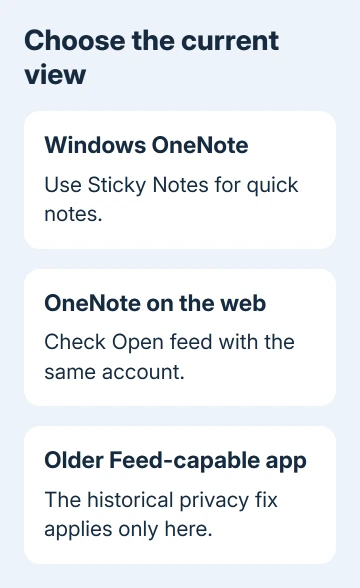
Microsoft's OneNote Feed page says Feed will no longer be available inside Windows OneNote and will be replaced by the new Sticky Notes experience.
At the time of that notice, the Windows change didn't affect web versions. Losing Feed in Windows doesn't mean your notes have been deleted or Feed has disappeared from every web version.
If Windows shows Sticky Notes, continue with that button for quick notes. If you need the old combined Feed, try that account in the web version of OneNote.
Don't bring back the unsupported Windows 10 edition just to reproduce an old screenshot.
If the problem is a whole notebook missing from the online list, use the exact-notebook-link checks. Feed and the notebook list aren't the same view.
2. Open Sticky Notes for the Windows replacement
In current OneNote for Windows, look for Sticky Notes near the top of the app and select it. Open an existing sticky note or create one in that window, then check the signed-in account if expected notes are absent.
Use the same account that held those sticky notes on your other device. A school sign-in and a personal Microsoft account can each have a separate collection, even when both accounts are available in OneNote.
The Windows Sticky Notes app is another route if it's already installed. Search Start for Sticky Notes, open it and check its account. It provides sticky notes, rather than the older Feed's combined list of different note types.
That explains why only some of the notes you expected may appear. Seeing sticky notes doesn't mean Samsung Notes or every recently edited notebook page will appear there too. Use the notebook itself for its full pages.
If neither route offers the expected current tools, check OneNote's version and how it gets updates. On school and workplace PCs, IT may schedule feature updates.
For Microsoft 365 desktop installations, open File > Account > Update Options > Update Now where available. Store-managed copies use Microsoft Store updates. Reopen OneNote after an offered update and check for Sticky Notes again.
3. Check the web Feed with the same account
Open OneNote on the web, sign in and open a notebook. Look near the top-right for Open feed. If it's offered, select it to open the Feed pane and inspect the notes associated with the current account.
If the collection is wrong, use the Feed's account control to select or add the intended account. Opening a personal notebook and expecting a school's separate note collection can make a working Feed look empty.
Look for a particular recent note, not just a note count. The useful result is opening the note you need. A visible Feed icon with the wrong account selected hasn't solved the missing-content problem.
Outlook on the web is another documented Feed location. If your interface provides the OneNote Feed control, select it, then confirm which account its pane shows. Its availability doesn't recreate the removed Windows ribbon button.
If neither web interface offers Feed, keep using the original notebook or note app and ask support about availability for that account. The notice doesn't say that every version will keep the same button indefinitely.
I'd use a working web route before changing the Windows installation. The original owner could already see Feed online while both Windows apps lacked it, which made web access a practical alternative.
4. Apply the privacy fix only to an older Feed-capable app
An owner in April 2021 restored Feed by turning connected experiences back on after disabling them for privacy. That fix worked for them before the Windows replacement notice.
If you're checking an older app that still supports Feed, open File > Account. Under Account Privacy, choose Manage Settings and inspect the connected-experience controls available to that installation.
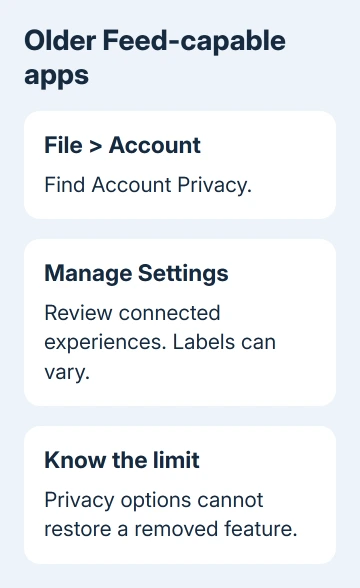
The owner named Let Office download online content and Enable connected experiences. Current Office labels can differ.
Turning on these online features changes your privacy settings. Choose which ones you're comfortable enabling rather than ticking every box.
After a change your organization allows, restart OneNote and look for Feed again. If it's still absent in a version where Windows Feed has been removed, stop treating the privacy setting as a way to reinstall that feature.
If the settings are unavailable or managed, ask the school's administrator which connected experiences are permitted. Don't try to override a school policy by changing update channels or signing in with an unrelated account.
In the original thread, joining Insider and reinstalling didn't bring Feed back for the asker. I'd skip that route on a teaching or work computer rather than switch it to preview software.
Keep the notes available when the old view is gone
For OneNote pages, open the notebook and page directly. For sticky notes, use the current Sticky Notes tools with the matching account.
For Samsung Notes, keep the original notes accessible in Samsung Notes rather than expecting Sticky Notes to contain them.
If a notebook itself can't sync, use the error shown beside that notebook. The OneNote sync checks address a failed upload separately from a missing Feed shortcut.
Send support the OneNote version, Windows version, account type and which interface still opens the required notes.
Ask about Feed or Sticky Notes availability specifically; don't report a deleted notebook when its pages still open normally.
The Short Version
Windows OneNote is replacing Feed with Sticky Notes. Use the current quick-note tools or check the same account's web Feed. The old connected-experience fix belongs to older Feed-capable apps and can't reverse removal of the feature.
Checked November 22, 2026.
 If you have any business, I can build it online