Error 0xE000002E means OneNote needs to refresh its connection to the stored notebook. Press Shift + F9 in OneNote on Windows to request a full sync, then check whether the newest notes appear in the notebook's online copy.
The extra bjief text can appear with the same code. If another sync attempt doesn't clear it, protect the notes still held on your PC before closing the notebook, signing out or resetting the app.
In this guide
1. Request a full notebook sync
Open the affected notebook in desktop OneNote for Windows and press Shift + F9. Keep OneNote open while it works. If your laptop uses F9 for a hardware control, holding Fn as well may be necessary to send F9.
Microsoft's error-specific sync guidance describes this as a refresh problem that is usually temporary. Once the refresh finishes, the error can clear without changing your notebook or installing Office again.
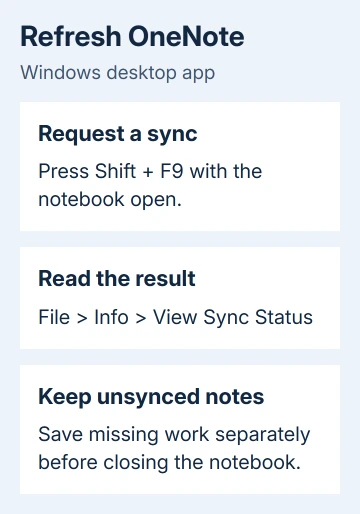
Open File > Info > View Sync Status to see the affected notebook's message. Read the full code after the attempt finishes. If it changes to an account, permission or network error, use that new message to choose the next action.
Syncing a whole notebook can take longer than sending a short edit. Watch the status rather than repeatedly closing the app to see whether it helped. If the same code remains, check the stored notebook before resetting its connection.
On OneNote for Mac, the full-sync shortcut is Shift + Command + S. The Windows File menu paths in the remaining steps apply to desktop OneNote on Windows. The Mac offline-notebook checks cover that app's own controls.
2. Compare the exact notebook's online copy
In Windows OneNote, choose File > Info. Find the affected notebook and copy the web address shown under its name. Open that link in a browser, using the notebook owner's account or another account that has access.
Check a specific recent page, including a sentence you just changed. A notebook title alone isn't enough: the online copy can open successfully while still missing the work that's waiting on your PC.
If recent changes appear online, the stored notebook received them. Work there while repairing the desktop connection. If it shows older content or an empty notebook, preserve the newer local pages first.
For shared notes, choose the work or school sign-in that has access. A personal Microsoft account won't give you the same access, even with a similar name. The notebook owner or IT needs to resolve a permission message.
Compare on the device where you wrote the newest notes. A second computer can show a perfectly healthy sync while the first still holds changes it hasn't sent. Being able to sign in doesn't tell you whether those changes arrived.
3. Save the work that hasn't reached the server
Keep the device with the newest notes open. Save unsynced text in a separate document, along with attachments you can't replace. Check that those copies open before changing the connection to the notebook.
For a page containing handwriting, images or a complicated layout, preserve a readable copy as well as any editable material you need. The aim is to keep the missing work, not simply another link to the same notebook that isn't syncing.
I'd make this copy before trying another sign-out. An online notebook with yesterday's notes can't bring back today's changes if the only local copy gets removed during troubleshooting.
The original asker said repeated sync attempts and sign-outs didn't provide a lasting fix. Their web copy was empty too. The accepted reply discussed licensing, but didn't confirm that syncing worked again.
Once your work is safe, what happens in the browser determines what to try next. A notebook that opens correctly online can have its desktop connection reopened. A notebook that won't open online needs account, access or service help first.
4. Reopen a notebook that is available online
Use this step after preserving unsynced work and confirming that the notebook opens in the browser. In File > Info, copy its address again to make sure you can reopen that notebook after closing it.
Next to that notebook, choose Settings > Close. Return to its browser tab and select Open in Desktop App on the ribbon. Allow the browser to open OneNote and select an account that has access to this notebook.
Wait for its sections and pages to load. Compare the previously affected page with the online copy, then check View Sync Status again. Reopening can reset the connection; it doesn't recover local work you failed to preserve.
If 0xE000002E remains, record the status and whether recent pages appear online. If reopening hasn't helped, stop repeating it. Those results help support choose a different repair.
5. Handle a single section that won't sync
In File > Info > View Sync Status, expand the notebook with the warning. If one section is named while the rest syncs normally, create a new section in that same notebook.
Right-click each affected page, choose Move or Copy, and copy it to the new section. Keep the original section for now. Press Shift + F9 and wait, then confirm that the copied pages reached the online notebook.
Once the copied section syncs and all pages are present online, remove the old section. If the copy also fails, keep both for support. Use this repair when just one section fails. You don't need to duplicate every notebook.
Afterward, connect an existing notebook on iPad using the same account rather than creating another notebook with the same title. Check that a recent page arrives before relying on the tablet copy away from your computer.
Get help when the refresh error keeps returning
Use OneNote's Help or Feedback controls, or the support route for your Microsoft account. For a work notebook, ask IT to check your access and any current service problems with the OneDrive or SharePoint site holding it.
Include 0xE000002E bjief, the OneNote version from File > Account, the notebook's storage service, the sync-status text and whether the latest pages appear online. Say whether every notebook fails or only one section does.
The Short Version
Try Shift + F9 and check the latest pages online. Save unsynced work before reopening the desktop connection. Copy pages only when one section is failing. Report a persistent error with its full code and sync result.
Checked November 17, 2026.