An empty OneNote web list doesn't mean a notebook has vanished when its pages still sync between your phone and computer. Open the notebook's exact link from the desktop app, then use the account holding its OneDrive or SharePoint copy.
The app can show personal and work or school notebooks side by side, while your browser shows only one account. The Microsoft 365 work tile can stay empty even as your personal notes keep syncing.
In this guide
1. Get the address from the working notebook
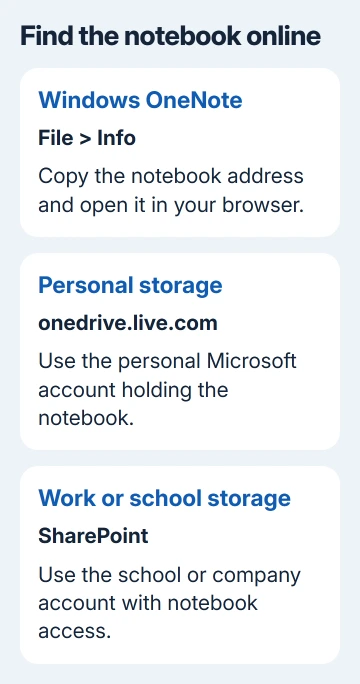
Open the notebook that contains your notes in OneNote for Windows. Choose File > Info and copy the notebook's web address (URL) through the right-click menu. Put the copied URL in your browser's address box and press Enter.
Use the address belonging to the notebook, rather than copying the name of a section or searching for a similarly named file. Several accounts can each contain a notebook with the same display name.
When the notebook opens online, check a recent page. If it's there, the web copy exists and is reachable. The home list is missing a notebook whose pages you can still reach.
One owner confirmed that pasting their notebook URL opened the notes, even though the Office 365 tile still showed an empty notebook list. The discussion later identified a personal OneDrive storage location.
Bookmark the working notebook address for future access. I'd do that before changing storage accounts, because opening the existing notebook is a smaller and more useful fix than moving it just to populate a different start page.
If the link asks for access or opens a different notebook, continue with the account checks. If it opens the right notebook but recent pages are absent, check sync from the device containing those pages in step 4.
2. Choose the account holding the online copy
Look at the notebook address shown in the app. A personal OneDrive location can use onedrive.live.com, while work or school storage often uses your organization's SharePoint domain, including a name ending in my.sharepoint.com.
That part of the address helps you tell where the notebook is stored. Then check the signed-in account in the browser's profile menu. Signing in at work doesn't grant access to your separate personal OneDrive storage.
Open a private browser window if the normal window keeps choosing the wrong account. Paste the notebook's full URL there, then use the same account you use to open this notebook in the app.
If the sign-in page offers Personal account and Work or school account for the same email address, select whichever account type matches where the notebook is stored. Similar-looking addresses don't combine those two storage areas.
Microsoft's navigation instructions explain that OneNote can use multiple accounts. Its notebook list can combine cloud accounts.
Once the link opens, check both the notebook title and its pages before changing your bookmark. If the browser reports missing permission instead, use the OneNote access repair steps.
3. Open from the account's actual file location
Sign in to the matching OneDrive account and browse to the notebook. For a work notebook saved on a team site, use that team's SharePoint document library instead of expecting it in your personal OneDrive files.
Open the notebook from that location. This gives you another direct route when the OneNote start page or Microsoft 365 app tile doesn't list it. Check the storage account before making another notebook under an identical name.
For a shared notebook, use the owner's current sharing link and the account to which access was granted. Someone else's shared notebook won't necessarily appear alongside the notebooks you've created in your own files.
If you can't find the location, return to File > Info in the working Windows app and compare the full address. Office can be activated under one account while this notebook is stored under another.
On a Mac, use Notebooks > Notebooks > Copy Link to Notebook, then paste that link into the browser. The Windows File > Info path doesn't apply to OneNote for Mac.
For a missing school Class Notebook, open it through the class team or course where it was created. Don't replace it with a personal notebook: student access and class membership depend on the school's notebook setup.
4. Check the device with the newest pages
If the online notebook opens but lacks your latest work, leave the working app open on the phone or computer containing that work. The notes on that device may not have finished uploading.
In desktop OneNote for Windows, choose File > Info > View Sync Status. Read any error beside the notebook and request a sync. Then reload the same notebook in the browser and compare the specific recent page again.
Copy unsynced pages somewhere safe before closing the notebook or removing accounts. Even a readable cloud notebook can lack the newest pages waiting on a device.
An exact sync error calls for its own repair. The 0xE000002E refresh guide explains that code separately, rather than treating a failed upload as an empty web-list problem.
When your phone and computer both show the same new page, use the exact link for that notebook. Comparing unrelated notebooks with matching names can otherwise make successful sync look like missing data.
5. Move accounts only when the notebook belongs elsewhere
Making a notebook visible online doesn't require moving it from personal OneDrive into company storage. Consider moving it only if the notes belong in the other account, such as work notes saved under a personal sign-in.
The Windows notebook relocation steps use a new notebook at your chosen cloud location, then transfer its sections.
On Windows, open File > New, choose the destination location, name the notebook and select Create. In the original notebook, right-click each section and choose Move or Copy. Select the destination notebook, then Copy to retain the source.
On Mac, open both accounts' notebooks and Control-click a source section. Use Copy Section To to choose the destination. The copy keeps the original available while you verify the new notebook's contents and access.
Use the destination account to open the new notebook online. Check the copied sections before you stop using the original. For school or company notes, ask IT whether you can move them and where they should be stored.
When the direct link still won't open
For a work notebook, send IT the exact URL, the signed-in account type and the browser error. Ask them to check that notebook's storage and access, particularly if it still opens in a desktop app with several accounts.
For a personal notebook, give Microsoft support the link and explain which device can still open it. Leave the usable copy open during the support request. Don't delete or reinstall OneNote simply because its web list is empty.
The Short Version
Open the notebook's own URL online, copying it from the app that still works. Match the browser to its personal or work storage account, then bookmark that link. Move the notebook only if it truly needs a different storage account.
Checked November 21, 2026.
 If you have any business, I can build it online